
The GP ‑ Wishlist & Upsell Suite dashboard is your command center for monitoring store performance, tracking feature usage, and accessing all app modules. This guide walks you through each section of the dashboard so you can make the most of your analytics.
Dashboard Overview
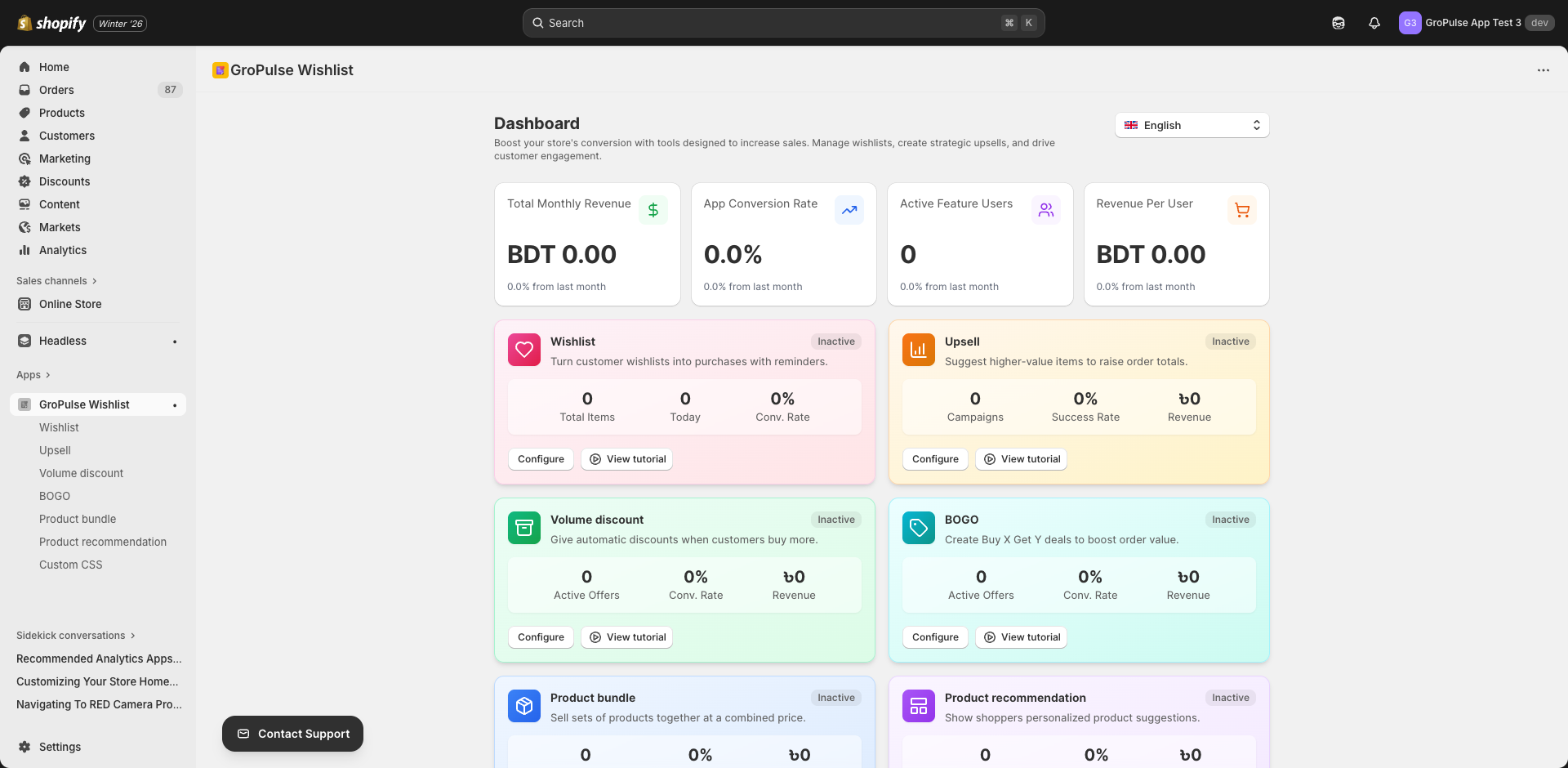
When you open GP ‑ Wishlist & Upsell Suite, you’ll land on the main dashboard. The page is organized into these key sections:
- Performance Stats — High-level KPIs for your store
- App Overview Cards — Feature-specific metrics and quick access
- Recent Activity — Latest actions and events
- Contact Support — Quick access to help
- Recommendations — Suggested apps and themes
- Language Switcher — Change the app’s display language
Performance Stats Cards
At the top of the dashboard, you’ll find four performance cards showing your key metrics from the last 30 days:
| Metric | Description |
|---|---|
| Total Revenue | Revenue generated through app features (wishlists, offers, bundles) |
| Conversion Rate | Percentage of wishlist/offer interactions that led to purchases |
| Active Users | Number of customers who engaged with app features |
| Revenue Per User | Average revenue generated per active customer |
Understanding the Change Indicators
Each metric shows a change percentage compared to the previous period:
- Green arrow (↑) — Metric has improved
- Red arrow (↓) — Metric has decreased
- Gray text — No significant change
Tip: Use these trends to identify which features are driving the most value and where you might need to make adjustments.
App Overview Cards
The App Overview section displays six cards, one for each major feature. Each card provides:
- Feature status (Active/Inactive badge)
- Three key metrics specific to that feature
- Configure button — Quick access to feature settings
- Video tutorial — Watch how to use the feature
Feature Cards and Their Metrics
1. Wishlist
| Metric | Description |
|---|---|
| Total Items | Total products saved to wishlists across all customers |
| Today | Items added to wishlists today |
| Conv. Rate | Percentage of wishlisted items that were purchased |
2. Upsell
| Metric | Description |
|---|---|
| Campaigns | Number of active upsell campaigns |
| Success Rate | Percentage of upsell offers accepted |
| Revenue | Total revenue from upsell conversions |
3. Volume Discount
| Metric | Description |
|---|---|
| Active Offers | Number of volume discount offers currently running |
| Conv. Rate | Percentage of customers who used volume discounts |
| Revenue | Revenue generated through volume discount purchases |
4. BOGO (Buy One Get One)
| Metric | Description |
|---|---|
| Active Offers | Number of BOGO promotions currently active |
| Conv. Rate | Percentage of customers who used BOGO offers |
| Revenue | Revenue from BOGO promotion purchases |
5. Product Bundle
| Metric | Description |
|---|---|
| Active Bundles | Number of product bundles currently available |
| Success Rate | Percentage of bundle offers accepted |
| Revenue | Revenue from bundle sales |
6. Product Recommendation
| Metric | Description |
|---|---|
| Active Sections | Number of recommendation widgets on your store |
| Click Rate | Percentage of recommendation clicks |
| Revenue | Revenue from recommended product purchases |
Quick Actions
Each card has two action buttons:
- Configure — Opens the feature’s settings page directly
- Watch Video — Opens a tutorial video for that feature
Recent Activity
The Recent Activity section shows the last 4 events in your app, such as:
- Wishlist items added
- Offers created or modified
- Email notifications sent
- Settings changes
- Customer interactions
Each activity entry shows:
- Icon indicating the activity type
- Description of what happened
- Timestamp showing when it occurred
Click View All to open the full Activity Log page with pagination and detailed history.
Note: The activity list refreshes automatically every 30 seconds to keep you updated.
Contact Support
Need help? The Contact Support card provides a direct link to reach the GroPulse support team. Click the button to open a support form pre-filled with your store name.
Recommendations Section
This dismissible section suggests:
- Recommended Apps — Other GroPulse apps that complement GP ‑ Wishlist & Upsell Suite
- Recommended Themes — Shopify themes optimized for the app’s features
Click the X button to hide this section for the current session.
Language Switcher
Located in the top-right corner of the dashboard, the Language Switcher lets you change the app’s display language. GP ‑ Wishlist & Upsell Suite supports 15 languages:
| Language | Code |
|---|---|
| English | en |
| German | de |
| Spanish | es |
| French | fr |
| Italian | it |
| Dutch | nl |
| Portuguese (Brazil) | pt-BR |
| Portuguese (Portugal) | pt-PT |
| Greek | el |
| Finnish | fi |
| Hindi | hi |
| Japanese | ja |
| Vietnamese | vi |
| Chinese (Simplified) | zh-CN |
| Chinese (Traditional) | zh-TW |
Simply select your preferred language from the dropdown, and the entire app interface will update.
Dashboard Best Practices
Daily Check-ins
- Review the Performance Stats for any significant changes
- Check Recent Activity for customer engagement patterns
- Monitor which features show the highest conversion rates
Weekly Analysis
- Compare metrics week-over-week using the change indicators
- Identify underperforming features that might need optimization
- Review which promotional offers are generating the most revenue
Taking Action
- Low conversion rate? Consider adjusting offer placement or messaging
- High wishlist items but low purchases? Set up reminder emails
- Inactive features? Watch the tutorial videos to learn how to activate them
Navigation Menu
From any page in the app, use the left sidebar to navigate between sections:
| Menu Item | Purpose |
|---|---|
| Home | Return to the dashboard |
| Wishlist | Configure wishlist settings and email notifications |
| Upsell | Create and manage upsell offers |
| Volume Discount | Set up quantity-based discounts |
| BOGO | Configure Buy One Get One promotions |
| Product Bundle | Create product bundle offers |
| Product Recommendation | Set up recommendation widgets |
| Custom CSS | Add custom styling (Pro feature) |
| Pricing Plan | View and manage your subscription |
What’s Next?
Now that you understand the dashboard, explore these guides:
- Setting Up Your Wishlist — Configure wishlist appearance and behavior
- Wishlist Reminder Emails — Set up automated customer reminders
- Creating Volume Discounts — Encourage bulk purchases
Your dashboard is your window into customer engagement—check it regularly to maximize your store’s potential.