
This guide explains how to use the AI-powered Ad Copy Generator to create compelling advertising copy for your products.
What is the AI Ad Copy Generator?
The AI Ad Copy Generator uses artificial intelligence to create professional advertising copy for:
- Facebook Ads: Headlines, primary text, and descriptions
- Google Ads: Search ad copy and responsive ads
- Instagram Ads: Engaging captions and CTAs
- Other platforms: Versatile copy for various ad types
Plan Requirements
The AI Ad Copy Generator is available exclusively on the Advanced Plan.
| Feature | Free | Basic | Advanced |
|---|---|---|---|
| AI Ad Copy Generator | – | – | Yes |
| AI Credits | – | – | 500/month |
Accessing the Tool
- Open the Pixee app in your Shopify admin
- Click on AI Ad Copy in the sidebar
- You will be taken to the AI Ad Copy Generator page
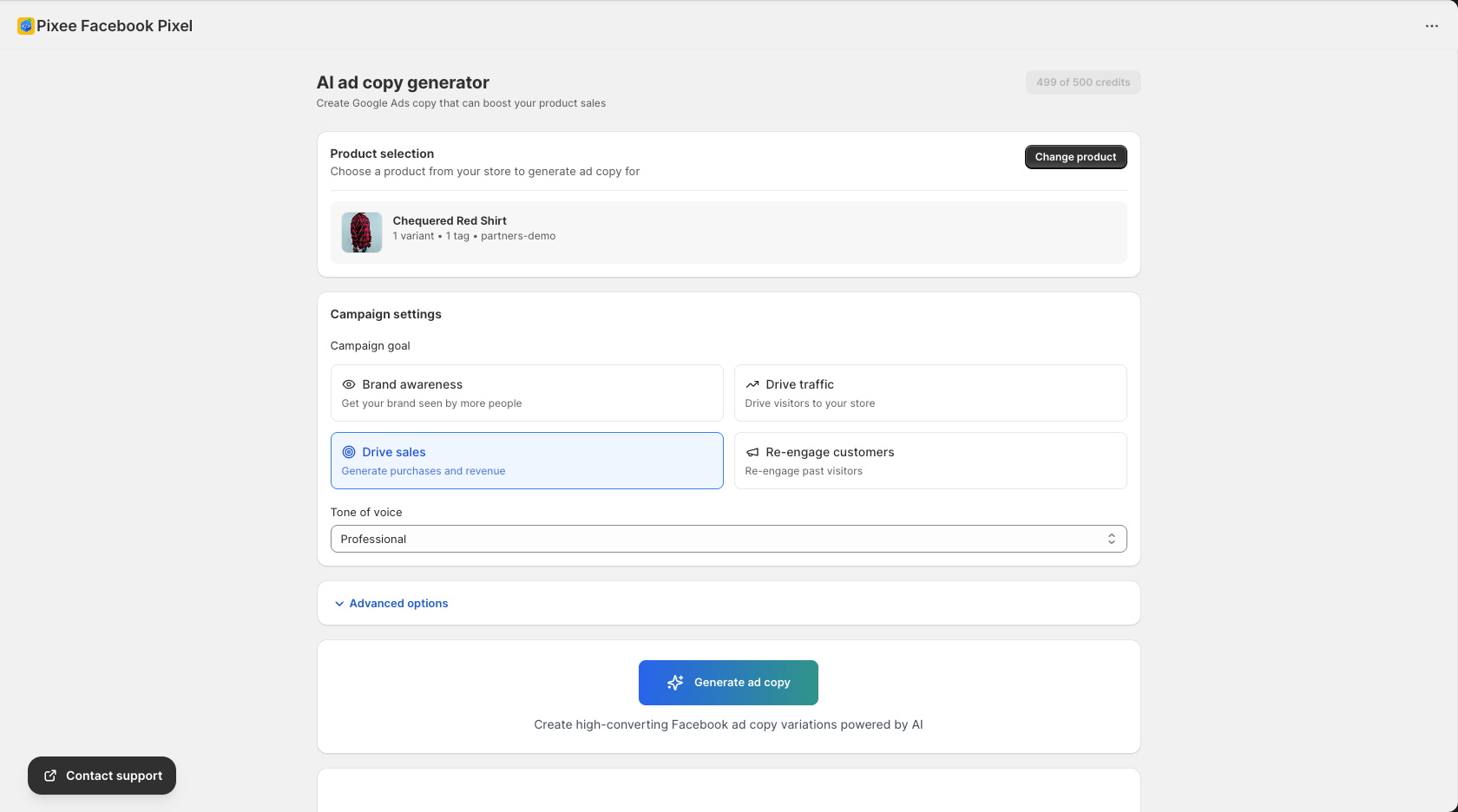
Generating Ad Copy
Step 1: Select a Product
- Use the product selector dropdown
- Search for or browse your products
- Click on the product you want to create ads for
The AI will use the product’s:
- Title
- Description
- Price
- Images (for context)
- Category
Step 2: Choose Campaign Goal
Select the primary objective for your ads:
| Goal | Best For |
|---|---|
| Brand awareness | New brands, introducing products |
| Drive traffic | Getting visitors to your store |
| Drive sales | Converting visitors to customers |
| Re-engage customers | Win back past customers |
Step 3: Select Tone of Voice
Choose the communication style:
| Tone | Description | Best For |
|---|---|---|
| Friendly | Warm, approachable | Lifestyle brands |
| Professional | Business-like, authoritative | B2B, premium products |
| Playful | Fun, energetic | Youth-oriented brands |
| Urgent | Creates FOMO | Sales, limited offers |
| Luxurious | Elegant, exclusive | High-end products |
Step 4: Advanced Options (Optional)
Click to expand advanced settings:
| Option | Description |
|---|---|
| Target audience | Describe your ideal customer |
| Key benefits | Main selling points to highlight |
| Special offers | Discounts or promotions to mention |
| Brand guidelines | Specific style requirements |
Step 5: Generate Ad Copy
- Click Generate ad copy
- Wait for the AI to create your copy (typically 5-15 seconds)
- Review the generated options
Understanding the Output
The AI generates multiple ad copy variations:
Headlines
Short, attention-grabbing titles:
- Facebook: Up to 40 characters
- Google: Up to 30 characters
Examples:
- “Transform Your Kitchen Today”
- “Limited Time: 50% Off”
- “The Only [Product] You Need”
Primary Text
Main body copy for your ads:
- Facebook: Engaging opening hooks
- Benefit-focused messaging
- Clear call-to-action
Descriptions
Supporting text that appears below headlines:
- Additional product details
- Urgency or scarcity elements
- Trust indicators
Call-to-Action Suggestions
Recommended CTAs based on your goal:
- “Shop Now”
- “Learn More”
- “Get Started”
- “Claim Your Offer”
Working with Generated Copy
Viewing Options
The AI provides multiple variations:
- Review each option
- Compare different approaches
- Select the best fit for your brand
Copying Text
- Click the copy button next to any text
- The text is copied to your clipboard
- Paste directly into your ad platform
Regenerating Copy
If the results do not match your needs:
- Adjust the settings (goal, tone, etc.)
- Click Generate ad copy again
- Review new variations
AI Credits
Understanding Credits
- Each generation uses 1 credit
- Advanced plan includes 500 credits per month
- Credits reset on the 1st of each month
Checking Your Credits
Credits are displayed on the page:
- Remaining credits available
- Credits used this month
Buying Additional Credits
If you need more credits:
- Click Buy credits
- Select the quantity
- Complete the purchase
Best Practices
Product Selection
- Choose products wisely: Start with your best sellers
- Have good descriptions: AI uses existing product info
- Ensure accurate pricing: Prices appear in ads
Campaign Goals
- Match to funnel stage: Awareness for new, sales for retargeting
- Be consistent: Use the same goal across related ads
- Test different goals: See what resonates
Tone of Voice
- Stay on brand: Choose a tone matching your brand
- Know your audience: Consider who will see the ads
- Test variations: Different tones may perform differently
Refinement Tips
- Iterate: Generate multiple times with different settings
- Combine elements: Mix headlines and body text from different outputs
- Personalize: Add your unique brand touches
- A/B test: Try multiple versions in your campaigns
Platform-Specific Tips
Facebook Ads
- Use engaging questions in primary text
- Keep headlines short and impactful
- Include clear CTAs
Google Ads
- Focus on keywords in headlines
- Highlight unique selling points
- Use all available headline slots
Instagram Ads
- More casual, conversational tone
- Emojis can work well
- Strong visual-verbal connection
Troubleshooting
Generation Failed
- Check your internet connection
- Verify you have available credits
- Try selecting a different product
- Contact support if persists
Poor Quality Output
- Improve your product description
- Try different tone/goal combinations
- Use advanced options to add context
- Regenerate multiple times
Product Not Found
- Ensure the product is published
- Check it is not hidden from sales channels
- Try searching by product title
Examples
E-commerce Fashion
Goal: Drive sales Tone: Friendly
Output:
- Headline: “Your New Favorite Dress Awaits”
- Primary Text: “Finally, a dress that fits perfectly and feels amazing. Our [Product Name] combines style and comfort for every occasion. Don’t miss out – shop now!”
- CTA: “Shop Now”
Tech Products
Goal: Drive traffic Tone: Professional
Output:
- Headline: “Upgrade Your Tech Game”
- Primary Text: “Discover the [Product Name] – engineered for performance, designed for you. Experience the difference quality makes.”
- CTA: “Learn More”
Next Steps
- AI Ad Diagnostic – Analyze your campaign performance
- AI Ad Consultant – Get advertising strategy advice
- Facebook Pixel Setup – Track your ad performance