
This guide explains how to use the AI-powered Ad Diagnostic Tool to analyze and improve your Facebook advertising campaigns.
What is the AI Ad Diagnostic Tool?
The AI Ad Diagnostic Tool uses artificial intelligence to analyze your Facebook ad campaigns and provide:
- Performance analysis: Detailed review of campaign metrics
- Issue identification: Problems that may be hurting performance
- Actionable recommendations: Specific steps to improve results
- Performance scoring: Overall campaign health assessment
Plan Requirements
The AI Ad Diagnostic Tool is available exclusively on the Advanced Plan.
| Feature | Free | Basic | Advanced |
|---|---|---|---|
| AI Ad Diagnostic | – | – | Yes |
| AI Credits | – | – | 500/month |
Prerequisites
Before using the AI Ad Diagnostic Tool:
- Subscribe to the Advanced plan
- Connect your Facebook account with ads_read permission
- Have active Facebook ad campaigns
Accessing the Tool
- Open the Pixee app in your Shopify admin
- Click on Ad Diagnostic in the sidebar
- You will be taken to the AI Ad Diagnostic page
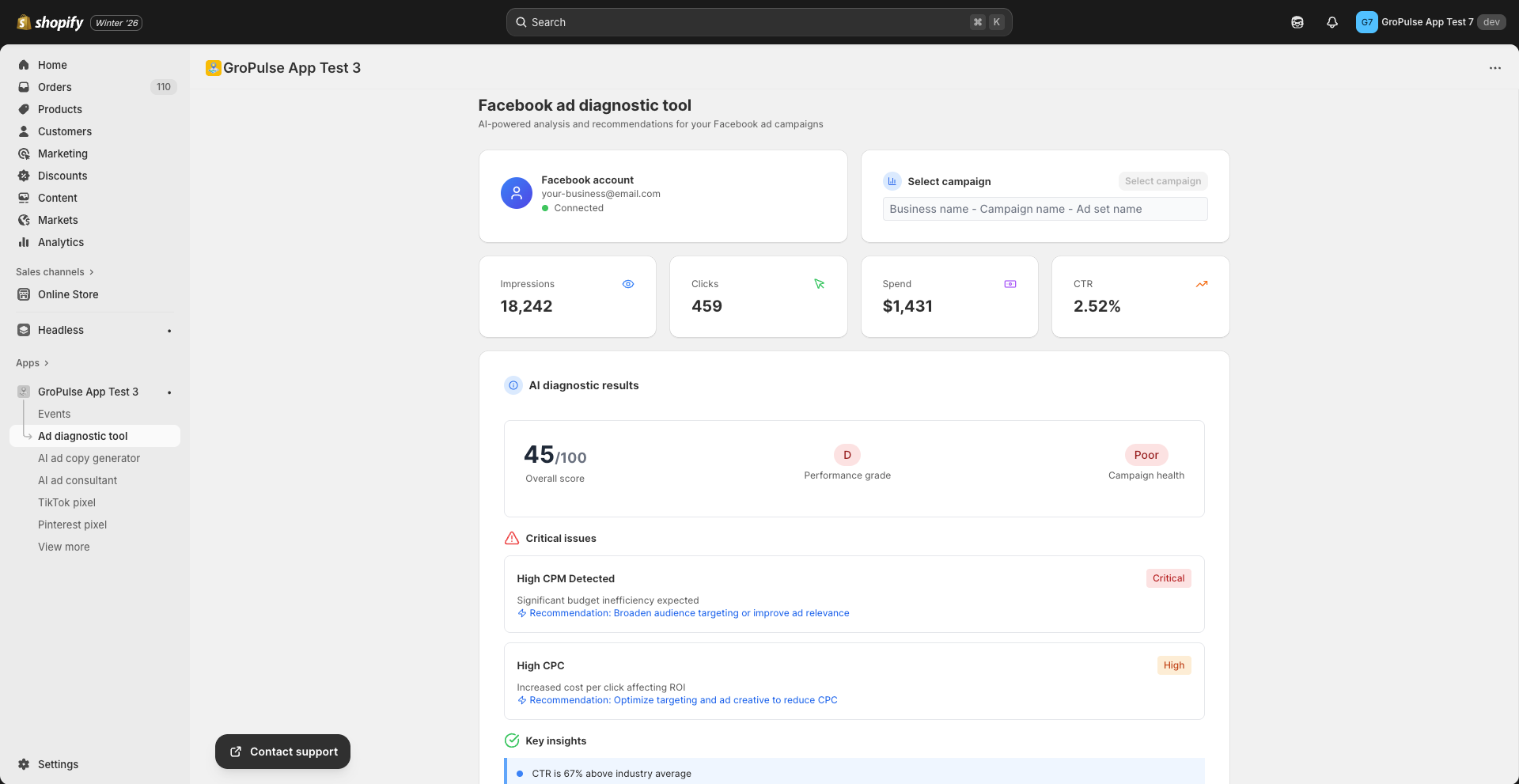
Connecting Your Facebook Account
If you have not connected your Facebook account:
- Click Login with Facebook
- Grant the required permissions:
- Read access to your ad accounts
- Read access to campaign data
- Return to the Ad Diagnostic page
Using the AI Diagnostic
Step 1: Select a Campaign
- The tool will load your Facebook ad accounts and campaigns
- Use the dropdown to select a campaign to analyze
- If no campaigns appear, ensure you have active campaigns in Facebook Ads Manager
Step 2: Set the Date Range
- Use the date filter (default: Last 30 days)
- Select a custom date range if needed
- The tool will analyze data from the selected period
Step 3: Review Campaign Metrics
Before running the AI analysis, review the campaign metrics displayed:
| Metric | Description |
|---|---|
| Impressions | Total number of ad views |
| Clicks | Total clicks on your ads |
| Spend | Total amount spent |
| CTR | Click-through rate (clicks/impressions) |
Step 4: Run AI Analysis
- Click the Run AI Diagnostic Analysis button
- Wait for the analysis to complete (typically 10-30 seconds)
- Review the AI-generated insights
Understanding the Results
Overall Score
The AI provides a score out of 100:
| Score Range | Performance Level |
|---|---|
| 80-100 | Excellent |
| 60-79 | Good |
| 40-59 | Needs Improvement |
| 0-39 | Poor |
Performance Grade
A letter grade indicating overall campaign health:
- A: Outstanding performance
- B: Good performance
- C: Average performance
- D: Below average
- F: Significant issues
Campaign Health
A summary of your campaign’s overall status:
- Healthy
- Needs Attention
- Critical Issues
Critical Issues
Issues requiring immediate attention, shown with:
- Issue description: What the problem is
- Severity: Critical, High, Medium, or Low
- Impact: How it affects your campaign
- Recommendation: How to fix it
Key Insights
Important observations about your campaign performance, including:
- What is working well
- Areas of opportunity
- Performance trends
Recommendations
Specific actions to improve your campaigns:
- Action: What to do
- Priority: How urgent (Critical, High, Medium)
- Reason: Why this matters
- Expected Impact: Potential improvement
Next Steps
A prioritized list of actions to take:
- Immediate actions for critical issues
- Short-term optimizations
- Long-term improvements
AI Credits
Understanding Credits
- Each AI analysis uses 1 credit
- Advanced plan includes 500 credits per month
- Credits reset on the 1st of each month
Checking Your Credits
Credits are displayed at the top of the Ad Diagnostic page:
- Remaining credits
- Total credits available
Buying Additional Credits
If you run out of credits:
- Click Buy credits
- Select the number of credits to purchase
- Complete the purchase
- Credits are added immediately
Exporting Reports
After running an analysis:
- Click Export Report
- A JSON file will download containing:
- Campaign information
- All metrics
- AI analysis results
- Recommendations
Best Practices
- Analyze weekly: Run diagnostics regularly to catch issues early
- Check all campaigns: Analyze each active campaign
- Act on recommendations: Implement suggested changes
- Track improvements: Re-analyze after making changes
- Use date ranges wisely: Analyze periods with significant data
Troubleshooting
No Campaigns Found
- Verify you have active campaigns in Facebook Ads Manager
- Check your Facebook account has the correct permissions
- Try logging out and back into Facebook
Analysis Failed
- Check your internet connection
- Verify you have available credits
- Try selecting a different campaign
- Contact support if the issue persists
No Data for Selected Period
- Choose a date range when the campaign was active
- Ensure the campaign had ad spend during that period
- Try a longer date range
Facebook Session Expired
- Log out of Facebook in the Settings page
- Log back in
- Grant all requested permissions
What the AI Analyzes
The AI diagnostic examines:
| Area | What It Checks |
|---|---|
| Audience Targeting | Demographics, interests, behaviors |
| Ad Creative | Image/video quality, copy effectiveness |
| Campaign Structure | Organization of ad sets and ads |
| Bidding Strategy | Bid amounts and optimization goals |
| Landing Pages | Destination page relevance |
| Budget Distribution | How budget is allocated |
Next Steps
- AI Ad Copy Generator – Create compelling ad copy
- AI Ad Consultant – Get personalized advertising advice
- Facebook Pixel Setup – Ensure proper tracking