
This guide will help you set up CodeUp and add your first custom code to your Shopify store in just a few minutes.
Prerequisites
Before you begin, make sure you have:
- An active Shopify store
- CodeUp app installed from the Shopify App Store
- The code snippet you want to add (e.g., Google Analytics tracking code, custom CSS, etc.)
Quick Setup (3 Steps)
Step 1: Add Your Custom Code
- Open the CodeUp app from your Shopify admin
- Click on Setup in the navigation menu (or click the Configure button on the dashboard)
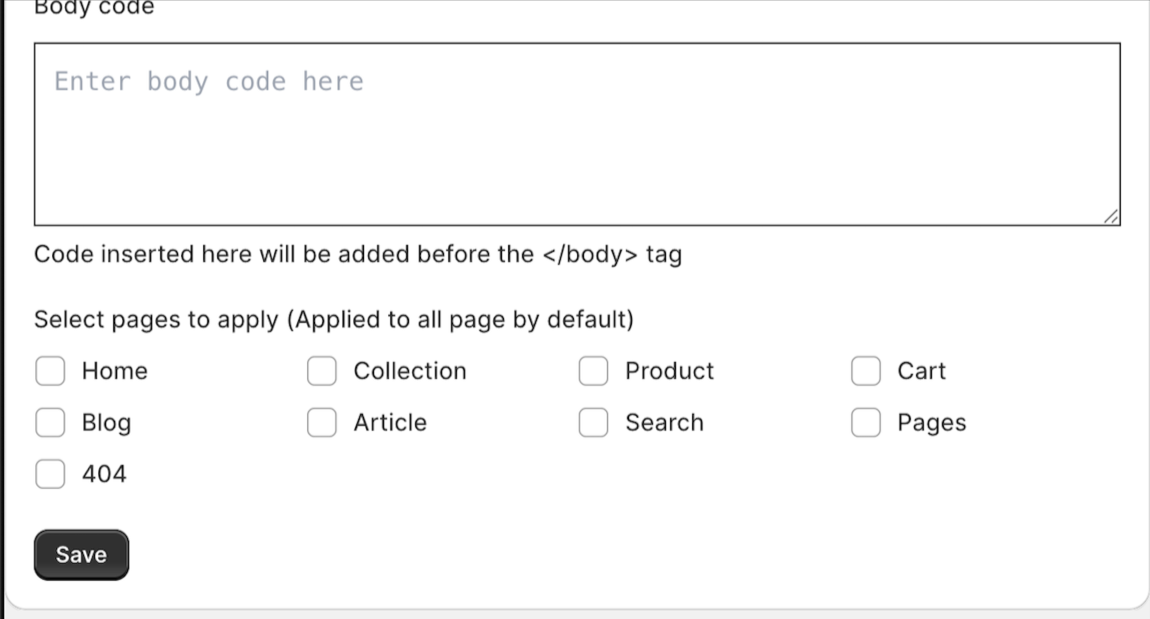
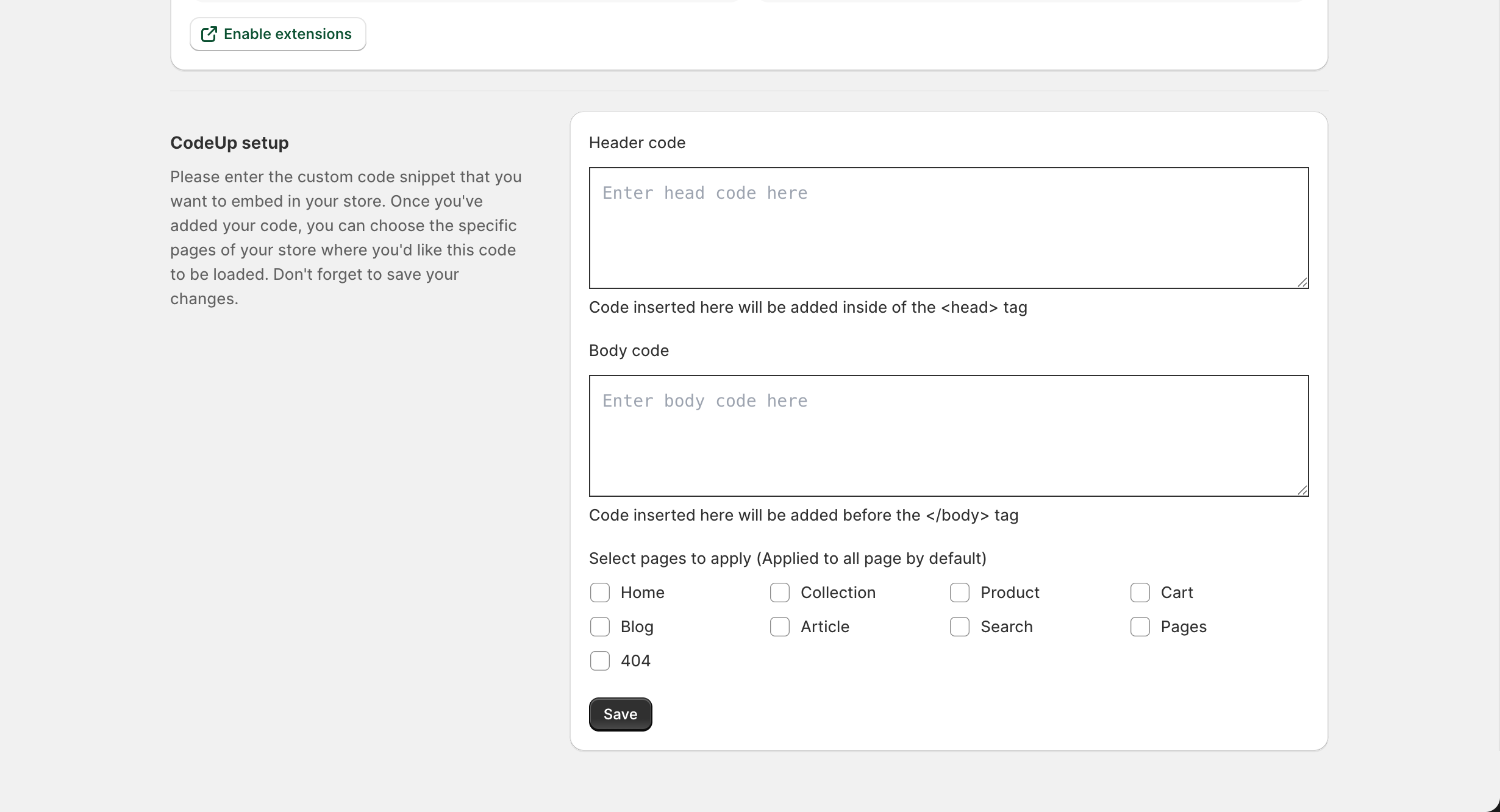
- Enter your code in the appropriate text area:
- Header code: For code that should be placed inside the
<head>tag - Body code: For code that should be placed before the
</body>tag
- Header code: For code that should be placed inside the
- Click the Save button
Step 2: Select Target Pages (Optional)
By default, your code will load on all pages of your store. To target specific pages:
- On the Setup page, scroll down to the Select pages to apply section
- Check the boxes for the pages where you want your code to appear:
- Home
- Collection
- Product
- Cart
- Blog
- Article
- Search
- Pages
- 404
- Click Save to apply your changes
Step 3: Enable the Theme Extension
CodeUp uses Shopify’s theme app extension feature, which means you need to enable it from your theme customizer:
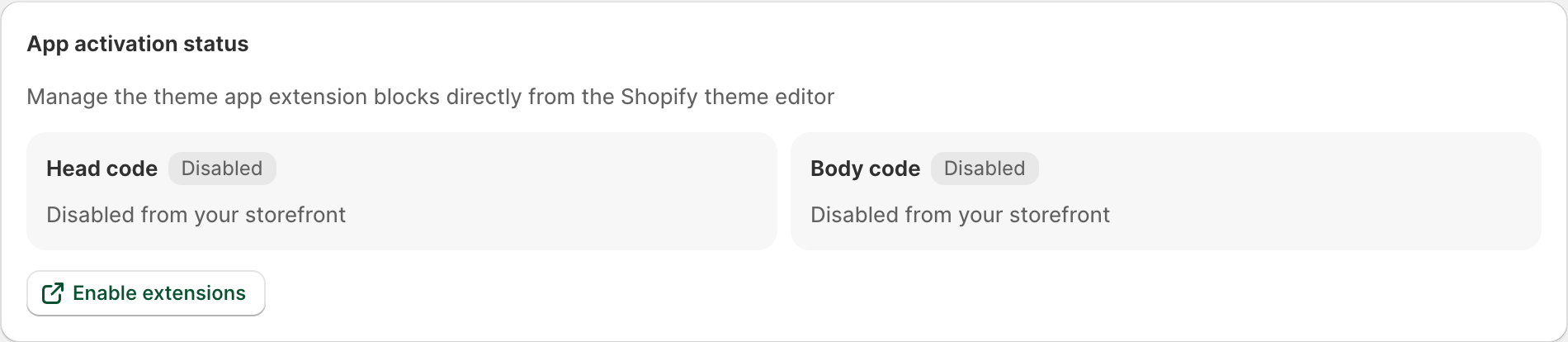
- On the dashboard or Setup page, look for the App activation status section
- Click the Enable extensions button (this opens your theme customizer)
- In the theme customizer, you will see the CodeUp app blocks
- Toggle Head code to enable header code injection
- Toggle Body code to enable body code injection
- Click Save in the theme customizer
Verify Your Setup
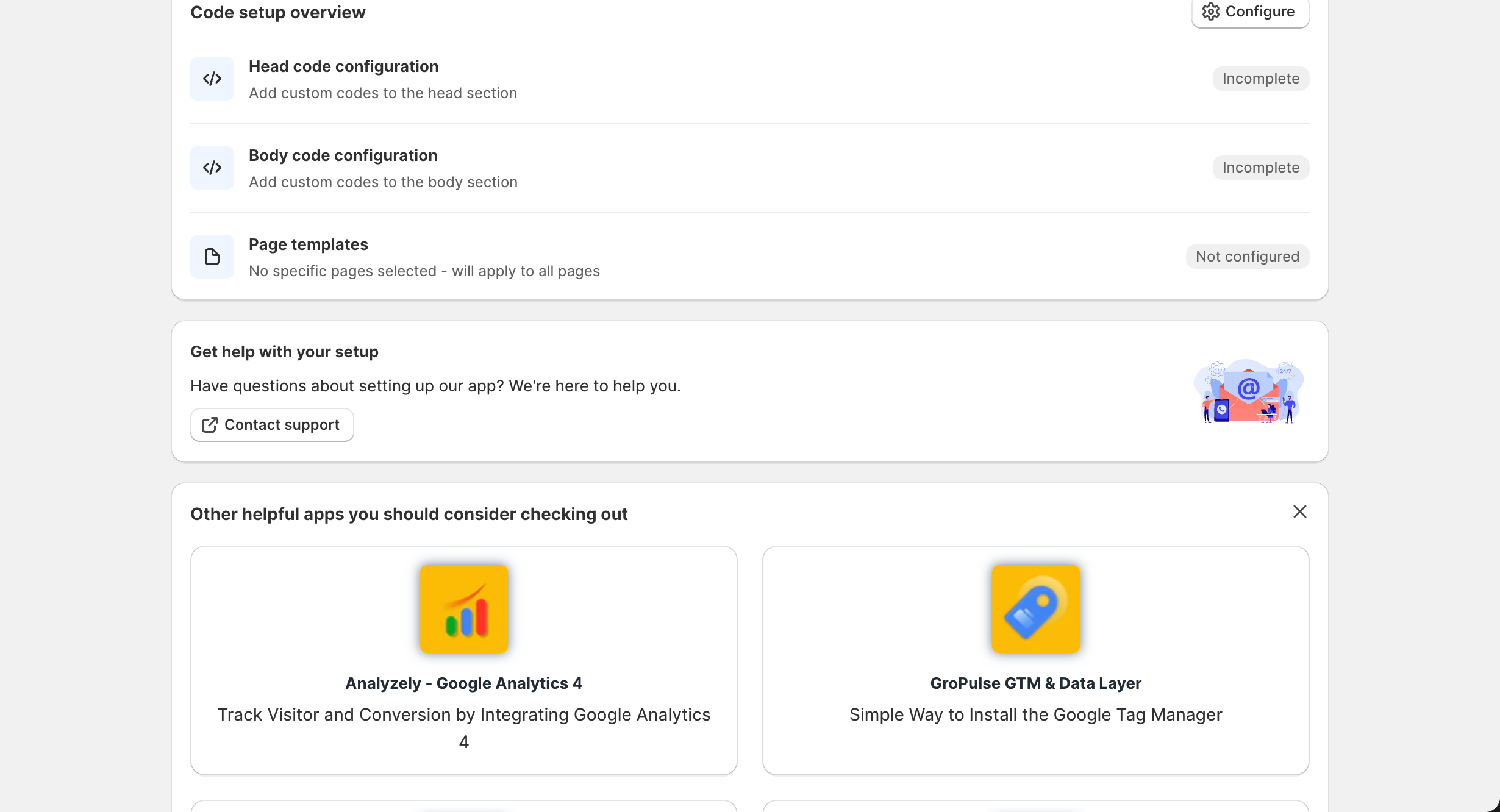
After completing the steps above, your dashboard should show:
- Head code configuration: Complete (if you added header code and enabled it)
- Body code configuration: Complete (if you added body code and enabled it)
- Page templates: Shows which pages have your code applied
Test Your Code
To verify that your code is working:
- Open your store’s frontend in a new browser tab
- Right-click on the page and select View Page Source (or press Ctrl+U / Cmd+U)
- Search for your code:
- For header code: Look inside the
<head>section - For body code: Look near the closing
</body>tag
- For header code: Look inside the
Tip: You can also use browser developer tools (F12) to verify your code is present and functioning.
What’s Next?
Now that you have CodeUp set up, you can:
- Learn more about the Dashboard
- Explore advanced code setup options
- Understand page targeting in detail
- Manage theme extensions
Need Help?
If you run into any issues:
- Watch our video tutorial for a visual guide
- Check the Troubleshooting guide for common issues
- Contact our support team for assistance
Last updated on February 16, 2026
Was this article helpful?
Powered by Support Genix