
Find answers to common questions and solutions to frequent issues with the GroPulse GTM & Data Layer app.
Frequently Asked Questions
General Questions
Q: What is Google Tag Manager?
A: Google Tag Manager (GTM) is a free tool from Google that lets you manage tracking codes (tags) on your website without editing code. It acts as a container for all your analytics and marketing pixels.
Q: Do I need a Google Tag Manager account?
A: Yes, you need a GTM account to use this app. It’s free to create at tagmanager.google.com.
Q: Will this app slow down my store?
A: The app is optimized for performance. GTM loads asynchronously and doesn’t block page rendering. Server-side events have zero impact on page load speed.
Q: Does this work with all Shopify themes?
A: The app works with all Online Store 2.0 themes. For older themes, some features may require manual activation.
Q: Can I use this with other tracking apps?
A: We recommend using only one GTM integration to avoid conflicts. If you have other tracking pixels installed directly, they should work alongside GTM.
Setup Questions
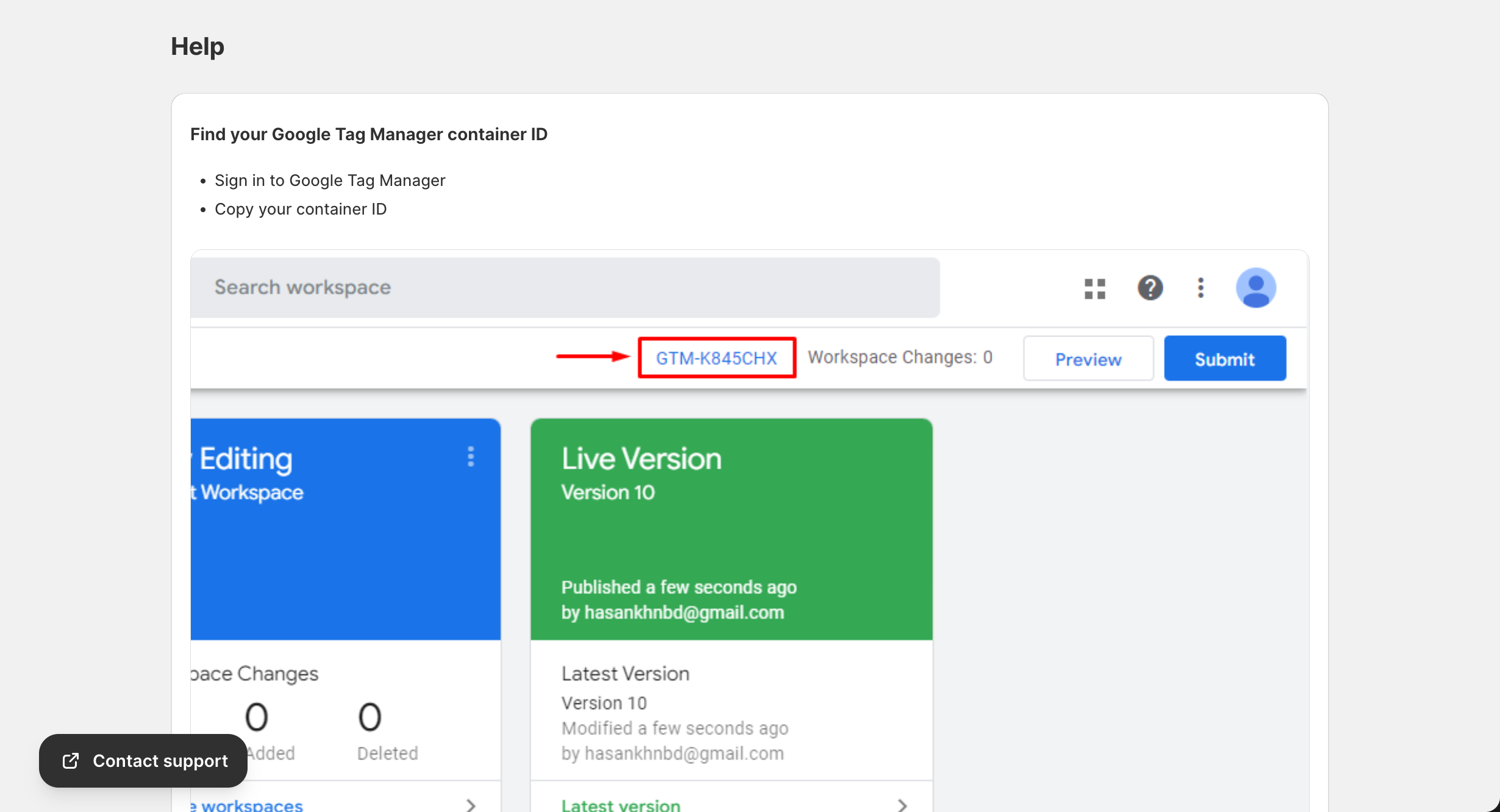
Q: Where do I find my GTM Container ID?
A: Log in to tagmanager.google.com, and your Container ID (format: GTM-XXXXXXX) is displayed at the top of your workspace.
Q: Why isn’t my app activating?
A: The app uses Shopify’s theme app extension. You need to:
- Click “Activate” in the app
- Enable the app block in your theme customizer
- Save your theme settings
Q: How do I know if tracking is working?
A: Use GTM Preview mode, check Google Analytics Real-Time reports, or use Facebook Events Manager Test Events feature.
Event Tracking Questions
Q: What events are tracked automatically?
A: Depending on your plan and settings:
- Page views
- Product views
- Collection views
- Add to cart
- Remove from cart
- Checkout starts
- Purchases
Q: Why aren’t my events showing in Google Analytics?
A: Check that:
- Events are enabled in Data Layer Settings
- GTM template is imported and published
- GA4 Measurement ID is correct
- You’re looking at the right GA4 property
Q: Are test/staff orders tracked?
A: By default, all orders are tracked. To exclude test orders, you can set up filters in Google Analytics.
Server-Side Events Questions
Q: What are server-side events?
A: Server-side events send data directly from the server to platforms like Facebook and Google, bypassing browser limitations like ad blockers.
Q: Why aren’t my server-side events working?
A: Check that:
- You’re on a Pro or Advanced plan
- API credentials are entered correctly
- Events are enabled in Data Layer Settings
- Check Server Event Logs for errors
Q: How do I test Facebook Conversion API?
A: Add a Test Event Code in the Template page, perform test actions, then check Facebook Events Manager → Test Events.
Consent & Privacy Questions
Q: Do I need a consent banner for my store?
A: If you sell to customers in the EU, UK, or California, consent management is recommended or required by law.
Q: Does the app support Google Consent Mode V2?
A: Yes, full Google Consent Mode V2 support is included. Enable it in Data Layer Settings.
Q: What happens when a user declines cookies?
A: With Consent Mode enabled, Google tags send anonymized pings. Other platforms may not receive data until consent is granted.
Billing Questions
Q: How do I upgrade my plan?
A: Go to the Pricing Plan page, select your desired plan, and complete the Shopify billing process.
Q: Is there a free trial?
A: Yes, Pro and Advanced plans include a 7-day free trial with full access to all features.
Q: How do I cancel my subscription?
A: Go to Pricing Plan and select the Free plan. Your subscription will end at the current billing period.
Troubleshooting Guide
App Not Working
Issue: App shows “Inactive” on dashboard
Solutions:
- Click the “Activate” button
- In your theme customizer, enable the GroPulse GTM app block
- Save your theme
- Refresh the app dashboard
Issue: Changes not saving
Solutions:
- Refresh the page and try again
- Clear browser cache
- Check your internet connection
- Try a different browser
GTM Integration Issues
Issue: Container ID not accepted
Solutions:
- Verify format is GTM-XXXXXXX (letters and numbers after GTM-)
- Remove any spaces before or after the ID
- Copy directly from GTM, don’t type manually
Issue: GTM not loading on store
Solutions:
- Verify app is activated in theme
- Check for JavaScript errors in browser console
- Disable other GTM apps/snippets
- Clear Shopify cache (Settings → Performance)
Data Layer Issues
Issue: Events not firing
Solutions:
- Check that events are enabled in Data Layer Settings
- Use GTM Preview mode to debug
- Check browser console for errors
- Verify GTM triggers are set up correctly
Issue: Wrong data in events
Solutions:
- Ensure products have all required fields (SKU, price, title)
- Check currency settings in Shopify
- Verify product data in Shopify admin
- Re-import GTM template
Issue: Duplicate events
Solutions:
- Check you don’t have multiple GTM implementations
- Verify event deduplication is working (check event IDs)
- Review GTM triggers for duplicate conditions
Template Issues
Issue: Template download fails
Solutions:
- Ensure at least one platform is enabled
- Fill in all required fields for enabled platforms
- Try a different browser
- Clear browser cache
Issue: Import fails in GTM
Solutions:
- Try creating a new workspace for import
- Check for duplicate variable names
- Ensure you’re importing to the correct container
- Try “Overwrite” instead of “Merge”
Issue: Tags not firing after import
Solutions:
- Publish the GTM container (click Submit)
- Check trigger conditions match event names
- Use GTM Preview to debug
- Verify all variables are correctly imported
Server-Side Event Issues
Issue: Server events not sending
Solutions:
- Verify you’re on Pro or Advanced plan
- Check API credentials are correct
- Look at Server Event Logs for errors
- Regenerate API tokens and update
Issue: Low match rates
Solutions:
- Ensure customer email is captured
- Verify phone numbers include country code
- Check event parameters are complete
- Review platform-specific requirements
Issue: Events showing as failed
Common errors and solutions:
| Error | Solution |
|---|---|
| “Invalid access token” | Regenerate token in platform settings |
| “Rate limit exceeded” | Events will retry; no action needed |
| “Invalid pixel ID” | Verify pixel ID is correct |
| “Permission denied” | Check app permissions in platform |
| “Validation error” | Check event data is complete |
Platform-Specific Issues
Google Analytics 4
Issue: No data in GA4
- Check Measurement ID is correct
- Verify you’re in the right property
- Allow 24-48 hours for data processing
- Use DebugView for real-time testing
Issue: Sessions not tracking
- Ensure page_view event is enabled
- Check session timeout settings in GA4
- Verify user consent is granted
Facebook Pixel
Issue: Events not in Events Manager
- Verify Pixel ID is correct
- Add Test Event Code for testing
- Check that events are enabled
- Wait a few minutes for events to appear
Issue: Low Event Match Quality
- Add Conversion API token for server events
- Ensure customer data is captured
- Verify hashed data is being sent
TikTok Pixel
Issue: No events tracked
- Verify Pixel ID format (19 characters)
- Check Access Token is valid
- Ensure events are enabled in Data Layer Settings
Consent Banner Issues
Issue: Banner not showing
Solutions:
- Verify banner is enabled and activated
- Check region settings (may only show in certain regions)
- Clear cookies/localStorage
- Disable ad blockers (some block consent banners)
Issue: Consent not remembered
Solutions:
- Check localStorage is accessible
- Ensure third-party cookies aren’t fully blocked
- Test in a regular browser window (not incognito)
Performance Issues
Issue: Slow page load
Solutions:
- GTM loads asynchronously; shouldn’t cause slowdown
- Check for JavaScript errors
- Review other scripts on your store
- Use browser dev tools to identify bottleneck
Getting Help
Before Contacting Support
Please have the following ready:
- Your store URL
- Description of the issue
- Steps to reproduce the problem
- Screenshots of any error messages
- Browser and device information
Contact Methods
- Email: support@gropulse.com
- Website: gropulse.com/contact
- In-App: Click “Contact support” button
Response Times
| Plan | Response Time |
|---|---|
| Free | 48-72 hours |
| Pro | 24-48 hours |
| Advanced | 12-24 hours |
Video Tutorials
Watch our comprehensive setup guide:
How to Set Up the GTM & Data Layer App
Useful Resources
Google Tag Manager
Google Analytics 4
TikTok
Changelog
Recent Updates
Check the app for the latest features and improvements. We regularly add:
- New platform integrations
- Enhanced event tracking
- Performance improvements
- Bug fixes
Can’t find what you’re looking for? Contact us at support@gropulse.com