
Privacy regulations like GDPR (Europe), CCPA (California), and others require websites to obtain user consent before tracking. The GroPulse app includes a customizable consent banner and Google Consent Mode V2 support to help you stay compliant.
Understanding Consent Requirements
What is GDPR?
The General Data Protection Regulation (GDPR) is a European Union law that:
- Requires explicit consent before collecting personal data
- Gives users the right to opt out of tracking
- Mandates clear information about data collection
- Imposes significant fines for non-compliance
What is Google Consent Mode V2?
Google Consent Mode V2 is a feature that adjusts how Google tags behave based on user consent:
| Consent Signal | Description |
|---|---|
ad_storage | Consent to store advertising cookies |
analytics_storage | Consent to store analytics cookies |
ad_user_data | Consent to send user data to Google for advertising |
ad_personalization | Consent to use data for personalized ads |
New in V2: ad_user_data and ad_personalization signals are required from March 2024.
Why Consent Matters
Legal Compliance
- Avoid fines (up to 4% of global revenue under GDPR)
- Meet legal requirements in EU, UK, California, and other regions
- Protect your business from legal liability
Trust and Transparency
- Build customer trust through transparency
- Give customers control over their data
- Demonstrate ethical business practices
Platform Requirements
- Google requires Consent Mode V2 for EU traffic
- Facebook requires consent signals for accurate attribution
- Non-compliant data may be rejected by platforms
Consent Banner Feature
The GroPulse app includes a customizable cookie consent banner for managing user consent.
Note: The Consent Banner feature is available on the Advanced plan.
Accessing Consent Banner Settings
- Open the GroPulse app
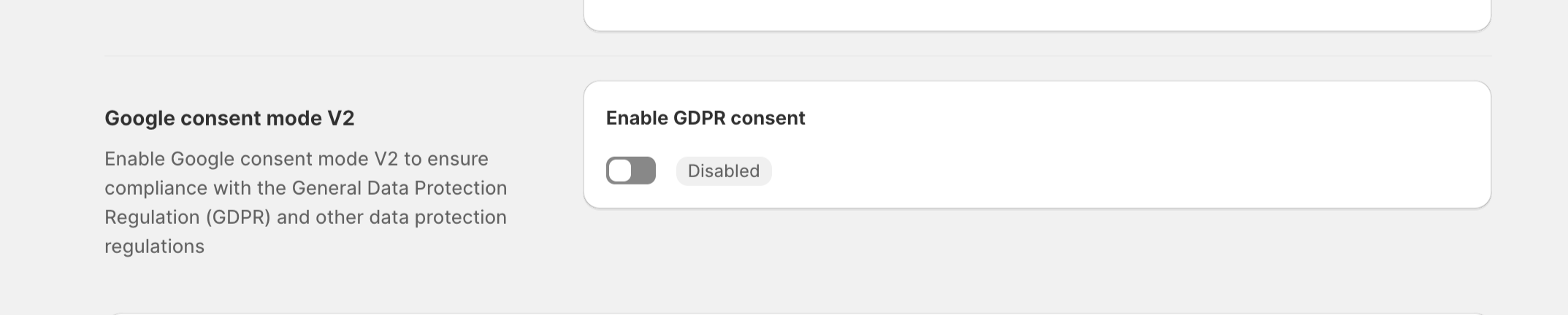
- Click Configure under “Google Consent Mode V2” on the Dashboard
- Or navigate to the Consent Banner page from Data Layer Settings
Banner Customization Options
Display Settings
| Setting | Description |
|---|---|
| Region Type | Show to all visitors or specific regions |
| Selected Regions | Choose EU, UK, California, etc. |
| Banner Position | Top or bottom of page |
Content Settings
| Setting | Description |
|---|---|
| Banner Text | Main message shown to visitors |
| Privacy Policy URL | Link to your privacy policy |
| Accept Button Text | Text for the accept button |
| Decline Button Text | Text for the decline button |
| Privacy Link Text | Text for privacy policy link |
Style Settings
| Setting | Description |
|---|---|
| Banner Background Color | Background color of the banner |
| Banner Text Color | Color of the main text |
| Accept Button Background | Accept button background color |
| Accept Button Text Color | Accept button text color |
| Decline Button Background | Decline button background color |
| Decline Button Text Color | Decline button text color |
| Privacy Link Color | Color of the privacy policy link |
Default Banner Settings
The app comes with sensible defaults:
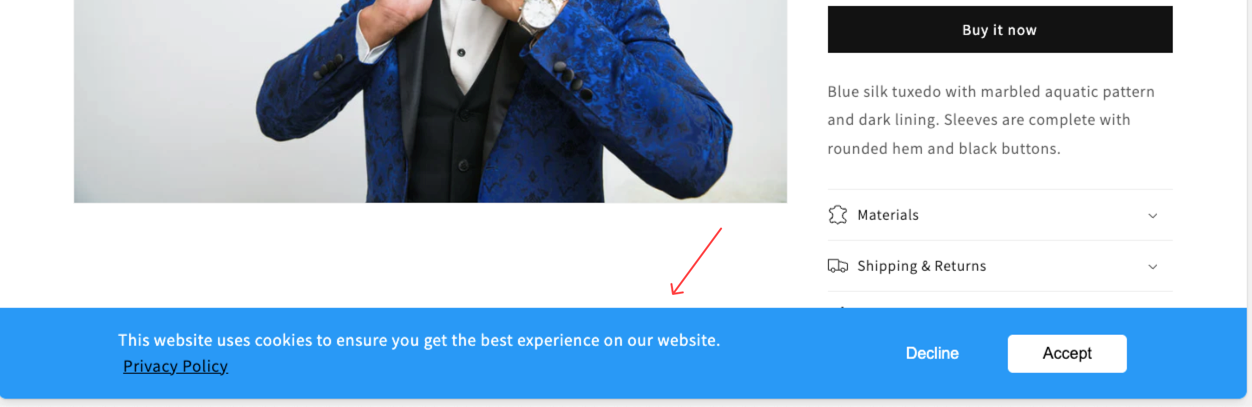
Banner Text: "We use cookies to improve your experience and analyze site traffic.
             By clicking 'Accept', you consent to our use of cookies."

Accept Button: "Accept"
Decline Button: "Decline"
Privacy Link: "Privacy Policy"
Setting Up Consent Mode
Step 1: Enable Consent Mode
- Go to Data Layer Settings
- Find Google Consent Mode V2 section
- Toggle it ON
- Save your settings
Step 2: Configure the Consent Banner
- Navigate to the Consent Banner settings
- Customize the appearance and text
- Set your Privacy Policy URL
- Select target regions
- Save your settings
Step 3: Activate the Banner
- Click Activate in the Consent Banner section
- This adds the banner to your theme
- Save your theme settings
Step 4: Test the Banner
- Visit your store in an incognito window
- Verify the banner appears
- Test Accept and Decline buttons
- Check that consent is remembered
How Consent Mode Works
User Accepts Consent
When a user clicks “Accept”:
- Consent signals are set to
granted - All tracking tags fire normally
- Cookies are stored as usual
- Full data is collected and sent
User Declines Consent
When a user clicks “Decline”:
- Consent signals are set to
denied - Google tags adjust behavior:
- No cookies are stored
- Anonymized pings are sent
- Conversion modeling fills gaps
- Other platforms may not track at all
Consent State Persistence
- User choice is remembered in localStorage
- Choice persists across sessions
- User can change preference anytime
- Consent state is checked on each page load
Integrating with Shopify’s Privacy API
The app integrates with Shopify’s Customer Privacy API for seamless consent management:
Automatic Integration
The app automatically:
- Listens for Shopify privacy consent changes
- Updates Google Consent Mode signals
- Syncs with the consent banner state
- Handles regional compliance requirements
Shopify Privacy Regions
The app respects Shopify’s regional settings for:
- EU (GDPR)
- UK (UK GDPR)
- California (CCPA)
- Other configured regions
Regional Configuration
Showing Banner by Region
- In Consent Banner settings, select Region Type
- Choose “Specific Regions” to target certain areas
- Select the regions where you need consent
- The banner will only show to visitors from those regions
Recommended Regional Settings
| Region | Regulation | Requirement |
|---|---|---|
| EU Countries | GDPR | Explicit consent required |
| UK | UK GDPR | Explicit consent required |
| California | CCPA | Opt-out must be offered |
| Brazil | LGPD | Consent required |
| Canada | PIPEDA | Implied consent OK |
Advanced Configuration
Custom Consent Categories
For advanced compliance needs:
- Essential Cookies: Always allowed (session, cart)
- Analytics Cookies: Requires consent
- Marketing Cookies: Requires consent
- Personalization: Requires consent
Consent Mode with Multiple Platforms
The app sends appropriate consent signals to each platform:
| Platform | Consent Handling |
|---|---|
| Google Analytics | Full Consent Mode V2 support |
| Google Ads | Respects all consent signals |
| Sends consent state via CAPI | |
| TikTok | Honors consent preferences |
| Others | Disable tracking when consent denied |
Troubleshooting
Banner Not Showing
- Check Activation: Ensure banner is activated in theme
- Check Region Settings: If targeting specific regions, verify your location
- Check Cookies: Clear existing consent cookies
- Disable Ad Blockers: Some blockers hide consent banners
Consent Not Remembered
- Check localStorage: Consent is stored in browser storage
- Third-party Cookies: Ensure third-party cookies aren’t blocked
- Incognito Mode: Consent won’t persist in incognito
Tags Still Firing After Decline
- Update GTM Template: Ensure you have the latest template
- Check Trigger Conditions: Triggers should check consent state
- Verify Consent Mode: Ensure Consent Mode is enabled
Low Conversion Data
After implementing consent:
- Some data loss is expected (users declining)
- Google Consent Mode provides modeled conversions
- Monitor your conversion rate for significant changes
- Ensure banner messaging encourages acceptance
Best Practices
1. Clear Communication
- Use simple, understandable language
- Explain what data you collect and why
- Make Accept and Decline equally prominent
2. Easy Access
- Include a link to change preferences
- Don’t hide the Decline option
- Make your privacy policy accessible
3. Regular Testing
- Test consent flow regularly
- Verify consent signals are sent correctly
- Monitor conversion data quality
4. Legal Review
- Have your privacy policy reviewed by legal counsel
- Ensure banner text is legally compliant
- Stay updated on regulatory changes
5. User Experience
- Don’t be overly aggressive with banners
- Allow dismissal without choosing (treats as decline)
- Remember user preferences
Compliance Checklist
Use this checklist to ensure compliance:
- Consent banner is enabled and activated
- Privacy policy is linked and accessible
- Accept and Decline buttons are clearly visible
- Banner appears to users in required regions
- Consent choice is remembered
- Tags respect consent state
- Google Consent Mode V2 signals are sent
- Server-side events include consent state
- Privacy policy covers all data collection
- Regular compliance audits are scheduled