
Server-side tracking (also known as server-side tagging or Conversion APIs) sends event data directly from the server to advertising platforms, bypassing browser limitations and improving data accuracy.
What Are Server-Side Events?
Traditional tracking relies on browser-based pixels (client-side). Server-side events send data from your server directly to platforms like Facebook, Google, and TikTok.
Client-Side vs Server-Side
| Aspect | Client-Side | Server-Side |
|---|---|---|
| Data Source | User’s browser | Your server |
| Ad Blocker Impact | Blocked | Not affected |
| Data Accuracy | Can be incomplete | More complete |
| Privacy Compliance | Limited control | Full control |
| Setup Complexity | Simple | More involved |
Benefits of Server-Side Tracking
1. Better Data Accuracy
- Not affected by ad blockers (used by 30%+ of users)
- Works regardless of browser settings
- More reliable than cookies
2. Improved Attribution
- Better match rates for conversions
- More accurate return on ad spend (ROAS)
- Helps with iOS 14+ privacy changes
3. Enhanced Privacy Compliance
- Data processed on your server
- Full control over what data is sent
- Better GDPR/CCPA compliance
4. Longer Cookie Windows
- Server-side cookies aren’t limited by browser restrictions
- Better tracking across longer customer journeys
Supported Platforms
The GroPulse app supports server-side events for:
| Platform | API Name | Required Credentials |
|---|---|---|
| Google Analytics 4 | Measurement Protocol | API Secret |
| Conversions API (CAPI) | Access Token | |
| TikTok | Events API | Access Token |
| Conversions API | Token | |
| Twitter/X | Conversions API | Token |
| Conversions API | Token | |
| Snapchat | Conversions API | Token |
| Conversions API | Token |
Events Tracked Server-Side
| Event | Description | Platforms |
|---|---|---|
| purchase | Completed orders | All |
| begin_checkout | Checkout initiated | All |
| add_to_cart | Items added to cart | All |
| view_item | Product page views | GA4, FB, TikTok |
| view_item_list | Collection views | GA4, FB |
| page_view | General page views | GA4 |
Setting Up Server-Side Events
Prerequisites
- Paid Plan: Server-side events require a Pro or Advanced plan
- Platform Credentials: API tokens for each platform
- Events Enabled: Corresponding events enabled in Data Layer Settings
Step 1: Enable Events
- Go to Data Layer Settings
- Enable the events you want to track
- Save your settings
Step 2: Configure Platform APIs
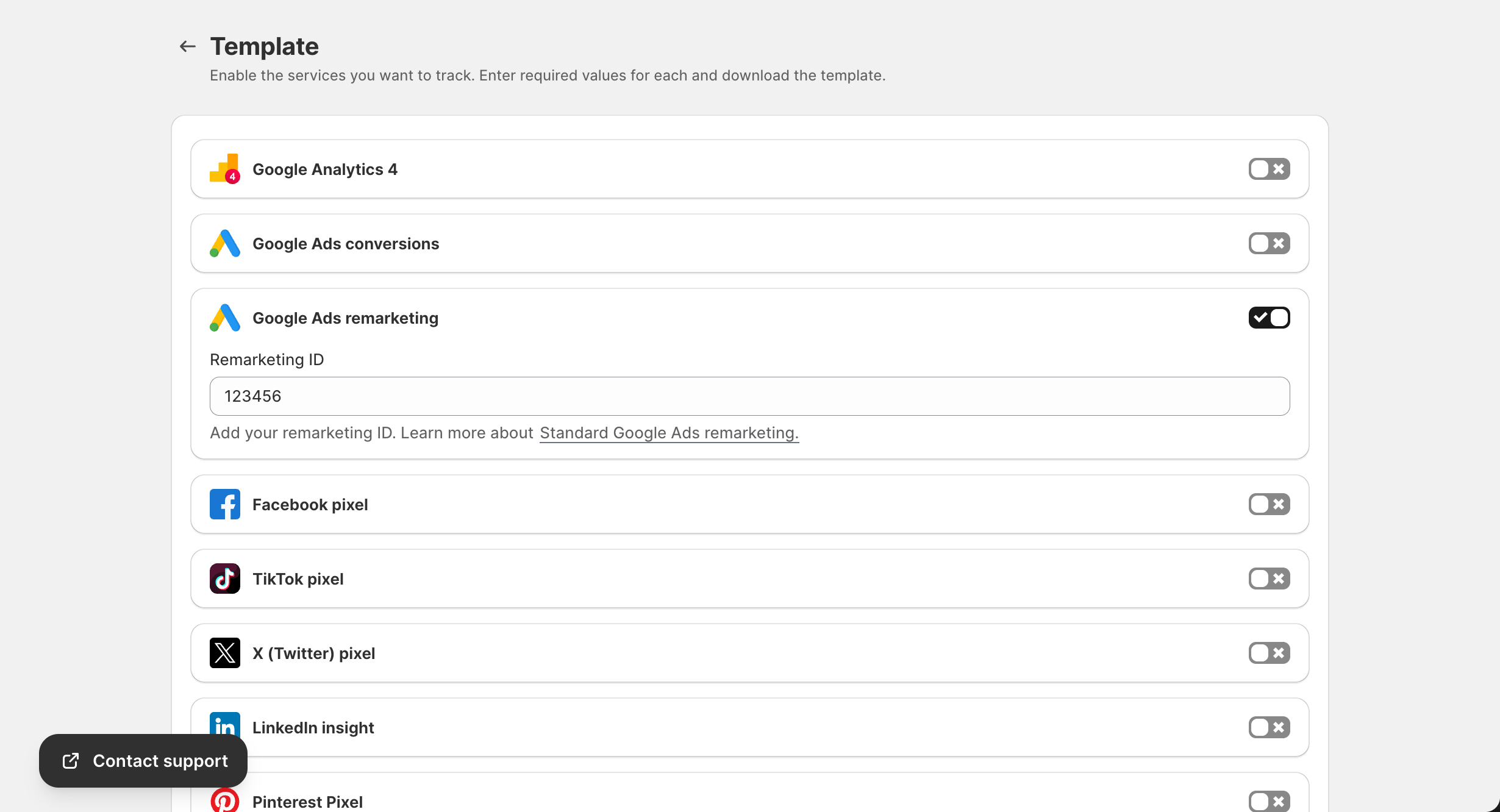
Navigate to the Template page and enter API credentials for each platform:
Google Analytics 4
- Toggle GA4 ON
- Enter Measurement ID
- Enter Measurement Protocol API Secret
Getting the API Secret:
- Go to GA4 Admin → Data Streams
- Select your web stream
- Click “Measurement Protocol API secrets”
- Generate a new secret
Facebook Conversions API
- Toggle Facebook pixel ON
- Enter Pixel ID
- Enter Conversion API Access Token
Getting the Access Token:
- Go to Facebook Events Manager
- Select your pixel → Settings
- Under “Conversions API”, click “Generate access token”
- Copy and save the token securely
TikTok Events API
- Toggle TikTok pixel ON
- Enter Pixel ID
- Enter Access Token
Getting the Access Token:
- Go to TikTok Ads Manager → Events
- Select your pixel → Settings
- Under “Events API”, generate token
Step 3: Download and Import Template
- Click Download GTM Template
- Import into Google Tag Manager
- Publish your changes
How Server-Side Events Work
Event Flow
Customer Action → Shopify Store → GroPulse Server → Platform APIs
                                       ↓
                            - Facebook CAPI
                            - GA4 Measurement Protocol
                            - TikTok Events API
                            - Other platforms
Data Sent
Server-side events include:
- Event data: Event name, timestamp, URL
- User data: Email (hashed), phone (hashed), IP address
- Product data: Product IDs, prices, quantities
- Order data: Order ID, total value, currency
Data Privacy
All personally identifiable information (PII) is:
- Hashed using SHA-256 before transmission
- Never stored on GroPulse servers
- Sent securely via HTTPS
Event Deduplication
When running both client-side and server-side tracking, deduplication prevents counting events twice.
How It Works
- Each event gets a unique Event ID
- Client-side sends:
event_id: "abc123" - Server-side sends:
event_id: "abc123" - Platform recognizes same ID and deduplicates
The App Handles This Automatically
The GroPulse app automatically:
- Generates unique event IDs
- Includes the same ID in both client and server events
- Ensures accurate conversion counting
Testing Server-Side Events
- Add a Test Event Code in the Template page
- Complete test actions on your store
- Go to Facebook Events Manager → Test Events
- Verify events appear with “Server” source
Google Analytics 4
- Go to GA4 → DebugView
- Perform test actions
- Look for events with the server icon
TikTok
- Go to TikTok Events Manager
- Check the Events API tab
- Verify events are being received
Server-Side Analytics (Advanced Plan)
With the Advanced plan, you get access to the Server Event Analytics dashboard:
Dashboard Features
- Total Events Today: Count of all server-side events
- Success Rate: Percentage of successfully delivered events
- Failed Events: Events that failed to deliver
- Processing Time: Average time to process events
Events by Platform
Visual breakdown of events sent to each platform:
- Pie chart showing distribution
- Success/failure counts per platform
- Platform-specific error rates
Events by Type
Bar chart showing:
- Purchase events
- Add to cart events
- View item events
- Other event types
Failed Events Log
Detailed log of failed events including:
- Platform
- Event type
- Error message
- Timestamp
Server Event Logs (Pro & Advanced Plans)
View detailed logs of all server-side events:
Log Information
| Field | Description |
|---|---|
| Time | Event timestamp |
| Platform | Target platform |
| Event Type | purchase, add_to_cart, etc. |
| Status | Success or Failed |
| Processing Time | Milliseconds to process |
| Value | Order/item value |
| Error | Error message if failed |
Filtering Options
- Date Range: Select specific time period
- Platform: Filter by Facebook, GA4, etc.
- Status: Success or Failed only
- Event Type: Filter by specific events
Troubleshooting
Events Not Sending
- Check Plan: Server-side requires Pro or Advanced
- Verify Credentials: Ensure API tokens are correct
- Check Event Status: Events must be enabled in Data Layer Settings
- Review Logs: Check Server Event Logs for errors
Low Match Rates
If platform match rates are low:
- Ensure customer email is captured
- Verify phone numbers include country code
- Check that customer data is passed correctly
Failed Events
Common error causes:
| Error | Solution |
|---|---|
| Invalid access token | Regenerate and update token |
| Rate limit exceeded | Events are queued, wait for processing |
| Invalid pixel ID | Verify pixel ID is correct |
| Permission denied | Check app permissions in platform |
Duplicate Events
If seeing duplicate conversions:
- Verify template is up to date
- Check that event IDs are being sent
- Review platform deduplication settings
Best Practices
- Run Both Client and Server: Use both for maximum coverage
- Monitor Regularly: Check analytics dashboard weekly
- Update Tokens: Tokens may expire; regenerate periodically
- Test After Changes: Always test when updating configurations
- Review Error Logs: Address failed events promptly