
Control how search engines discover and display your product collections. You can set different indexing rules for each collection in your store.
Overview
The Collections page allows you to:
- View all collections in your store
- See the current indexing status of each collection
- Apply NoIndex/NoFollow rules to one or multiple collections
- Search for specific collections by title
Accessing the Collections Page
- From the dashboard, click the Collections card in Quick Settings
OR
- Click Collections in the left sidebar navigation
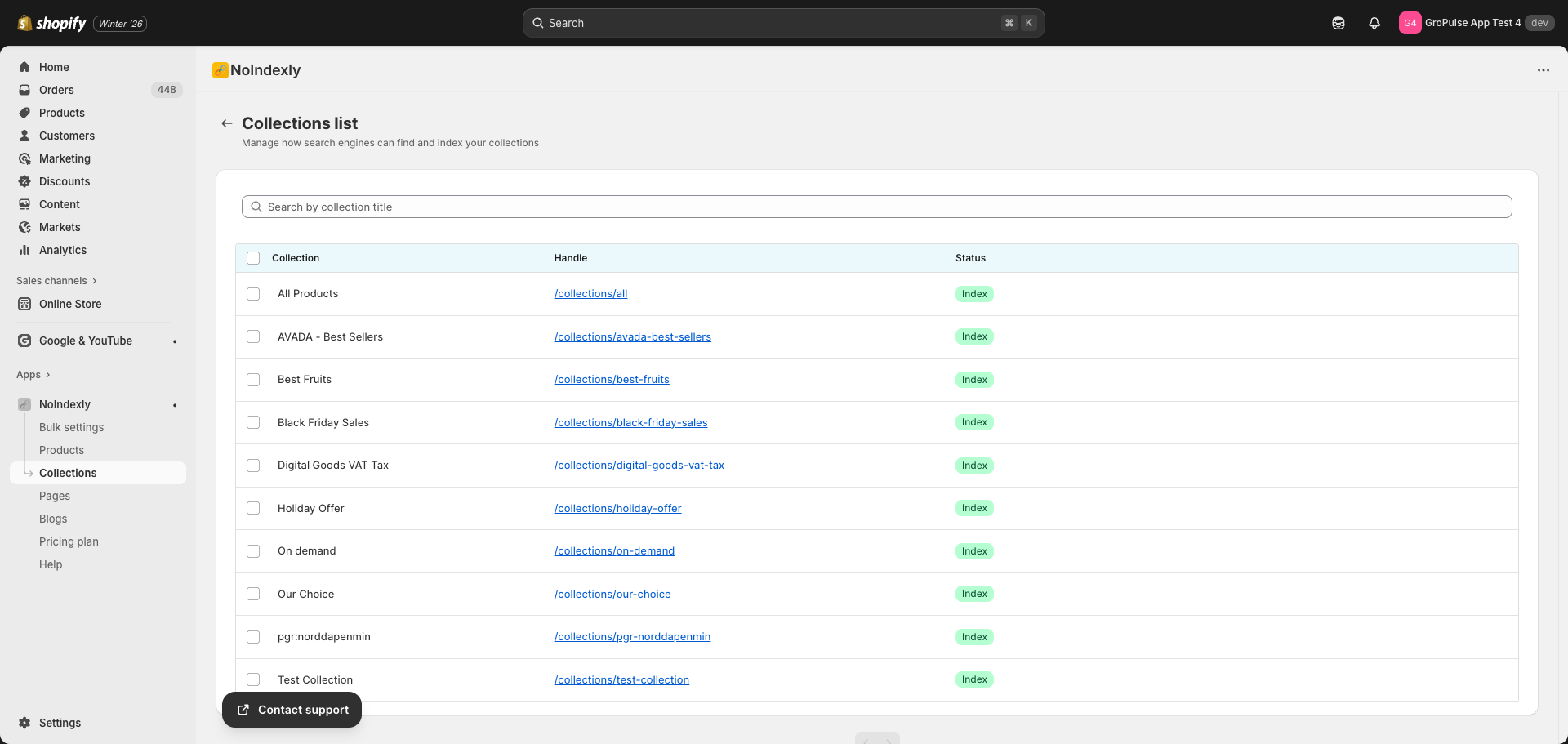
Understanding the Collections List
The collections list shows:
| Column | Description |
|---|---|
| Collection | The collection title |
| Handle | The URL path (e.g., /collections/summer-sale) – click to view on your store |
| Status | Current indexing status of the collection |
Status Badges
| Badge | Meaning |
|---|---|
| Index (green) | Collection appears in search results normally |
| NoIndex + NoFollow (gray) | Collection is hidden from search results, links not followed |
| NoIndex + Follow (blue) | Collection is hidden from search results, but links are followed |
| No Sitemap + NoIndex + NoFollow + No Search (gray) | Complete exclusion from all search visibility |
Searching for Collections
Use the search bar at the top of the page to find specific collections:
- Type the collection title in the search field
- The list will filter automatically after you stop typing
- Click the X button to clear your search
Changing Collection Indexing Status
Selecting Collections
- Check the checkbox next to each collection you want to update
- To select all collections on the current page, check the checkbox in the header row
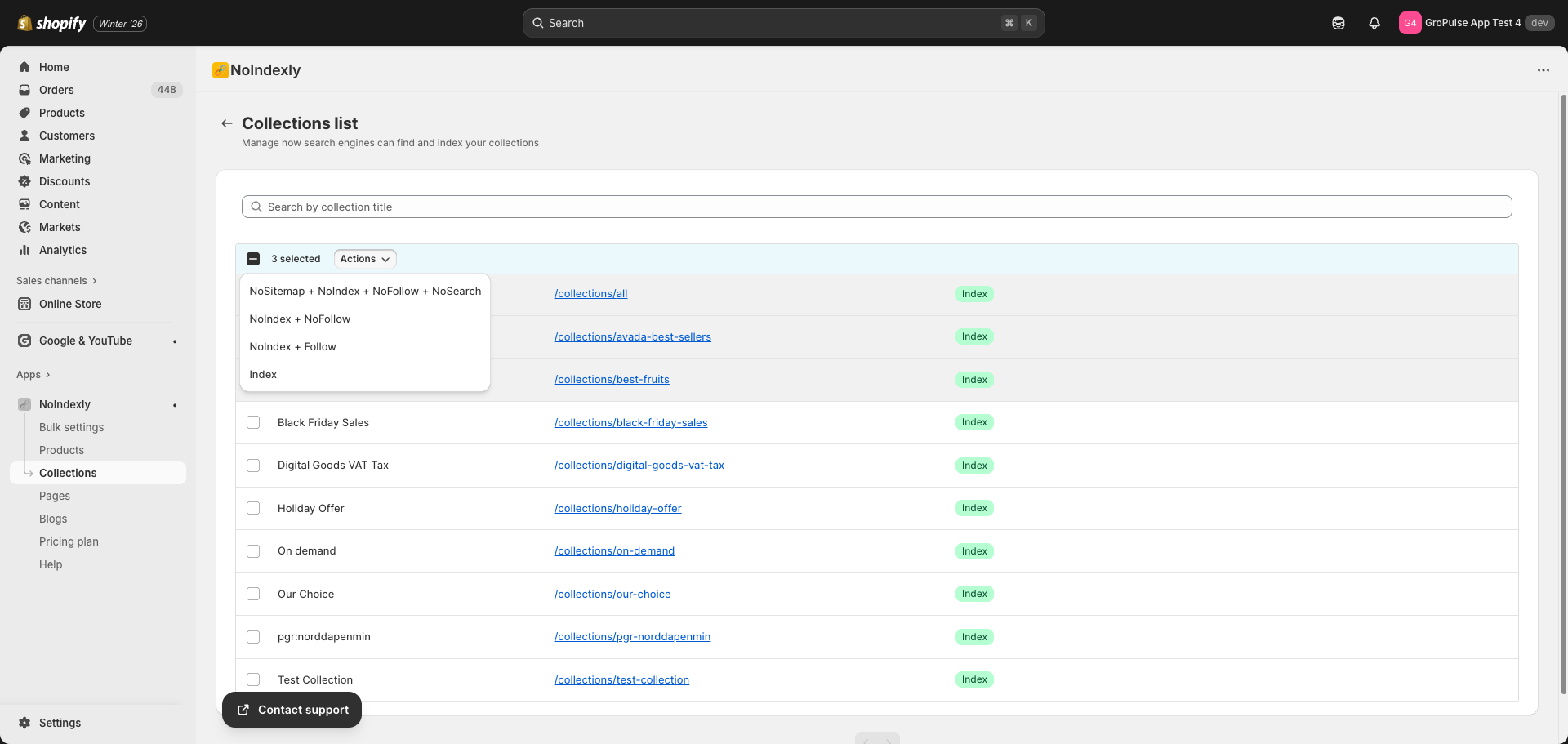
- The number of selected collections will appear above the table
Applying an Index Status
After selecting one or more collections:
- Click the Actions dropdown button that appears
- Choose one of the following options:
| Action | What it does |
|---|---|
| NoSitemap + NoIndex + NoFollow + NoSearch | Completely hide from all search engines and your store’s search |
| NoIndex + NoFollow | Hide from search results and do not follow links |
| NoIndex + Follow | Hide from search results but allow links to be followed |
| Index | Allow the collection to appear in search results (default) |
- The status will be applied to all selected collections
Understanding Each Index Option
Index (Default)
- Collection page appears in Google and other search engines
- Links to products within the collection are followed
- This is the normal setting for collections you want customers to find
NoIndex + NoFollow
- Collection does not appear in search engine results
- Search engines do not follow links to products on this page
- Use for: Internal collections, staff-only collections, or deprecated collections
NoIndex + Follow
- Collection does not appear in search engine results
- Search engines still follow links to products
- Use for: Collections that organize products but should not rank as landing pages
NoSitemap + NoIndex + NoFollow + NoSearch
- Complete removal from all search visibility
- Hides from your store’s internal search
- Applies NoIndex and NoFollow
- Use for: Test collections or collections that should be completely hidden
Pagination
If you have many collections, they will be split across multiple pages:
- Use the Previous and Next buttons at the bottom of the list
- The page scrolls to the top automatically when changing pages
Tips and Best Practices
When to NoIndex a Collection
Consider hiding collections from search when:
- The collection is used for internal organization only
- The collection duplicates another collection’s content
- The collection is empty or has very few products
- You are testing a new collection before launch
When to Keep Collections Indexed
Keep collections indexed when:
- The collection groups products in a way customers search for
- The collection has a clear theme or category (e.g., “Women’s Shoes”, “Summer Sale”)
- You want the collection to appear as a landing page in search results
Collection vs. Product Indexing
Remember that NoIndexing a collection does not affect the products inside it:
- Products in a NoIndexed collection can still appear in search results
- If you want to hide products too, you must update them on the Products page
- Consider whether hiding the collection or the products better serves your goal
Troubleshooting
Collections not showing in the list
- Make sure collections exist in your Shopify admin
- Try clearing the search field
- Check if collections are on a different page (use pagination)
Status not updating after selection
- Wait a few seconds for the change to save
- Refresh the page if the status does not update
- Check for any error messages
Last updated on February 16, 2026
Was this article helpful?
Powered by Support Genix