
Control how search engines discover and display your individual products. You can set different indexing rules for each product in your store.
Overview
The Products page allows you to:
- View all products in your store
- See the current indexing status of each product
- Apply NoIndex/NoFollow rules to one or multiple products
- Search for specific products by title
Accessing the Products Page
- From the dashboard, click the Products card in Quick Settings
OR
- Click Products in the left sidebar navigation
Understanding the Products List
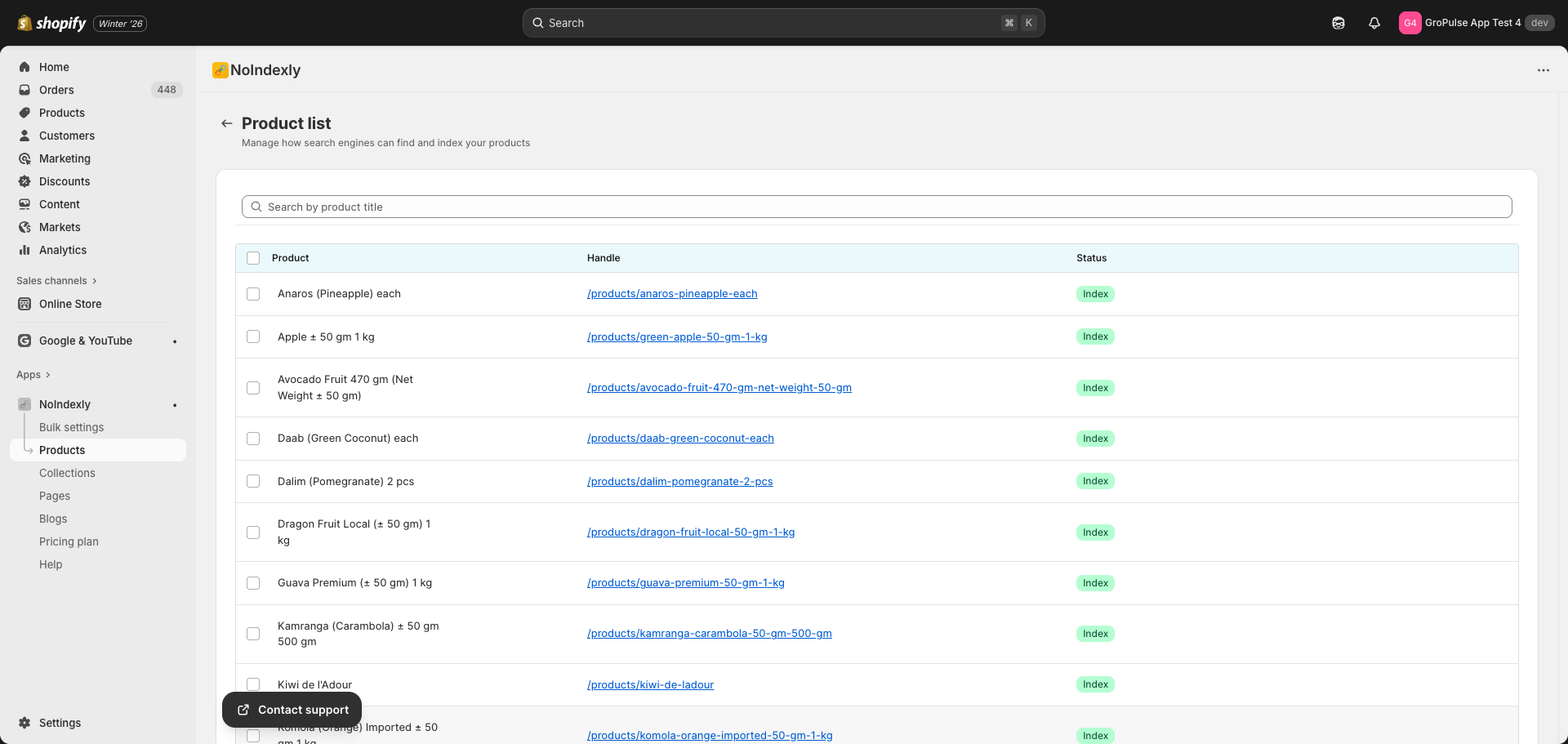
The products list shows:
| Column | Description |
|---|---|
| Product | The product title |
| Handle | The URL path (e.g., /products/blue-t-shirt) – click to view on your store |
| Status | Current indexing status of the product |
Status Badges
| Badge | Meaning |
|---|---|
| Index (green) | Product appears in search results normally |
| NoIndex + NoFollow (gray) | Product is hidden from search results, links not followed |
| NoIndex + Follow (blue) | Product is hidden from search results, but links are followed |
| No Sitemap + NoIndex + NoFollow + No Search (gray) | Complete exclusion from all search visibility |
Searching for Products
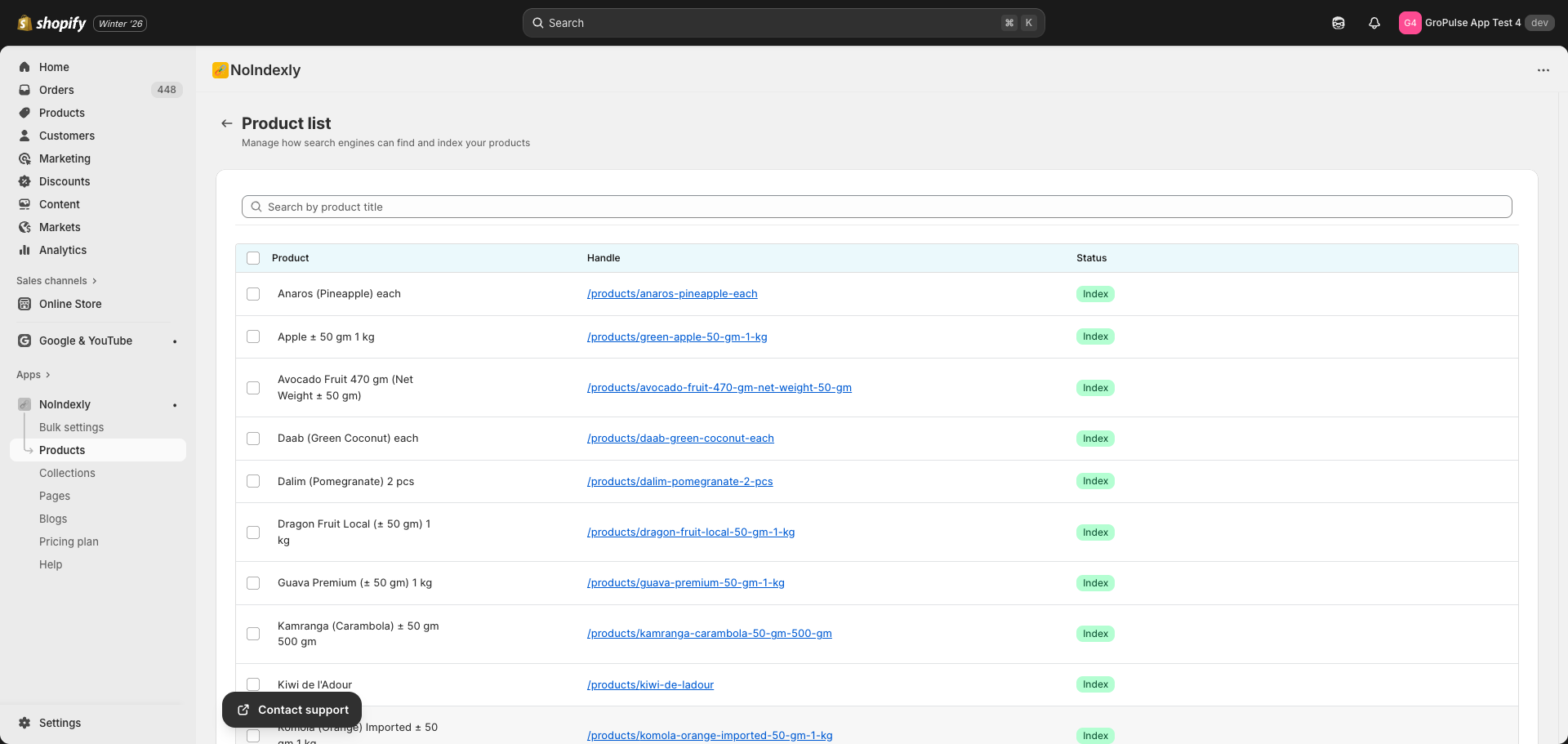
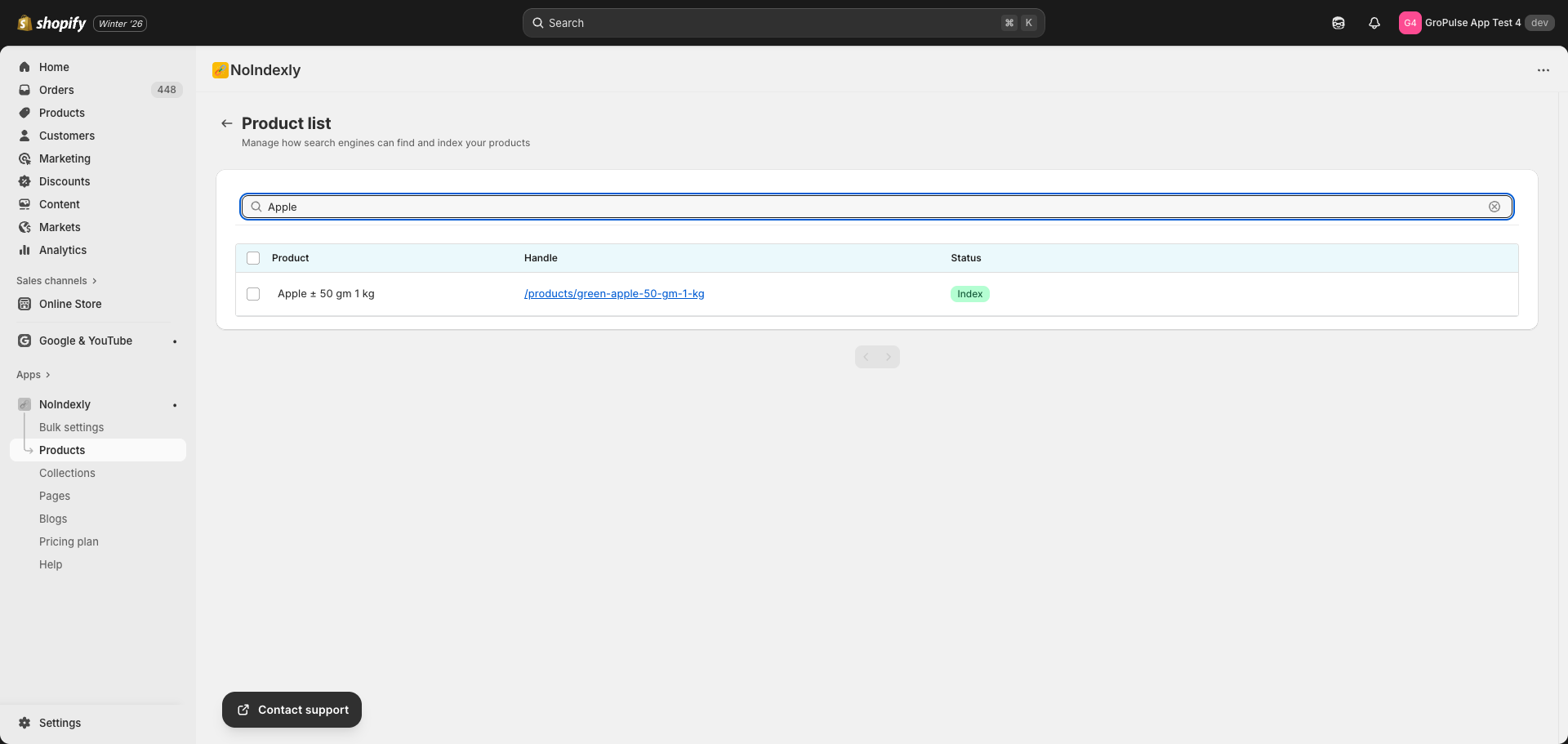
Use the search bar at the top of the page to find specific products:
- Type the product title (or part of it) in the search field
- The list will filter automatically after you stop typing
- Click the X button to clear your search
Changing Product Indexing Status
Selecting Products
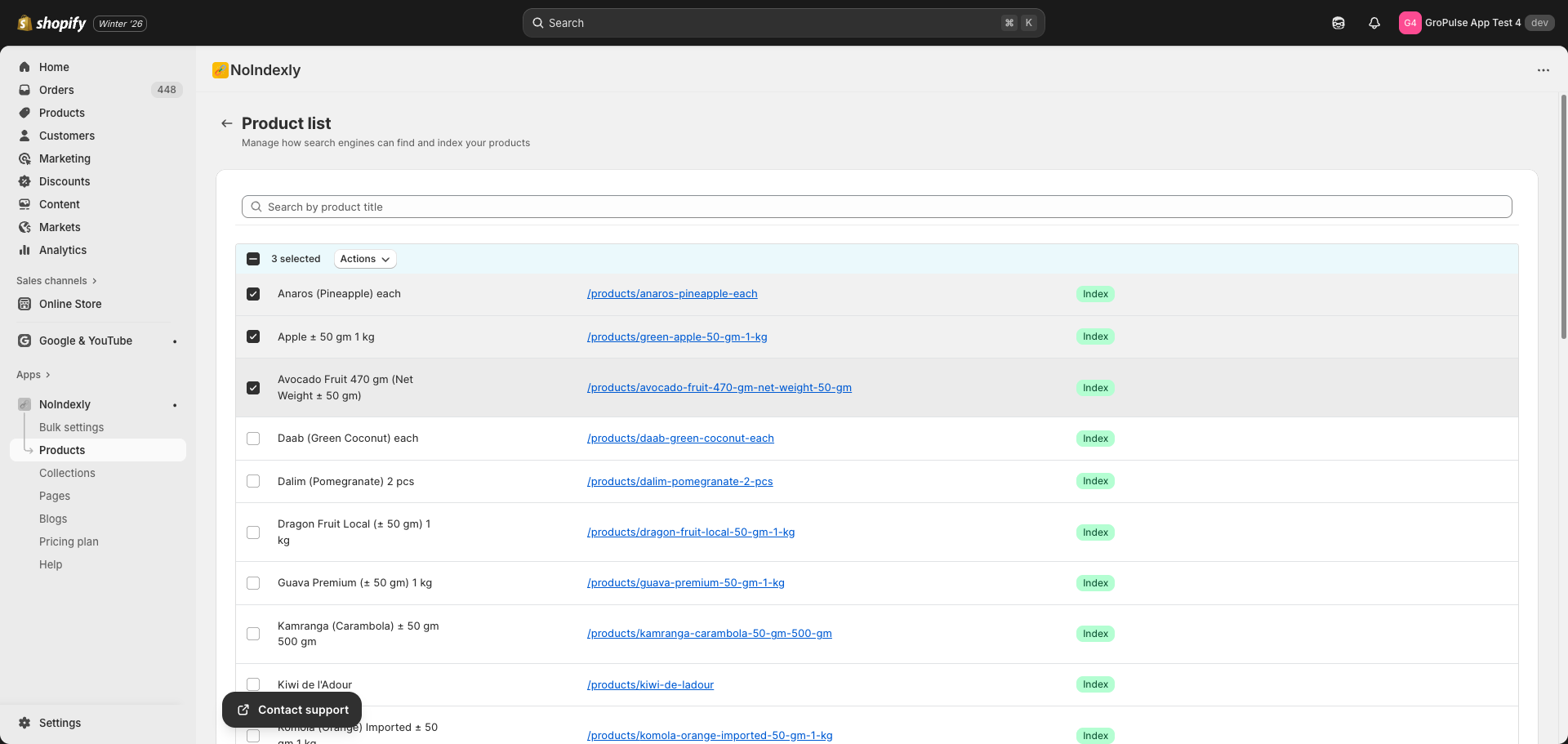
- Check the checkbox next to each product you want to update
- To select all products on the current page, check the checkbox in the header row
- The number of selected products will appear above the table
Applying an Index Status
After selecting one or more products:
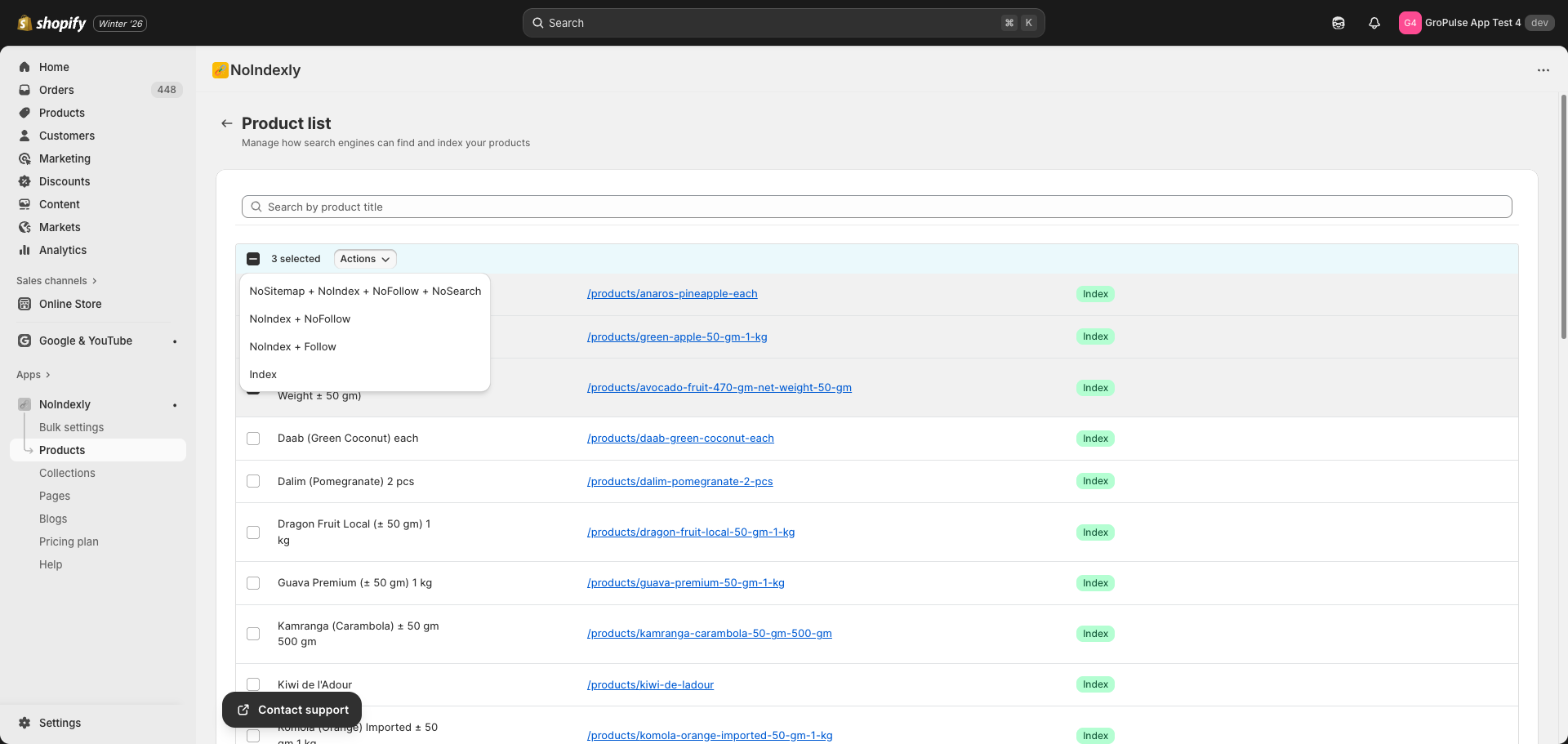
- Click the Actions dropdown button that appears
- Choose one of the following options:
| Action | What it does |
|---|---|
| NoSitemap + NoIndex + NoFollow + NoSearch | Completely hide from all search engines and your store’s search |
| NoIndex + NoFollow | Hide from search results and do not follow links |
| NoIndex + Follow | Hide from search results but allow links to be followed |
| Index | Allow the product to appear in search results (default) |
- The status will be applied to all selected products
Understanding Each Index Option
Index (Default)
- Product appears in Google and other search engines
- Links on the product page are followed by search crawlers
- This is the normal setting for most products you want to sell
NoIndex + NoFollow
- Product does not appear in search engine results
- Search engines do not follow links on this page
- Use for: Products you are discontinuing, test products, or private products
NoIndex + Follow
- Product does not appear in search engine results
- Search engines still follow links to other pages
- Use for: Products that should not rank but contain links to important pages
NoSitemap + NoIndex + NoFollow + NoSearch
- Complete removal from all search visibility
- Excludes from XML sitemap
- Hides from your store’s internal search
- Applies NoIndex and NoFollow
- Use for: Test products, sample products, or products that should be completely hidden
Pagination
If you have many products, they will be split across multiple pages:
- Use the Previous and Next buttons at the bottom of the list
- The page scrolls to the top automatically when changing pages
Tips and Best Practices
When to NoIndex a Product
Consider hiding products from search when:
- The product is out of stock permanently
- You are testing a new product before launch
- The product is a duplicate or variation better represented by another product
- The product page has thin or low-quality content
When to Keep Products Indexed
Keep products indexed when:
- You want the product to be discoverable via search engines
- The product is in stock and available for purchase
- The product page has unique, valuable content
Tip: If a product is temporarily out of stock but you plan to restock it, consider using Bulk Settings to NoIndex all out-of-stock products automatically instead of changing individual products.
Tip: Changes take effect on your store immediately, but it may take days or weeks for search engines to update their results.
Common Questions
Will NoIndex remove my product from Google immediately?
No. NoIndex tells Google not to show the page in search results, but Google needs to recrawl the page first. This can take anywhere from a few days to several weeks.
Can I still link to a NoIndexed product?
Yes. Customers can still access the product directly via its URL or through links on your store. NoIndex only affects search engine visibility.
Does NoIndex affect my store’s internal search?
Only if you use the NoSitemap + NoIndex + NoFollow + NoSearch option. The regular NoIndex options do not affect your store’s built-in search.
Troubleshooting
Products not showing in the list
- Make sure products exist in your Shopify admin
- Try clearing the search field
- Check if products are on a different page (use pagination)
Status not updating after selection
- Wait a few seconds for the change to save
- Refresh the page if the status does not update
- Check for any error messages