
The NoIndexly dashboard is your central hub for managing search engine indexing and sitemaps. This guide explains each section of the dashboard and how to use it effectively.
Accessing the Dashboard
To open the NoIndexly dashboard:
- Log in to your Shopify admin
- Click Apps in the left sidebar
- Select NoIndexly
You will see the main dashboard with several cards and quick access options.
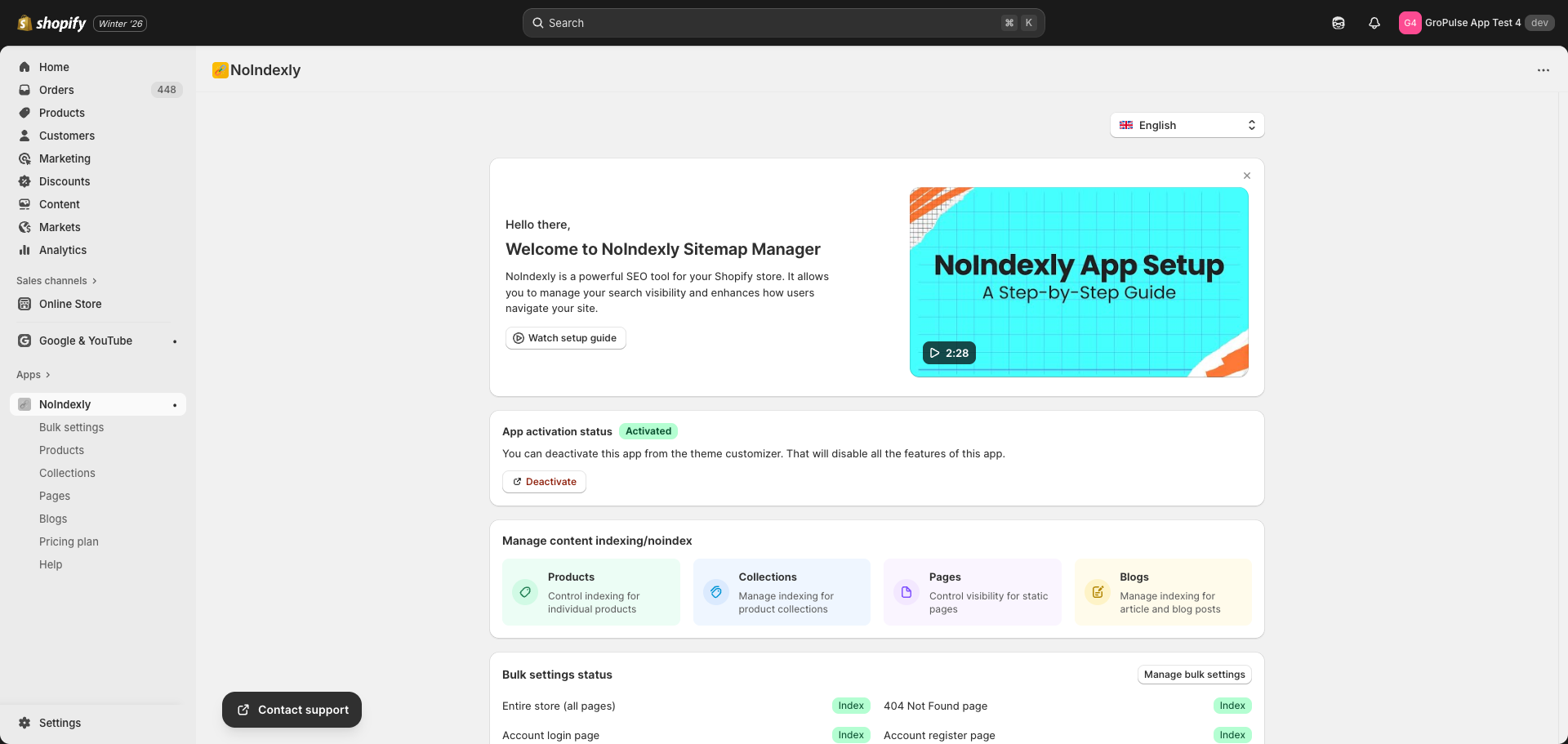
Dashboard Sections
Welcome Card
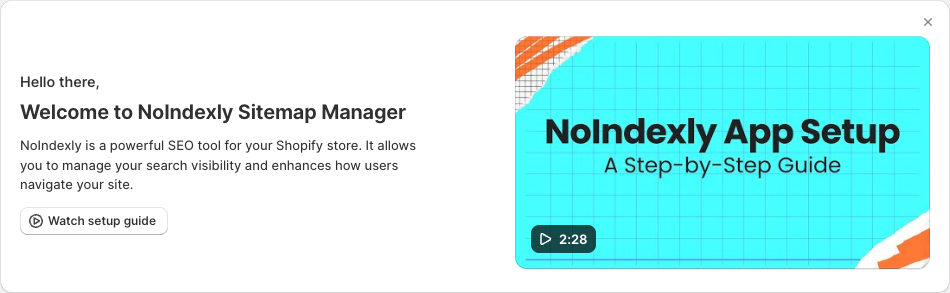
When you first use NoIndexly, a welcome card appears at the top of the dashboard:
- Watch setup guide – Opens a video tutorial explaining how to use the app
- Dismiss – Hides the welcome card (you can always watch the video from the Help page)
App Activation Status
This card shows whether NoIndexly is properly activated in your theme:
| Status | Meaning |
|---|---|
| Activated (green badge) | The app is working and can add noindex tags to your pages |
| Deactivated (gray badge) | The app needs to be enabled in your theme customizer |
Actions:
- Activate – Opens the theme customizer to enable the app (when deactivated)
- Deactivate – Opens the theme customizer to disable the app (when activated)
Quick Settings (Manage Content Indexing)
The Quick Settings section provides fast access to manage indexing for different content types:
| Card | Description | Where it leads |
|---|---|---|
| Products | Control indexing for individual products | Products list page |
| Collections | Manage indexing for product collections | Collections list page |
| Pages | Control visibility for static pages | Pages list page |
| Blogs | Manage indexing for blogs and articles | Blogs list page |
Click any card to go directly to that content type’s management page.

Bulk Settings Status
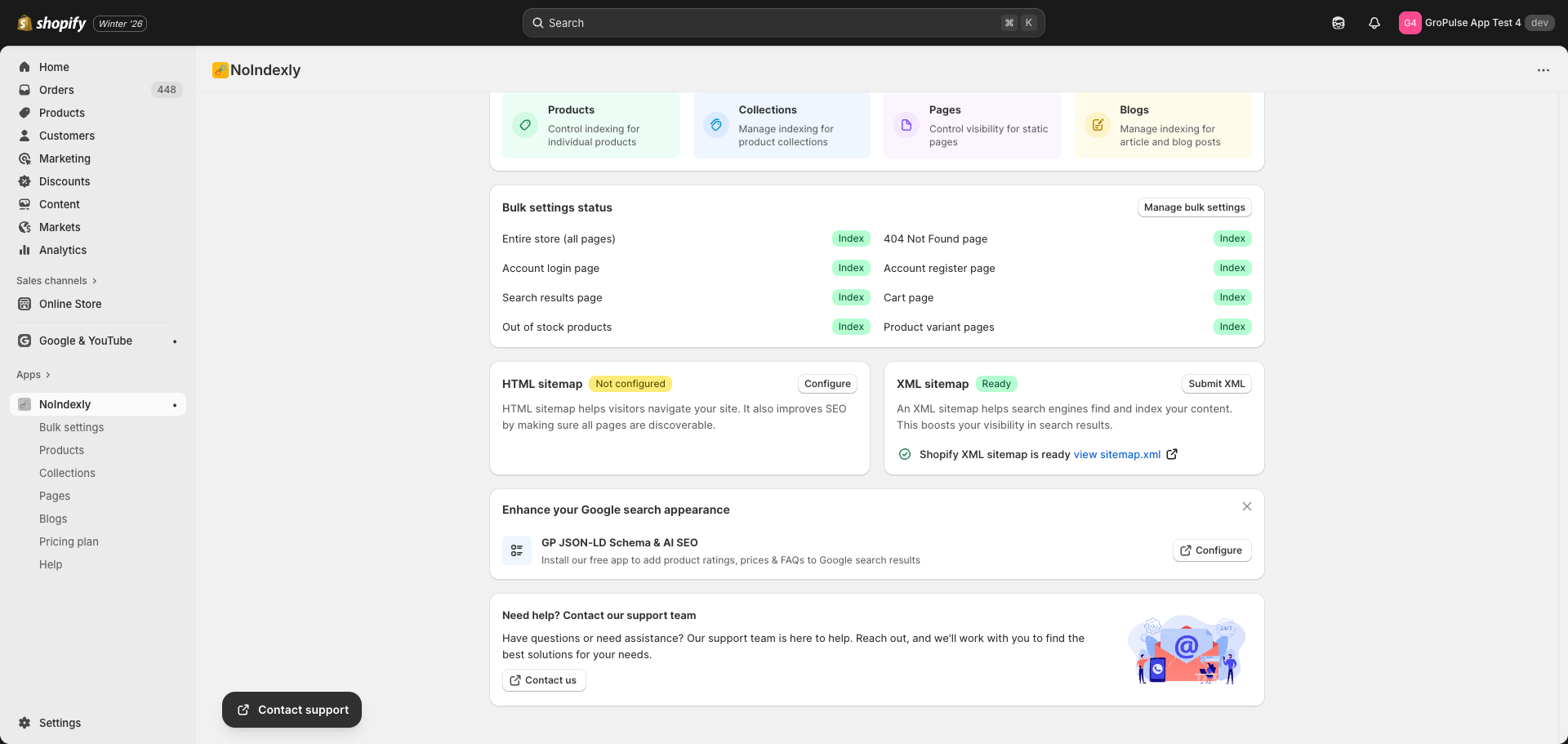
This card displays the current status of your sitewide noindex rules:
- Shows which page categories have NoIndex and/or NoFollow applied
- Displays badges indicating the current setting for each category
- Click Manage bulk settings to edit these rules
Available Categories:
- Entire store (all pages)
- 404 Not Found page
- Account login page
- Account register page
- Search results page
- Cart page
- Out of stock products
- Product variant pages
Note: Bulk settings are available only with a Pro plan (Monthly or Yearly).
HTML Sitemap Card
This card shows the status of your HTML sitemap:
| Status | Meaning |
|---|---|
| Active | Your HTML sitemap is generated and available |
| Not configured | No HTML sitemap has been created yet |
Actions:
- Configure – Set up your HTML sitemap for the first time
- Manage – Edit your existing HTML sitemap settings
- View sitemap – Open your HTML sitemap in a new tab
The card also shows how many content types are included in your sitemap (e.g., “4 content types included”).
Note: HTML Sitemap is available only with a Pro plan.
XML Sitemap Card
This card provides quick access to your store’s XML sitemap:
- Shows that your Shopify XML sitemap is ready
- Click Submit XML to go to the XML sitemap guide page
- Click view sitemap.xml to open your XML sitemap in a new tab
Your XML sitemap is automatically generated by Shopify and does not require configuration.
The HTML and XML sitemap cards are displayed side by side on the dashboard.
Language Selection
NoIndexly supports multiple languages. To change the app language:
- Look for the language selector in the top right corner of the dashboard
- Click the dropdown to see available languages
- Select your preferred language
The app interface will update immediately to your selected language.