
Learn how to submit your store’s XML sitemap to Google Search Console. An XML sitemap helps search engines discover and index all the important pages on your store.
Overview
Your Shopify store automatically generates an XML sitemap.
This sitemap is always available at https://your-store.myshopify.com/sitemap.xml
Accessing the XML Sitemap Page
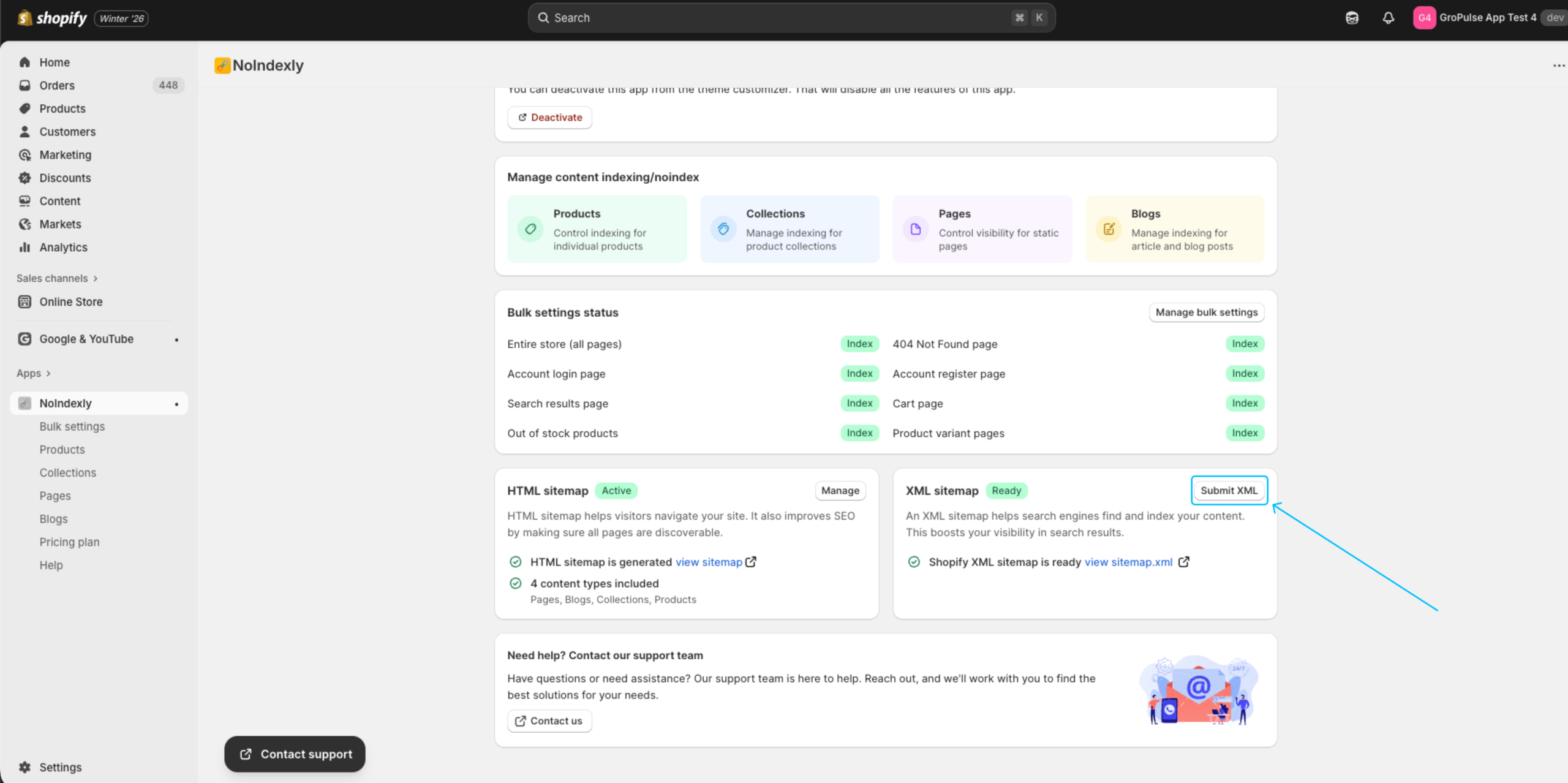
From the dashboard, click Submit XML on the XML Sitemap card
Viewing Your Sitemap
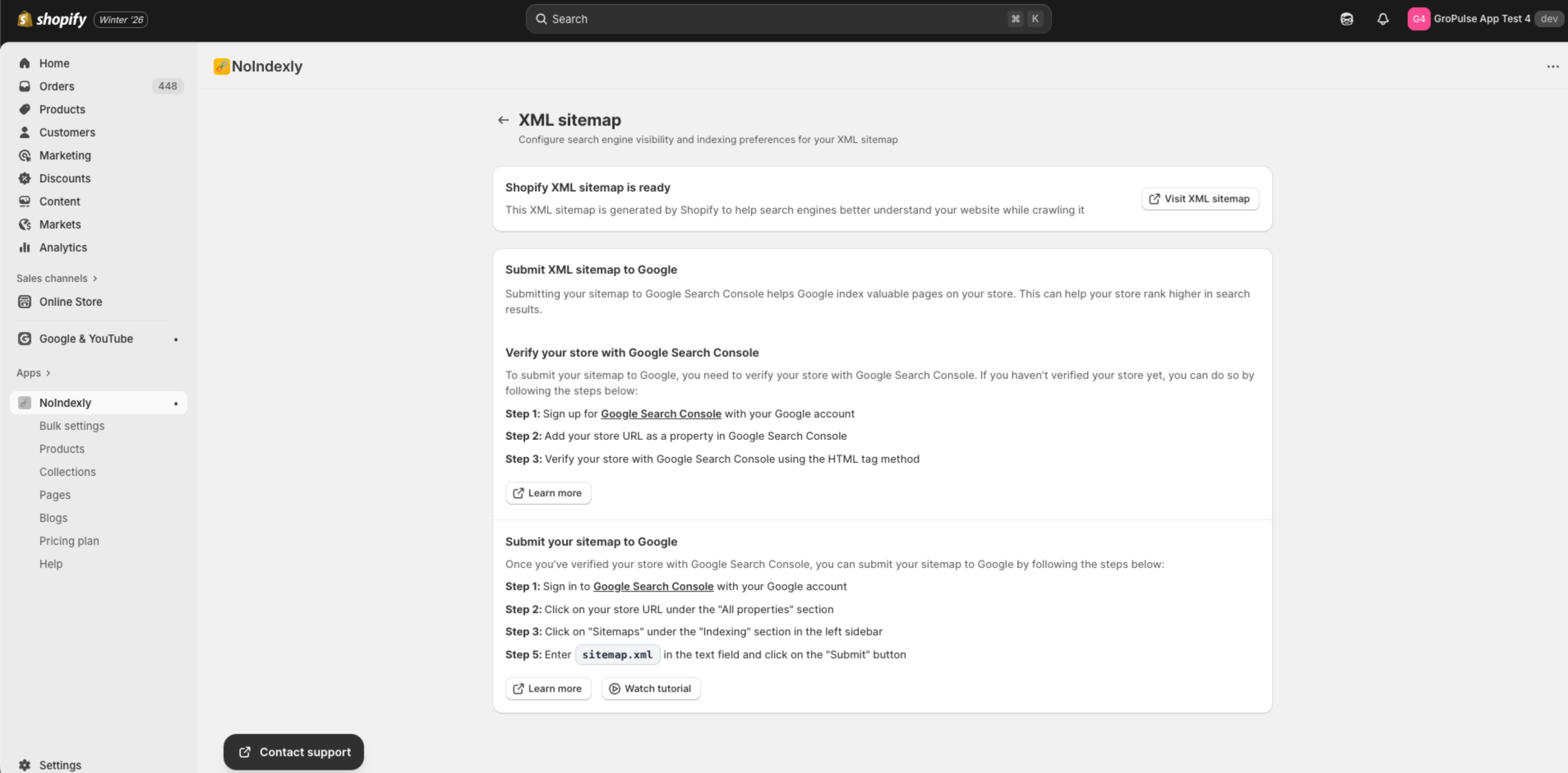
Before submitting to Google, you can view your sitemap:
- Click the Visit XML sitemap button
- Your sitemap will open in a new browser tab
- You will see an XML file listing all your store’s URLs
This confirms your sitemap exists and is accessible.
Why Submit to Google?
While Google can discover your sitemap on its own, submitting it directly:
- Speeds up the indexing process
- Lets you monitor indexing status
- Alerts you to any crawling problems
- Shows which pages Google has indexed
Submitting Your Sitemap to Google
Part 1: Verify Your Store with Google Search Console
Before you can submit a sitemap, you must verify that you own your store:
Step 1: Sign up for Google Search Console
- Go to Google Search Console
- Sign in with your Google account
Step 2: Add your store URL
- Choose “URL prefix” as the property type
- Enter your full store URL (e.g.,
https://your-store.myshopify.com) - Click Continue
Step 3: Verify ownership
- Google will offer several verification methods
- The HTML tag method is recommended for Shopify stores
- Copy the meta tag provided by Google
- In Shopify Admin, go to Online Store > Themes > Edit code
- Find the
theme.liquidfile and paste the meta tag in the<head>section - Save the file and return to Google Search Console
- Click Verify
Tip: Click the Learn more button in the app to see Shopify’s official guide on verification.
Part 2: Submit Your Sitemap
Once your store is verified:
Step 1: Sign in to Google Search Console
- Go to Google Search Console
- Sign in with your Google account
Step 2: Select your store property
- Click on your store URL under the “All properties” section
- If you have multiple properties, make sure to select the correct one
Step 3: Navigate to Sitemaps
- In the left sidebar, find the Indexing section
- Click on Sitemaps
Step 4: Submit the sitemap
- In the “Add a new sitemap” field, enter:
sitemap.xml - Click the Submit button
Tip: Click
sitemap.xmlin the app to copy it to your clipboard.
Step 5: Confirm submission
- Google will show a success message
- Your sitemap will appear in the submitted sitemaps list
- Status will initially show “Pending” while Google processes it
Watching the Tutorial
If you prefer visual instructions:
- Click the Watch tutorial button on the XML Sitemap page
- A video will explain the submission process step by step
- The tutorial covers both verification and submission
After Submission
What to expect
- Processing time: Google typically processes sitemaps within a few hours to a few days
- Status updates: Check back in Google Search Console to see the status
- Indexed pages: The Coverage report shows which pages Google has indexed
Monitoring your sitemap
In Google Search Console, you can see:
| Metric | What it means |
|---|---|
| Discovered | URLs Google found in your sitemap |
| Indexed | URLs Google has added to its index |
| Errors | Any problems Google encountered |
| Warnings | Non-critical issues to review |
Troubleshooting
Sitemap shows as “Couldn’t fetch”
- Make sure your store is accessible (not password protected)
- Try visiting the sitemap URL directly to confirm it works
- Wait a few hours and check again
Sitemap pending for a long time
- This is normal for new sites; Google prioritizes established sites
- Ensure your site has quality content to index
- Build some links to your store to help Google discover it
Some pages not getting indexed
- Check if those pages are NoIndexed in NoIndexly
- Verify the pages have unique, valuable content
- Review Google Search Console for any specific errors