
This guide explains how to customize the message content, position, spacing, and time display text of your sales notifications.
Accessing Content Settings
- Navigate to Sales Notifications in the SalesPulse app
- Click the Content settings tab
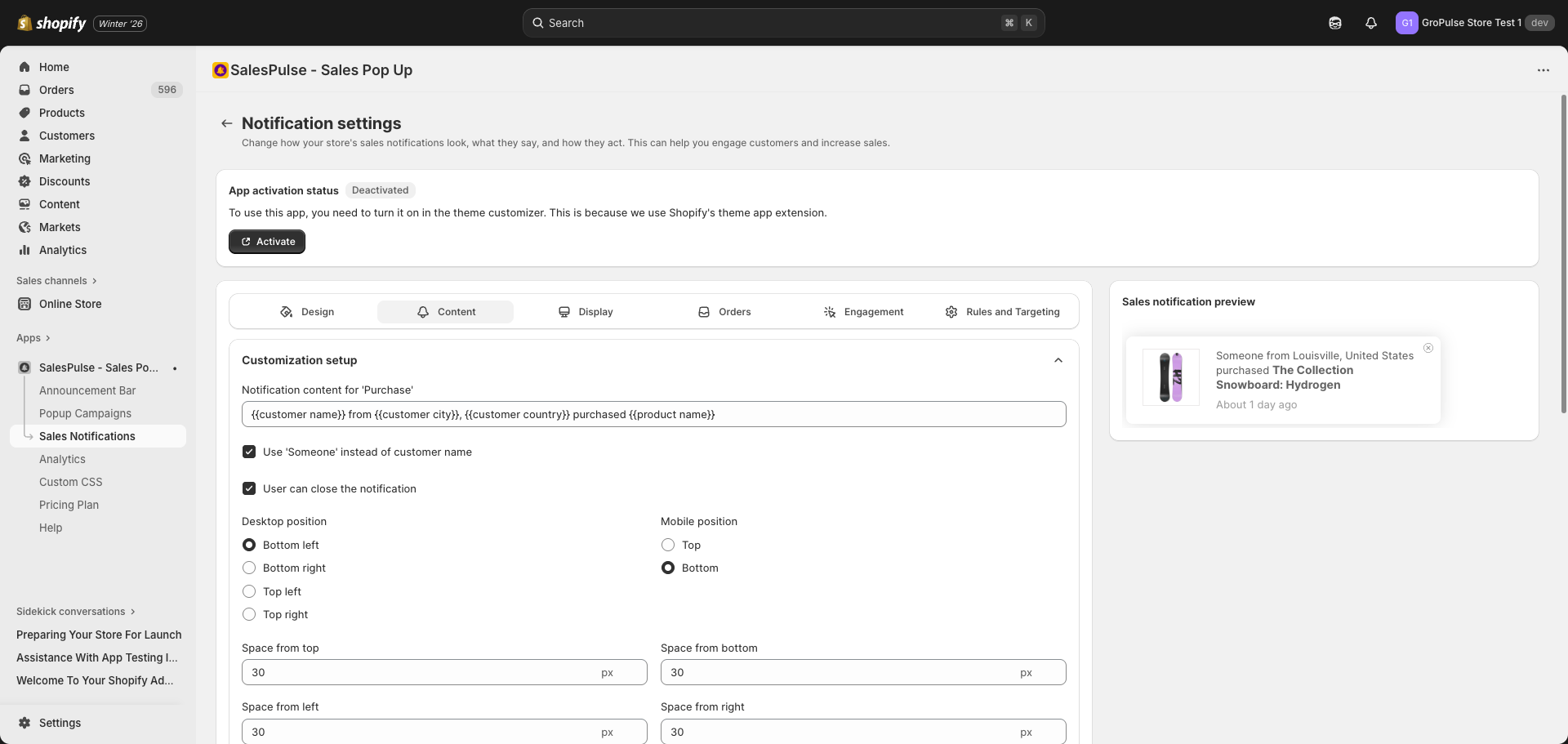
Notification Message Format
Customize how purchase information is displayed in notifications.
Message Template
The Notification content for ‘Purchase’ field controls the message format:
{{customer name}} from {{customer city}}, {{customer country}} purchased {{product name}}Available Placeholders
| Placeholder | Description | Example Output |
|---|---|---|
{{customer name}} | Customer’s first name | “John” or “Someone” |
{{customer city}} | Customer’s city | “Louisville” |
{{customer country}} | Customer’s country | “United States” |
{{product name}} | Purchased product name | “The Collection Snowboard” |
Customizing the Message
Edit the message template to match your brand voice:
Examples:
| Use Case | Template |
|---|---|
| Standard | {{customer name}} from {{customer city}}, {{customer country}} purchased {{product name}} |
| Casual | {{customer name}} just got {{product name}}! (from {{customer city}}) |
| Minimal | {{product name}} - just purchased |
| Location Focus | New order from {{customer city}}, {{customer country}}! |
Privacy Settings
Control how customer information is displayed.
Anonymize Customer Names
Check Use ‘Someone’ instead of customer name to replace actual customer names with “Someone”.
| Setting | Display |
|---|---|
| Unchecked | “John from Louisville, United States purchased…” |
| Checked | “Someone from Louisville, United States purchased…” |
Recommendation: Enable this setting for privacy compliance and a cleaner look.
Close Button
Allow visitors to dismiss notifications.
Enable Close Button
Check User can close the notification to display a close (X) button.
| Setting | Behavior |
|---|---|
| Checked | Visitors can click X to dismiss the notification |
| Unchecked | No close button; notification auto-hides after duration |
Recommendation: Always enable the close button for better user experience.
Notification Position
Control where notifications appear on the screen.
Desktop Position
Choose from four corner positions:
| Position | Description | Best For |
|---|---|---|
| Bottom left | Lower-left corner (default) | Standard placement |
| Bottom right | Lower-right corner | Alternative standard |
| Top left | Upper-left corner | Less common |
| Top right | Upper-right corner | Less common |
Mobile Position
Choose from two positions:
| Position | Description | Best For |
|---|---|---|
| Top | Top of the screen | Immediate visibility |
| Bottom | Bottom of the screen (default) | Less intrusive |
Spacing Settings
Control the distance of notifications from screen edges.
Spacing Options
| Setting | Default | Description |
|---|---|---|
| Space from top | 30px | Distance from top edge |
| Space from left | 30px | Distance from left edge |
| Space from bottom | 30px | Distance from bottom edge |
| Space from right | 30px | Distance from right edge |
Adjusting Spacing
Enter values in pixels (px) to adjust notification position:
- Increase values to move notifications further from edges
- Decrease values to position closer to edges
- Consider other elements on your page (chat widgets, etc.)
Tip: Avoid placing notifications where they overlap with important page elements like navigation, add-to-cart buttons, or live chat widgets.
Time Display Text
Customize how the purchase time is displayed.
Time Display Overview
Sales notifications show when the purchase occurred, like “About 5 minutes ago”.
Number Display Language
Choose how numbers appear in the time display:
| Option | Example |
|---|---|
| Western (0, 1, 2…) | “About 5 minutes ago” |
| Arabic-Indic | Numbers in Arabic script |
| Persian/Farsi | Numbers in Persian script |
| Bengali | Numbers in Bengali script |
| Devanagari/Hindi | Numbers in Hindi script |
| And 15+ more languages | Various numeral systems |
Time Text Customization
Translate or customize time-related text:
| Setting | Default | Description |
|---|---|---|
| Prefix | “About” | Text before the time |
| Suffix | “ago” | Text after the time |
Example: “About 5 minutes ago”
Time Units
Customize singular and plural forms for each time unit:
| Unit | Singular Default | Plural Default |
|---|---|---|
| Second | second | seconds |
| Minute | minute | minutes |
| Hour | hour | hours |
| Day | day | days |
| Month | month | months |
| Year | year | years |
Localization Example
For a Spanish store, you might configure:
| Setting | English | Spanish |
|---|---|---|
| Prefix | About | Hace |
| Suffix | ago | (leave empty) |
| Minute (singular) | minute | minuto |
| Minutes (plural) | minutes | minutos |
Result: “Hace 5 minutos” instead of “About 5 minutes ago”
Content Best Practices
Message Clarity
- Keep messages concise and easy to read
- Include location for authenticity
- Always include the product name
Privacy Considerations
- Use “Someone” for customer names
- Consider GDPR and privacy regulations
- Don’t expose sensitive customer data
Position Strategy
- Bottom corners are standard and expected
- Avoid blocking important page elements
- Test on different screen sizes
Localization Tips
- Translate all time units for non-English stores
- Match your store’s primary language
- Test the display after translation
Troubleshooting
Message Not Updating
If the message template changes don’t appear:
- Ensure you’re using correct placeholder syntax
- Save your changes
- Refresh the preview
Position Not Changing
If position settings aren’t applying:
- Save your changes
- Clear browser cache
- Test in an incognito window
Time Display Issues
If time displays incorrectly:
- Check all time unit fields are filled
- Verify prefix and suffix settings
- Test with recent orders