
Optimize your Shopify store images for better SEO performance. This tool scans your images, identifies issues, and helps you add proper alt text for improved search visibility.
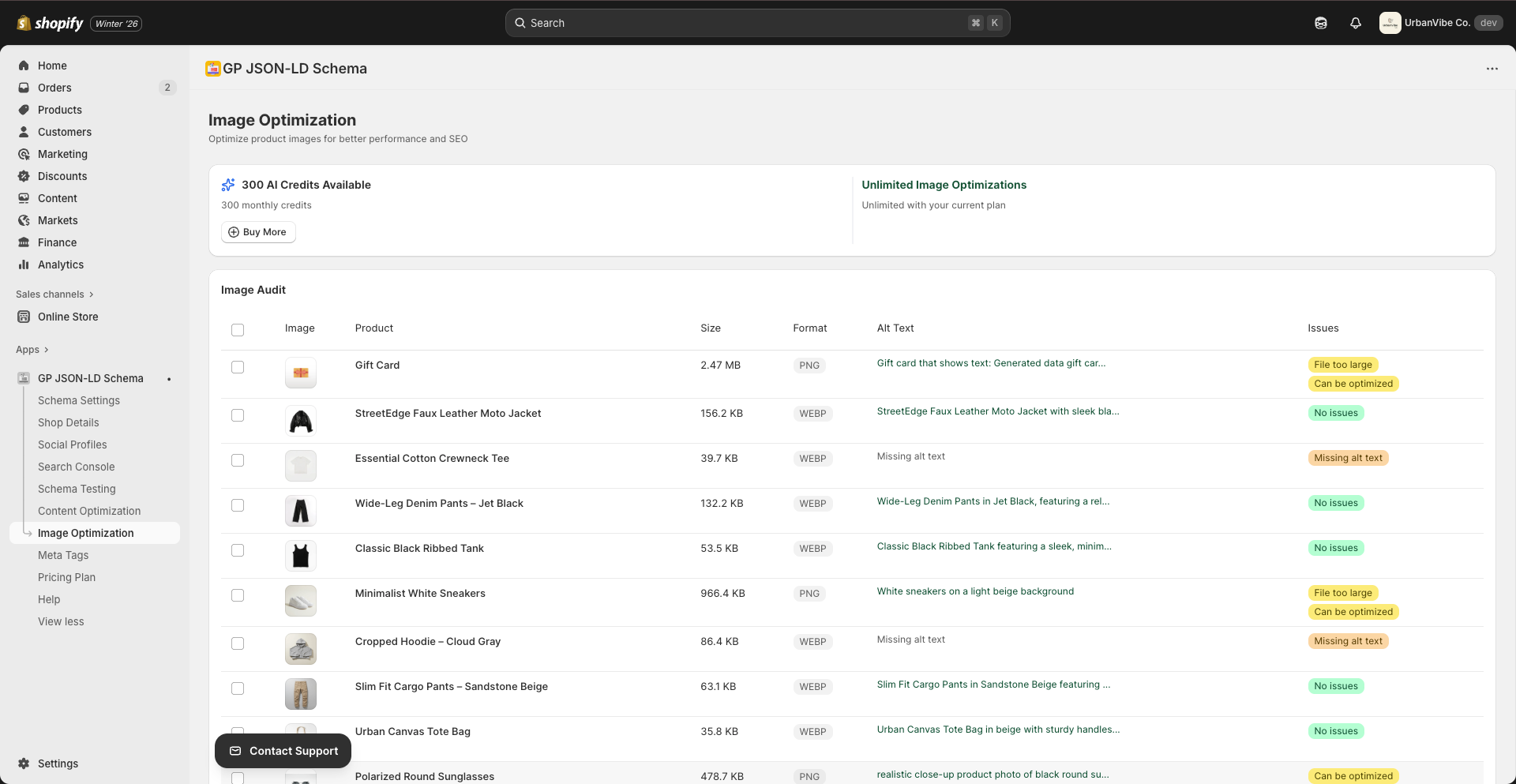
Overview
Image optimization improves:
- Search Visibility — Images can appear in Google Image search
- Accessibility — Screen readers use alt text
- Page Speed — Optimized images load faster
- User Experience — Better image quality and loading
Accessing Image Optimization
- Navigate to Image Optimization from the sidebar
- The tool automatically scans your product images
- Review issues and apply fixes
What Gets Scanned
The Image Optimization tool analyzes:
| Image Type | What’s Checked |
|---|---|
| Product images | Alt text, file size, format |
| Collection images | Alt text, optimization |
| Blog images | Alt text, descriptions |
| Theme images | Alt text presence |
Understanding the Dashboard
Scan Status
When you open the page:
- “Scanning images…” — Analysis in progress
- Results display when complete
Image Issues
The tool identifies:
| Issue | Description | Impact |
|---|---|---|
| Missing alt text | No alternative text set | High |
| Generic alt text | Unhelpful descriptions | Medium |
| Large file size | Images too big | Medium |
| Wrong format | Suboptimal format | Low |
Alt Text Best Practices
What is Alt Text?
Alt text (alternative text) describes an image’s content. It’s used by:
- Search engines to understand images
- Screen readers for accessibility
- Browsers when images fail to load
Writing Good Alt Text
Do:
- Describe the image accurately
- Include relevant keywords naturally
- Keep it under 125 characters
- Be specific and descriptive
Don’t:
- Start with “Image of” or “Picture of”
- Stuff keywords unnaturally
- Leave it blank
- Use the same text for all images
Alt Text Examples
| Bad | Good |
|---|---|
| “Product” | “Blue cotton t-shirt with round neck” |
| “IMG_1234.jpg” | “Women’s running shoes in white and pink” |
| “Image of a bag” | “Leather crossbody bag with gold chain strap” |
| “” (empty) | “Organic green tea leaves in ceramic bowl” |
Optimizing Images
Individual Optimization
- Find an image with issues
- Click to view details
- Edit alt text or settings
- Save changes
Bulk Optimization
- Select multiple images
- Choose bulk action
- Apply AI-generated alt text
- Review and save
AI-Generated Alt Text
Use AI to generate alt text:
- Select images without alt text
- Click Generate Alt Text
- AI analyzes image content
- Review suggestions
- Apply or modify as needed
Monthly Limits
| Plan | Image Optimizations |
|---|---|
| Free | 10/month |
| Pro | 50/month |
| Advanced | Unlimited |
Credit Usage
- Each image optimization uses 1 credit
- AI alt text generation uses 1 credit per image
- Credits reset monthly on billing date
Need More?
- Click Upgrade Plan for more optimizations
- Or purchase additional credits
Image SEO Tips
File Names
Before uploading to Shopify:
- Use descriptive file names
- Include keywords
- Use hyphens between words
Bad:  IMG_1234.jpg
Good: blue-cotton-tshirt-mens.jpg
Image Format
| Format | Best For |
|---|---|
| JPEG | Photos, complex images |
| PNG | Graphics, transparency |
| WebP | Modern browsers, best compression |
Image Size
- Keep images under 200KB when possible
- Use Shopify’s image optimization
- Consider lazy loading for galleries
Troubleshooting
Scanning takes too long
Causes:
- Large number of products
- Slow connection
Solutions:
- Wait for initial scan to complete
- Refresh if stuck for more than 5 minutes
- Contact support if persistent
Alt text not saving
Solutions:
- Check your monthly limit
- Ensure you clicked Save
- Refresh and try again
- Clear browser cache
Images not appearing
Solutions:
- Verify images are published in Shopify
- Check product/collection status
- Wait for scan to complete
- Refresh the page
Integration with Schema
Optimized images enhance your schema markup:
- Product Schema — Uses product image alt text
- Article Schema — Uses blog image descriptions
- Organization Schema — Uses logo alt text
Well-optimized images improve rich result appearance.
Related Guides
Need Help?
- Contact Support: gropulse.com/contact
- Live Chat: Available in the bottom-right corner of the app
Last updated on February 16, 2026
Was this article helpful?
Powered by Support Genix