
This guide explains how to configure which orders are displayed in your sales notifications, including order limits and exclusions.
Accessing Order Settings
- Navigate to Sales Notifications in the SalesPulse app
- Click the Orders tab
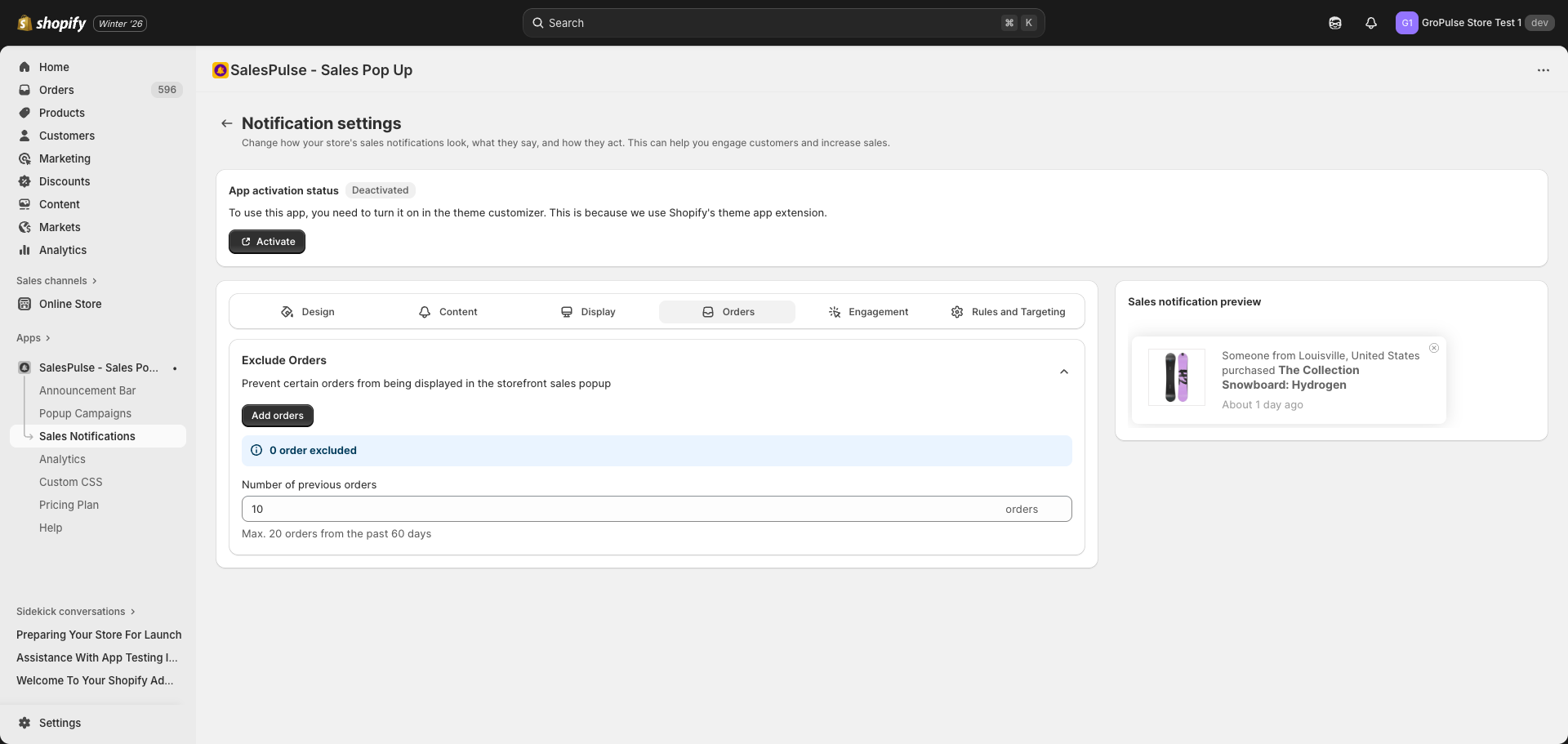
Order Source Overview
Sales notifications display actual orders from your Shopify store:
- Orders are pulled from your store’s order history
- Only orders from the past 60 days are included
- Up to 20 orders can be displayed in rotation
Number of Previous Orders
Control how many orders are used for notifications.
Configuration
| Setting | Range | Default |
|---|---|---|
| Number of previous orders | 1-20 | 10 |
How It Works
- The app pulls the specified number of recent orders
- Orders are shown in rotation in notifications
- More orders = more variety in notifications
- Fewer orders = notifications may repeat more often
Recommendations
| Order Volume | Setting | Reason |
|---|---|---|
| High (50+/day) | 15-20 | More variety |
| Medium (10-50/day) | 10-15 | Good balance |
| Low (1-10/day) | 5-10 | Avoid repetition |
| Very Low (<1/day) | 1-5 | Use available orders |
Order Exclusions
Prevent specific orders from appearing in notifications.
Why Exclude Orders
You may want to exclude orders that:
- Contain sensitive products
- Are test or internal orders
- Have been refunded or cancelled
- Involve wholesale or B2B purchases
- Include gift purchases (privacy concerns)
Adding Exclusions
- Click the Add orders button
- Search for orders by:
- Order number
- Customer name
- Product name
- Select orders to exclude
- Click to add them to the exclusion list
Managing Exclusions
The page shows:
- 0 order excluded (or count of excluded orders)
- List of excluded orders (when expanded)
To remove an exclusion:
- Find the order in the exclusion list
- Click to remove it
- The order will be included in notifications again
Order Data in Notifications
Each notification displays:
| Data Point | Source | Example |
|---|---|---|
| Customer Name | Order billing/shipping | “John” or “Someone” |
| Customer City | Shipping address | “Louisville” |
| Customer Country | Shipping address | “United States” |
| Product Name | First line item | “The Collection Snowboard” |
| Product Image | Product media | Product thumbnail |
| Purchase Time | Order created date | “About 1 day ago” |
Privacy Considerations
Customer Data Protection
- Enable “Use ‘Someone’ instead of customer name” in Content settings
- Customer location is limited to city and country
- No email addresses or full names are displayed
- Order values are not shown
Best Practices
Order Selection
- Keep a healthy variety of orders (10+)
- Exclude any problematic orders promptly
- Regular review of what orders are displayed
For New Stores
If you’re a new store with few orders:
- Start with a lower order count setting
- Consider using test orders initially
- Notifications will work with as few as 1 order
For High-Volume Stores
If you process many orders:
- Use the maximum 20 orders for variety
- Regularly review for any orders to exclude
- Consider excluding bulk/wholesale orders
Troubleshooting
No Notifications Appearing
If notifications aren’t showing:
- Check order count: Ensure you have orders from the past 60 days
- Check exclusions: Make sure not all orders are excluded
- Check activation: Verify the feature is activated in theme
Same Notification Repeating
If you see the same notification repeatedly:
- Increase order count: Add more orders to the rotation
- Check order history: You may have limited recent orders
- Review exclusions: Ensure you haven’t excluded too many
Excluded Order Still Appearing
If an excluded order still shows:
- Save your settings
- Clear your browser cache
- Wait a few minutes for changes to propagate
- Check the exclusion list to confirm the order is listed
Last updated on February 17, 2026
Was this article helpful?
Powered by Support Genix