
This guide provides an introduction to the Popup Campaigns feature in SalesPulse, including how to access it and check activation status.
What are Popup Campaigns?
Popup campaigns are customizable modal windows that appear on your store to engage visitors and capture leads. Use them to:
- Collect email addresses for your newsletter
- Offer discount codes to new visitors
- Promote special sales and limited-time offers
- Capture leads before visitors leave (exit intent)
- Welcome first-time visitors to your store
- Encourage social media follows
- Promote product launches and new arrivals
- Run referral programs
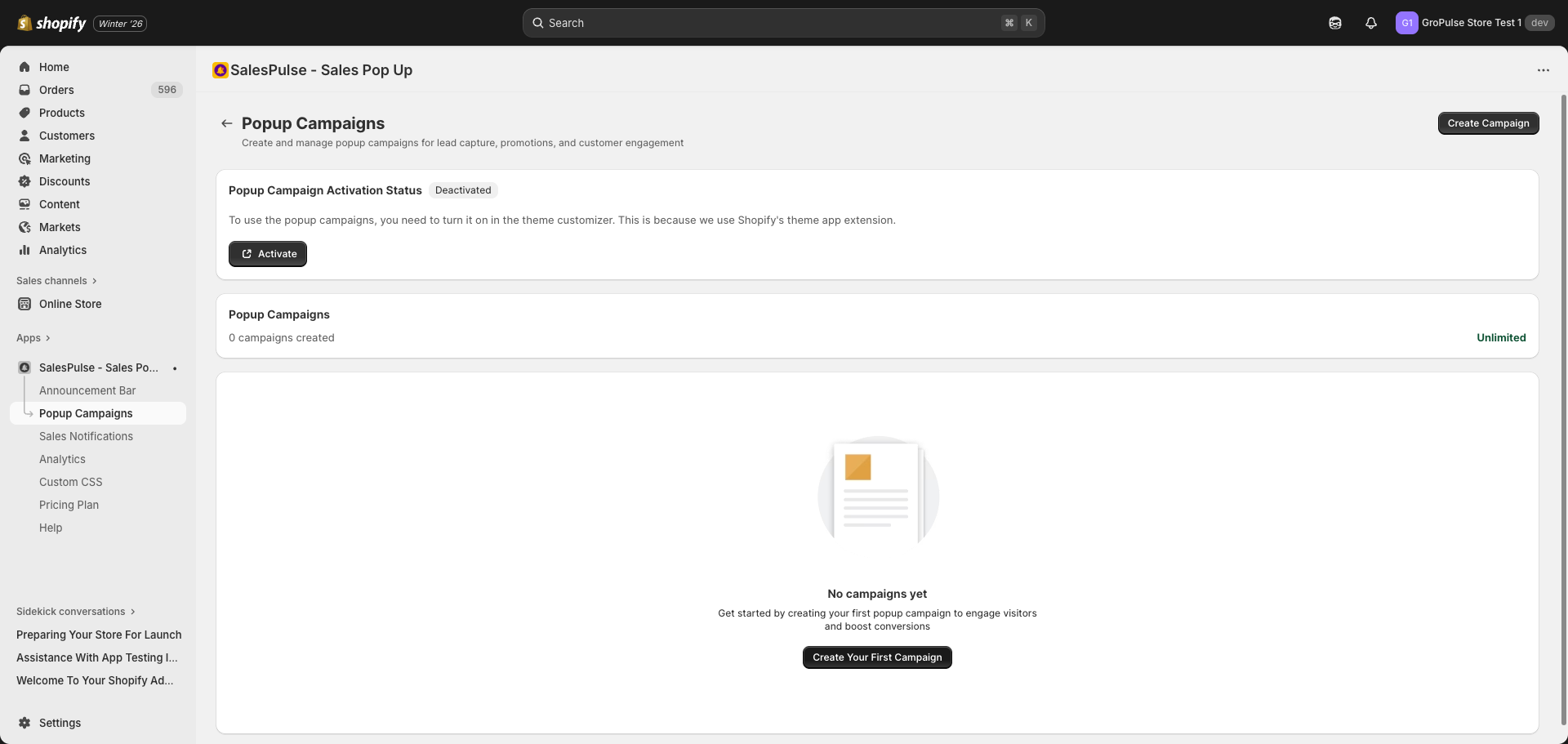
Accessing the Popup Campaigns Feature
To access the Popup Campaigns feature:
- Open your Shopify admin
- Navigate to Apps > SalesPulse – Sales Pop Up
- Click Popup Campaigns in the left sidebar
Activation Status
Before your popup campaigns can appear on your store, the feature must be activated in the Theme Customizer.
Checking Activation Status
The Popup Campaigns page displays an Activation Status card at the top:
| Status | Description |
|---|---|
| Activated | The feature is enabled and popups will display on your store |
| Deactivated | The feature needs to be activated in the Theme Customizer |
How to Activate
If the status shows “Deactivated”:
- Click the Activate button on the status card
- This opens the Shopify Theme Customizer
- In the App Embeds panel, find Popup Campaigns
- Toggle the switch to enable it
- Click Save in the top-right corner
Campaign Management Overview
The main Popup Campaigns page shows:
Empty State
When you have no popup campaigns, you will see:
- A message: “No campaigns yet”
- A prompt: “Get started by creating your first popup campaign to engage visitors and boost conversions”
- A Create Your First Campaign button
Campaign List
When you have popup campaigns created, you will see a list showing:
- Campaign name
- Active/Inactive status
- Quick actions (edit, duplicate, delete, analytics)
Key Features
The Popup Campaigns feature includes:
| Feature | Description |
|---|---|
| Template Library | 20+ pre-designed templates to get started quickly |
| Form Builder | Create custom forms with email, name, phone fields |
| Content Settings | Configure headings, messages, and button text |
| Design Settings | Customize colors, dimensions, and close button |
| Trigger Settings | Time delay, scroll depth, exit intent, inactivity |
| Targeting Rules | Page targeting, device targeting, geo-targeting |
| Scheduling | Set start and end dates for campaigns |
| Frequency Settings | Control how often visitors see the popup |
| Animation Settings | Add smooth entry and exit animations |
| Integration Settings | Connect with Shopify, Klaviyo, or Mailchimp |
| A/B Testing | Test variants to optimize performance (Pro plan) |
| Analytics | Track impressions, submissions, and conversions |
Popup Types
Choose from multiple popup display positions:
| Popup Type | Description |
|---|---|
| Center Modal | Classic popup centered on the screen |
| Bottom Right Corner | Non-intrusive popup in bottom right |
| Bottom Left Corner | Non-intrusive popup in bottom left |
| Fullscreen | Takes over the entire screen |
| Right Sidebar | Slides in from the right side |
| Left Sidebar | Slides in from the left side |
Template Categories
The template library includes templates for various use cases:
| Category | Description |
|---|---|
| Lead Capture | Newsletter signups, email collection |
| Promotional | Sales, discounts, special offers |
| Exit Intent | Catch visitors before they leave |
| Welcome | Greet first-time visitors |
| Social | Encourage social media follows |
| Product | Highlight products or collections |
| Referral | Encourage customer referrals |
| Seasonal | Holiday and seasonal promotions |
| VIP | Exclusive offers for members |
| Feedback | Collect customer feedback |
| Event | Promote webinars and events |
| App | Mobile app download promotions |
Trigger Options
Control when your popup appears with multiple trigger options:
| Trigger | Description |
|---|---|
| Time Delay | Show after visitor has been on page for X seconds |
| Scroll Depth | Show when visitor scrolls to X% of the page |
| Exit Intent | Show when visitor moves cursor to leave |
| Inactivity | Show when visitor is inactive for X seconds |