
This guide explains how to schedule your popup campaigns for specific time periods and control how often visitors see them.
Schedule Settings
Control when your popup campaign is active based on dates and times.
Accessing Schedule Settings
- Open the Popup Campaign Editor
- Click More views
- Select Schedule
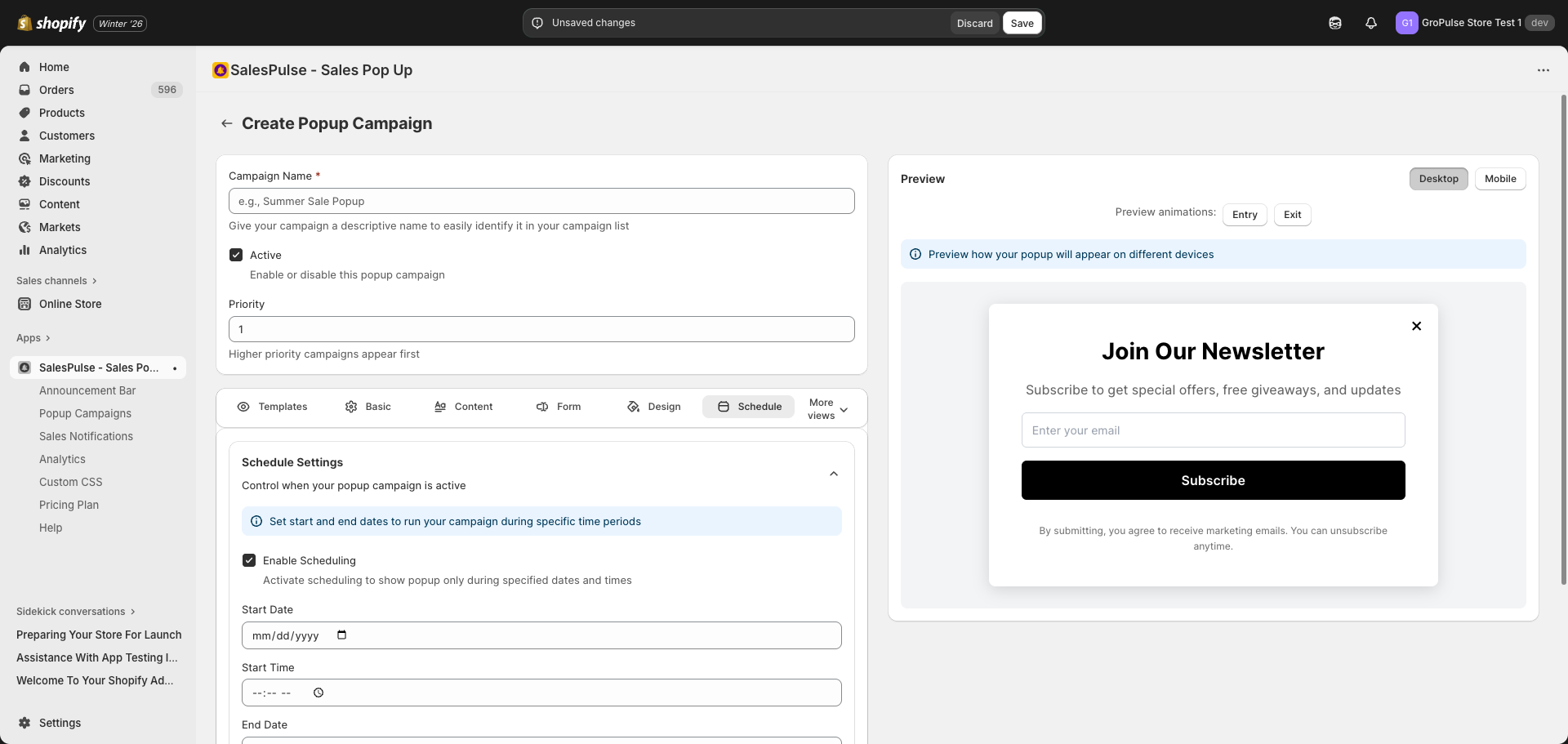
Enabling Scheduling
- Check Enable Scheduling
- Configure start and end dates/times
- Select your timezone
When scheduling is disabled, the popup runs indefinitely (as long as it’s active).
Basic Scheduling
Start Date and Time
Set when the popup campaign begins appearing:
| Field | Description |
|---|---|
| Start Date | The date the campaign starts showing |
| Start Time | The time of day the campaign activates |
End Date and Time
Set when the popup campaign stops appearing:
| Field | Description |
|---|---|
| End Date | The date the campaign stops showing |
| End Time | The time of day the campaign deactivates |
Note: You can leave the end date empty for campaigns that should run indefinitely from the start date.
Timezone Settings
Select the timezone for your schedule:
| Timezone | Description |
|---|---|
| UTC | Coordinated Universal Time |
| America/New_York (EST) | Eastern Standard Time |
| America/Los_Angeles (PST) | Pacific Standard Time |
| America/Chicago (CST) | Central Standard Time |
| Europe/London (GMT) | Greenwich Mean Time |
| Europe/Paris (CET) | Central European Time |
| Asia/Tokyo (JST) | Japan Standard Time |
| Asia/Shanghai (CST) | China Standard Time |
| Australia/Sydney (AEST) | Australian Eastern Time |
Tip: Choose the timezone that matches your primary customer base.
Scheduling Tips
- Plan ahead: Set up campaigns before the scheduled start date
- Test thoroughly: Verify the campaign works before the scheduled time
- Consider timezones: Use the timezone of your primary audience
- Leave buffer time: Don’t schedule to end exactly at sale end
Campaign Lifecycle
Understanding how campaigns behave through their lifecycle:
Before Start Date
- Campaign is saved but not displaying
- Settings can be modified
- Analytics won’t show data
During Active Period
- Campaign displays based on trigger rules
- Analytics track impressions and conversions
- Can be paused by unchecking “Active”
After End Date
- Campaign automatically stops showing
- Analytics data is preserved
- Can be reactivated by extending end date
Troubleshooting
Campaign Not Showing at Scheduled Time
- Check the timezone setting matches your expectations
- Verify current date/time falls within schedule
- Ensure the campaign is set to Active
- Check no higher priority campaign is blocking it
Campaign Showing Outside Schedule
- Verify scheduling is enabled
- Check start and end dates are correct
- Confirm timezone setting
- Clear browser cache and test again
Last updated on February 18, 2026
Was this article helpful?
Powered by Support Genix