
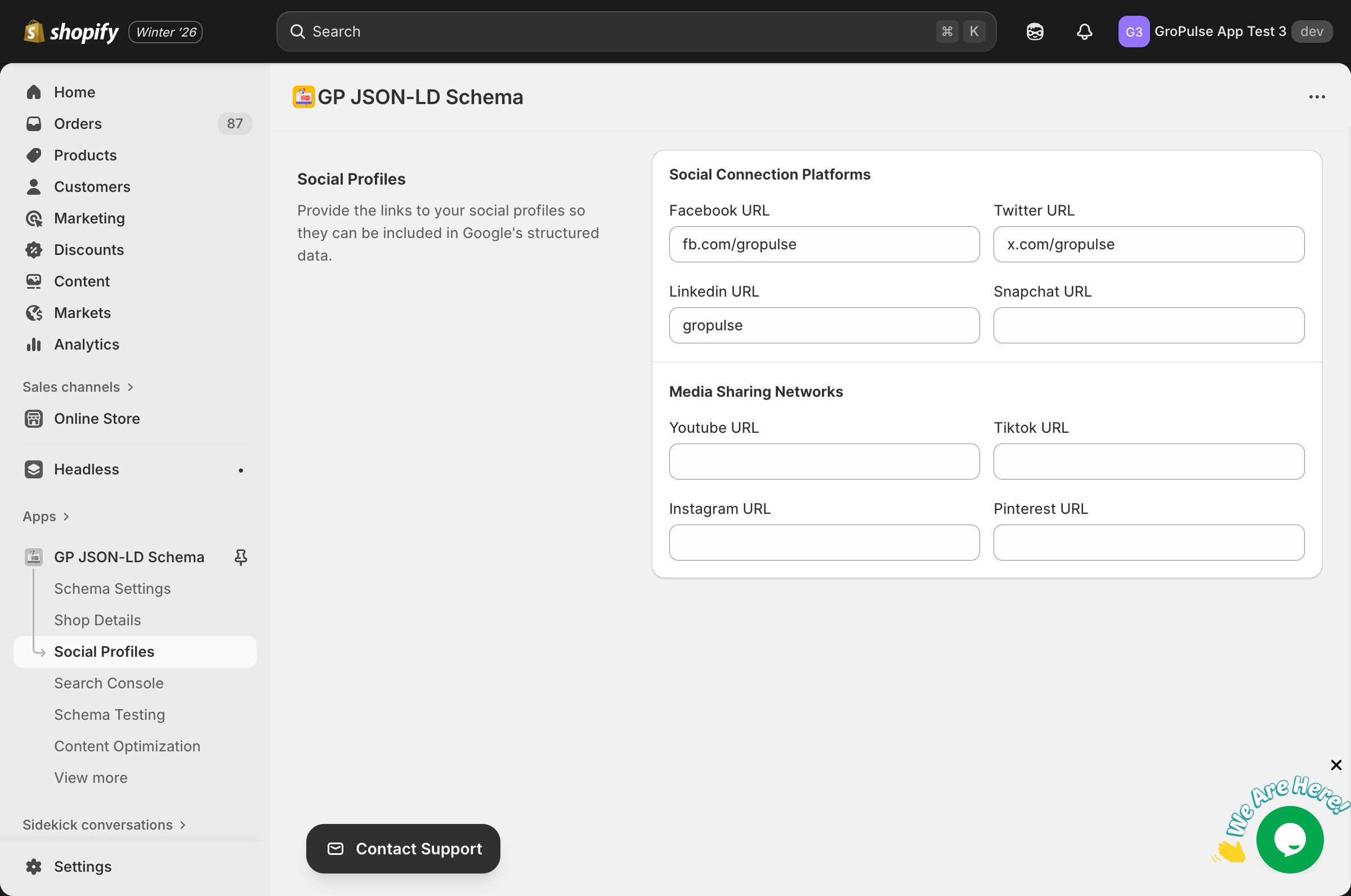
Add your social media profile links to enhance your brand’s structured data. These links appear in your Home Page Schema and help establish your brand identity in search results.
Overview
Social profile links in structured data:
- Connect your brand across platforms
- Appear in Google Knowledge Panels
- Improve brand recognition
- Help verify your business identity
Accessing Social Profiles
- Navigate to Social Profiles from the sidebar
- Enter your profile URLs
- Click Save to apply changes
Available Platforms
Social Connection Platforms
| Platform | Field | Example URL |
|---|---|---|
| Facebook URL | https://www.facebook.com/yourbrand | |
| Twitter/X | Twitter URL | https://twitter.com/yourbrand |
| LinkedIn URL | https://www.linkedin.com/company/yourbrand | |
| Snapchat | Snapchat URL | https://www.snapchat.com/add/yourbrand |
Media Sharing Networks
| Platform | Field | Example URL |
|---|---|---|
| YouTube | YouTube URL | https://www.youtube.com/c/yourbrand |
| TikTok | TikTok URL | https://www.tiktok.com/@yourbrand |
| Instagram URL | https://www.instagram.com/yourbrand | |
| Pinterest URL | https://www.pinterest.com/yourbrand |
Adding Profile URLs
Format Requirements
- Use complete URLs including
https:// - Use your official brand profile page
- Ensure the URL is publicly accessible
- Don’t include tracking parameters
Correct Formats
Facebook:   https://www.facebook.com/yourbrand
Twitter:    https://twitter.com/yourbrand
Instagram:  https://www.instagram.com/yourbrand
YouTube:    https://www.youtube.com/c/yourbrand
LinkedIn:   https://www.linkedin.com/company/yourbrand
TikTok:     https://www.tiktok.com/@yourbrand
Pinterest:  https://www.pinterest.com/yourbrand
Snapchat:   https://www.snapchat.com/add/yourbrand
Common Mistakes
Wrong: facebook.com/yourbrand (missing https://)
Wrong: https://facebook.com/yourbrand/posts/123 (specific post, not profile)
Wrong: @yourbrand (username only, not URL)
Which Profiles to Add
Recommended Priority
- High Priority — Platforms you actively use
- Facebook (business page)
- Twitter/X
- Medium Priority — Content platforms
- YouTube (if you have videos)
- TikTok (if you create content)
- Pinterest (if relevant to your products)
- Lower Priority — Professional networks
- LinkedIn (B2B businesses)
- Snapchat (younger audiences)
Best Practices
- Only add profiles you actively maintain
- Ensure profiles are complete and professional
- Use consistent branding across platforms
- Keep URLs updated if you change usernames
How It Works
Once configured, social profiles appear in:
Home Page Schema
{
  "@type": "Organization",
  "name": "Your Brand",
  "sameAs": [
    "https://www.facebook.com/yourbrand",
    "https://twitter.com/yourbrand",
    "https://www.instagram.com/yourbrand"
  ]
}
Google Knowledge Panel
When Google recognizes your brand, social links may appear in:
- Brand search results
- Knowledge panel sidebar
- Brand recognition features
Troubleshooting
Profiles not showing in schema
- Ensure Home Page Schema is enabled
- Verify URLs are correctly formatted
- Check that profiles are public
- Test using Schema Testing tool
Invalid URL error
- Ensure URL starts with
https:// - Check for typos in the URL
- Verify the profile page exists
- Remove any trailing slashes or parameters
Changes not appearing in Google
- Schema changes take time to be re-crawled
- Request indexing via Search Console
- Wait 1-4 weeks for updates
Related Guides
Need Help?
- Contact Support: gropulse.com/contact
- Live Chat: Available in the bottom-right corner of the app
Last updated on February 16, 2026
Was this article helpful?
Powered by Support Genix