
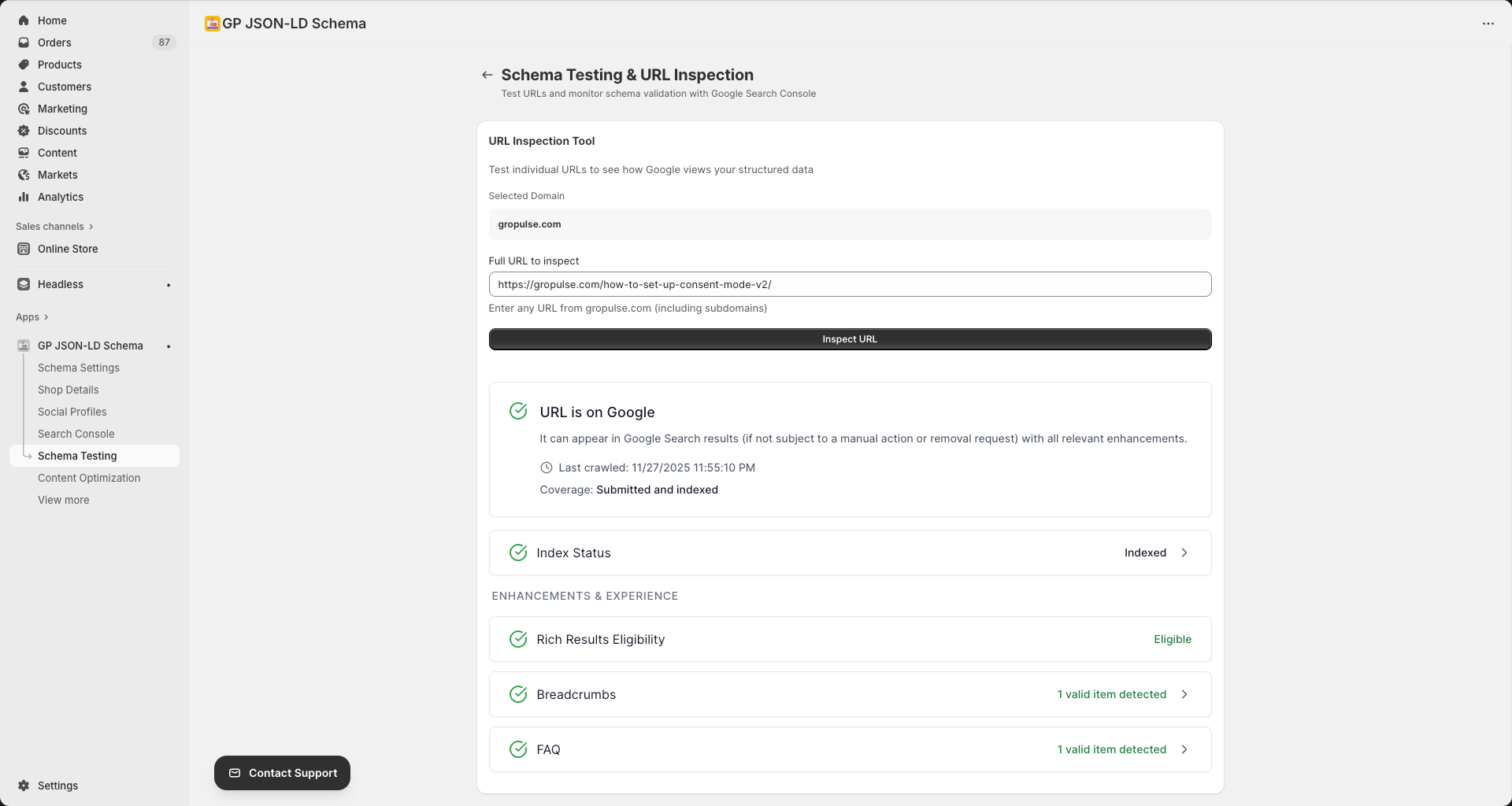
Test and validate your JSON-LD schema markup to ensure it’s working correctly. Inspect individual URLs, identify errors, and verify your structured data before Google crawls it.
Overview
Schema Testing helps you:
- Validate Schema — Check if your markup is correct
- Identify Errors — Find and fix issues before Google does
- Test Pages — Inspect any URL on your store
- Monitor Quality — Ensure consistent schema across pages
Accessing Schema Testing
- Navigate to Schema Testing from the sidebar
- Connect Google Search Console (optional but recommended)
- Enter URLs to inspect
Testing Methods
Method 1: Google Search Console Integration
Requirements:
- Connected Google Search Console account
- Verified property
Benefits:
- See how Google actually views your pages
- Access to indexing status
- Real crawl data
How to use:
- Connect your Google account
- Select your property/domain
- Enter a URL from your site
- Click Inspect URL
- Review the results
Method 2: Basic Schema Validator
Requirements:
- None (no login required)
Benefits:
- Quick testing without authentication
- Test any public URL
- Instant results
How to use:
- Click Use Basic Schema Validator
- Enter the URL to test
- View detected schema types
- Review any errors or warnings
URL Inspection Tool
Entering URLs
Format requirements:
- Use complete URLs with
https:// - URL must be from your connected property
- Page must be publicly accessible
Examples:
✓ https://yourstore.com/products/blue-shirt
✓ https://yourstore.com/collections/summer
✓ https://yourstore.com/blogs/news/latest-post
✗ yourstore.com/products/shirt (missing https://)
✗ /products/shirt (relative URL)
Understanding Results
| Status | Meaning |
|---|---|
| Valid | Schema is correct and complete |
| Valid with warnings | Works but could be improved |
| Error | Schema has issues that need fixing |
| Not found | No schema detected on page |
Schema Types Detected
The tool identifies these schema types:
| Schema Type | Found On |
|---|---|
| Organization | Home page |
| WebSite | Home page |
| Product | Product pages |
| BreadcrumbList | All pages with breadcrumbs |
| Article | Blog posts |
| FAQPage | Pages with FAQ schema |
| LocalBusiness | If configured |
| ItemList | Collection pages |
| VideoObject | Pages with video schema |
| Recipe | Recipe content |
Common Errors and Fixes
Missing Required Fields
Error: “Missing field: [fieldName]”
Common missing fields:
| Schema | Required Fields |
|---|---|
| Product | name, image, offers |
| Organization | name, logo |
| Article | headline, image, author |
| LocalBusiness | name, address |
Fix: Configure the missing information in the relevant settings page.
Invalid Field Values
Error: “Invalid value for field: [fieldName]”
Common issues:
| Field | Problem | Solution |
|---|---|---|
| price | Not a number | Use numeric value (29.99) |
| datePublished | Wrong format | Use ISO 8601 (YYYY-MM-DD) |
| url | Invalid URL | Use complete URL with https:// |
| image | Broken link | Verify image URL is accessible |
Duplicate Schema
Error: “Duplicate [schemaType] found”
Cause: Multiple schema blocks of same type on one page
Fix:
- Check theme for existing schema
- Disable conflicting schema in theme
- Or disable in app to avoid duplicates
External Testing Tools
You can also verify with:
- Google Rich Results Test
- https://search.google.com/test/rich-results
- Schema.org Validator
- https://validator.schema.org/
- Google Search Console
- URL Inspection tool
Troubleshooting
“URL not found in property”
Cause: URL doesn’t match connected property
Solutions:
- Ensure URL is from your verified domain
- Check for www vs non-www mismatch
- Verify the page exists and is indexed
No schema detected
Causes:
- App not activated in theme
- Schema type not enabled
- Page type mismatch
Solutions:
- Verify app is activated
- Check schema settings
- Ensure correct page type
- Clear caches and retest
Results don’t match Google
Causes:
- Google has cached old version
- Recent changes not crawled yet
Solutions:
- Request indexing in Search Console
- Wait for Google to re-crawl
- Verify changes are saved
Related Guides
Need Help?
- Contact Support: gropulse.com/contact
- Live Chat: Available in the bottom-right corner of the app
Last updated on February 16, 2026
Was this article helpful?
Powered by Support Genix