
This guide explains how to set up and configure TikTok Pixel tracking in your Shopify store using Pixee.
What is TikTok Pixel?
TikTok Pixel is a tracking code that helps you:
- Track conversions from TikTok ads
- Optimize ad delivery based on user actions
- Build custom audiences for retargeting
- Measure the effectiveness of your TikTok advertising
Prerequisites
Before setting up your TikTok Pixel, you need:
- A TikTok Business account
- Access to TikTok Ads Manager
- Your TikTok Pixel ID
Finding Your TikTok Pixel ID
- Go to TikTok Ads Manager
- Click on Assets > Events
- Select or create your pixel
- Your Pixel ID is displayed in the pixel details
Screenshot coming soon
Adding a TikTok Pixel
Step 1: Navigate to TikTok Pixel Page
- Open the Pixee app in your Shopify admin
- Click on TikTok Pixel in the sidebar
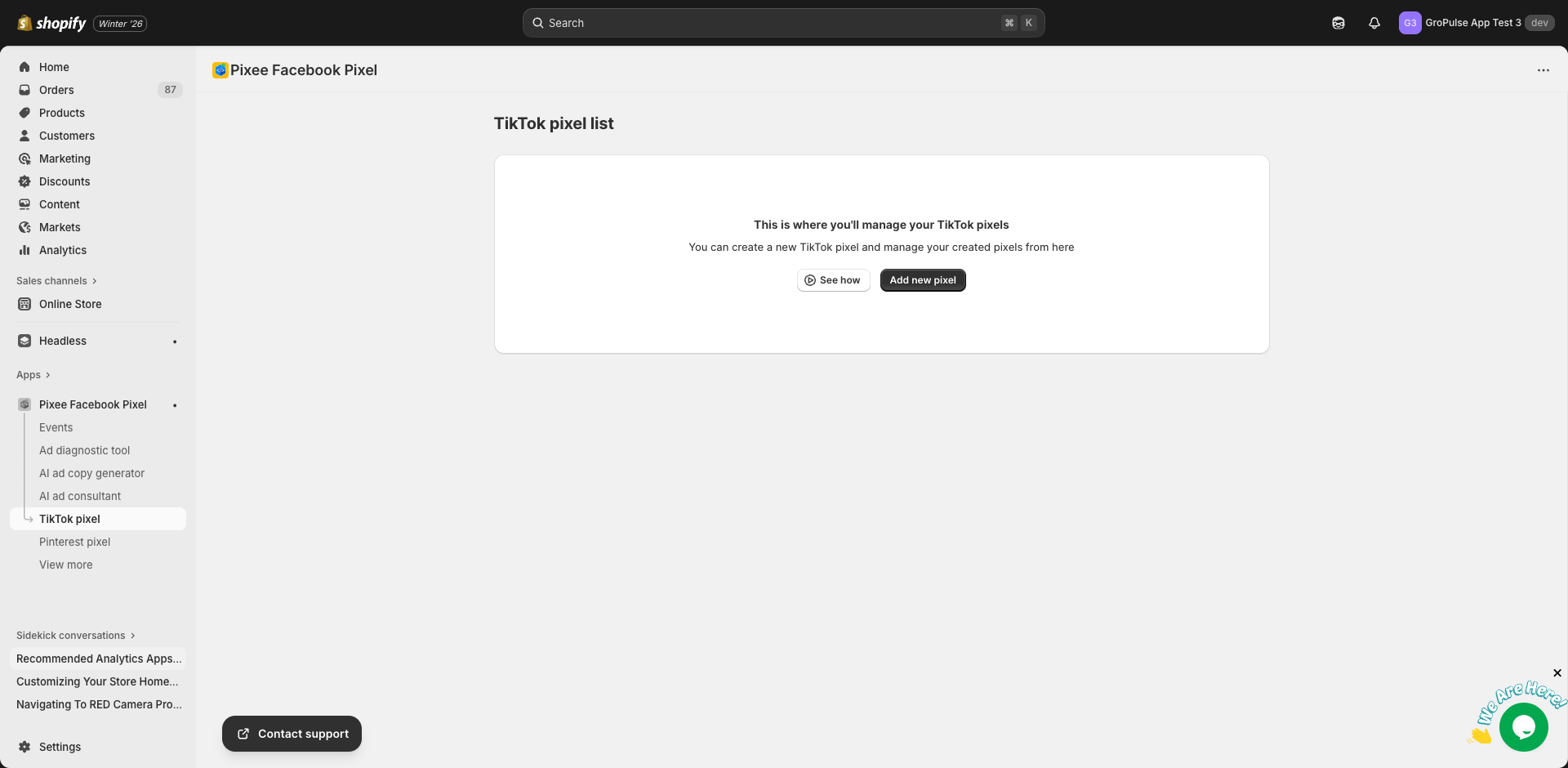
Step 2: Add a New Pixel
- Click Add new pixel button
- You will be taken to the pixel setup form
Step 3: Enter Pixel Details
Fill in the required information:
| Field | Description | Example |
|---|---|---|
| Pixel Name | A friendly name for your pixel | “TikTok Main Pixel” |
| Pixel ID | Your TikTok Pixel ID | “C1234567890” |
Step 4: Save Your Pixel
- Click Save to add the pixel
- The pixel will appear in your TikTok Pixel list
Managing TikTok Pixels
Viewing Your Pixels
The TikTok Pixel page displays all your configured pixels in a list showing:
- Pixel Name
- Pixel ID
- Status (Active/Inactive)
- Actions (Edit, Delete)
Adding Multiple Pixels
With a Basic or Advanced plan:
- Click Add new pixel
- Enter the new pixel details
- Save the pixel
Editing a Pixel
- Click Edit next to the pixel
- Update the pixel name or ID
- Click Save
Deleting a Pixel
- Click Delete next to the pixel
- Confirm the deletion
- The pixel will be removed
Events Tracked
TikTok Pixel will automatically track these events:
| Event | When It Fires |
|---|---|
| PageView | Every page load |
| ViewContent | Product page view |
| Search | Search results page |
| AddToCart | Adding product to cart |
| InitiateCheckout | Starting checkout |
| CompletePayment | Order completion |
Verifying Your TikTok Pixel
Using TikTok Pixel Helper
- Install the TikTok Pixel Helper browser extension
- Visit your store
- Click the extension icon
- Verify events are firing correctly
Using TikTok Events Manager
- Go to TikTok Ads Manager > Assets > Events
- Select your pixel
- View the event activity log
- Check that events are being received
Troubleshooting
Pixel Not Firing
- Verify the app is activated
- Check the Pixel ID is correct
- Ensure the pixel status is “Active”
- Check for JavaScript errors in browser console
Events Not Appearing in TikTok
- Wait 15-30 minutes for events to appear
- Verify the correct pixel is selected
- Clear browser cache and test again
- Check TikTok’s event testing tool
Missing Event Data
- Ensure products have all required information
- Check event tracking configuration
- Verify the pixel is properly connected
Best Practices
- Use one pixel per store: Keep tracking simple and accurate
- Verify after setup: Always test pixel firing after installation
- Monitor regularly: Check TikTok Events Manager weekly
- Optimize campaigns: Use pixel data to improve ad targeting
Empty State
If you have not added any TikTok pixels yet, you will see:
- An empty state message: “This is where you’ll manage your TikTok pixels”
- An Add new pixel button to get started
- A See how button to watch a tutorial video
Next Steps
- Set up Event Tracking to customize tracked events
- Create Product Feeds for dynamic ads
- Set up GDPR Banner for consent compliance
Last updated on February 17, 2026
Was this article helpful?
Powered by Support Genix