
Wishlist reminder emails are one of the most effective ways to bring customers back to complete their purchases. This guide shows you how to set up automated reminders that encourage customers to buy the items they’ve saved.
Why Wishlist Reminders Work
Customers add items to their wishlist for a reason — they’re interested but not ready to buy. A well-timed reminder can:
- Bring customers back when they’re ready to purchase
- Create urgency around saved items
- Increase conversion rates significantly
- Re-engage dormant customers
Prerequisites
Before setting up wishlist reminders, you must configure your SMTP settings:
- Go to Wishlist > Email Notifications tab
- Click SMTP Settings (first panel)
- Enter your email provider credentials
- Save and verify your configuration
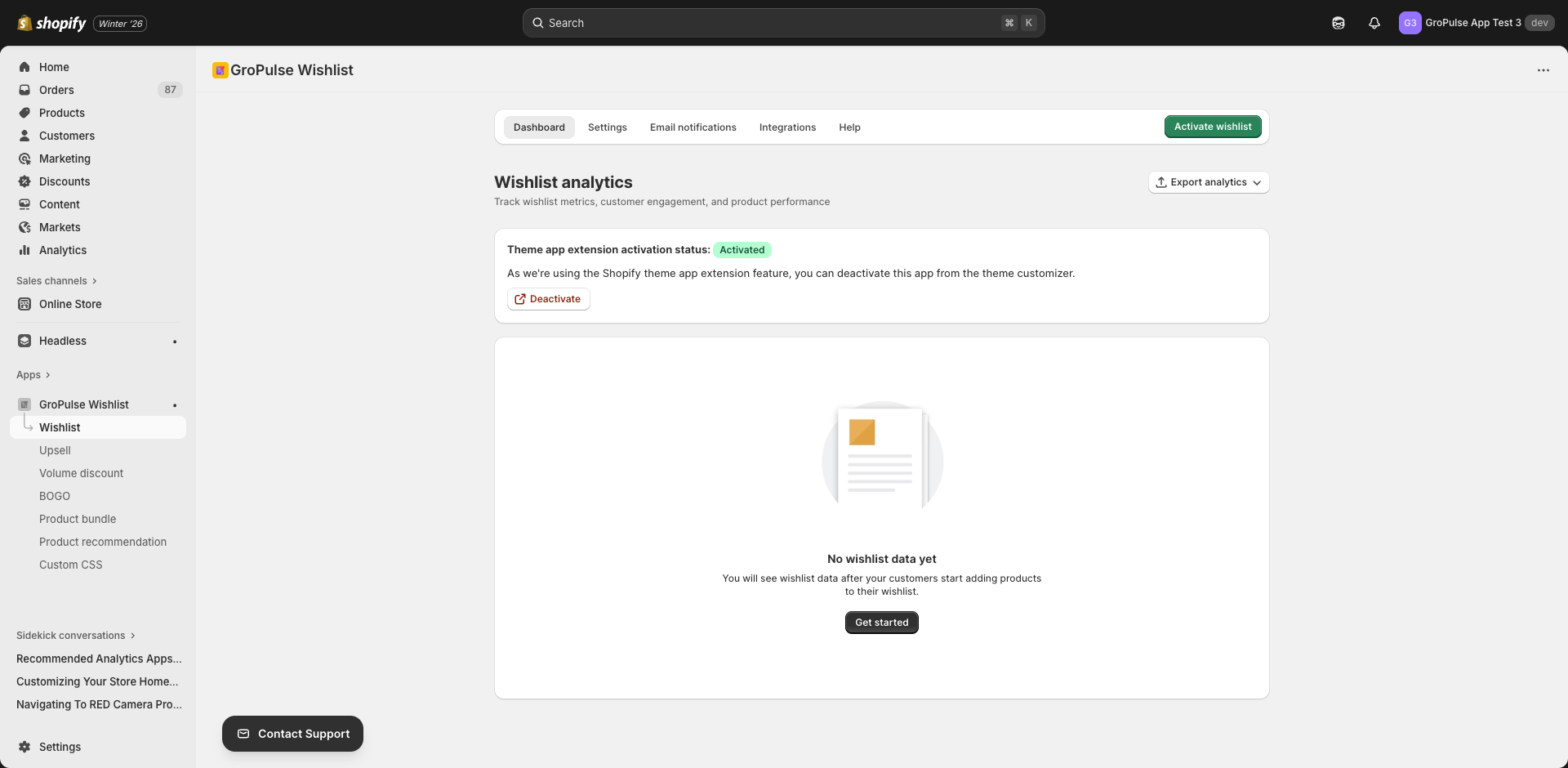
Note: Without SMTP configuration, all email notification features will be disabled.
Accessing Wishlist Reminders
- Navigate to Wishlist in the main menu
- Click the Email Notifications tab
- Select Wishlist Reminders panel
Configuration Options
Enable Wishlist Reminders
Toggle the checkbox to enable or disable this feature. When enabled, the system will automatically send reminder emails based on your timing configuration.
Timing Configuration
Choose when to send reminder emails after a customer adds items to their wishlist:
| Option | Description |
|---|---|
| 24 hours | Send reminder 1 day after adding items |
| 3 days | Send reminder after 3 days |
| 7 days | Send reminder after 1 week |
| 14 days | Send reminder after 2 weeks |
| Custom | Set your own timing |
Custom Timing
When you select “Custom,” two additional fields appear:
- Time Value — Enter a number (e.g., 5)
- Time Unit — Choose Hours or Days
Example: Set “5” and “Days” to send reminders 5 days after wishlist activity.
Email Content
Email Subject
Create a compelling subject line that encourages opens. Examples:
- “Don’t forget your wishlist items!”
- “Your saved items are waiting for you”
- “Still thinking about these items?”
Email Template
Use the rich text editor to design your email. The template supports HTML and includes a live preview.
Available Variables
Insert these dynamic placeholders into your template:
| Variable | Description |
|---|---|
{{customer_name}} | Customer’s first name |
{{products_list}} | HTML list of wishlist items with images and prices |
{{wishlist_url}} | Link to the customer’s wishlist page |
{{store_name}} | Your store’s name |
Example Template:
<h2>Hi {{customer_name}},</h2>

<p>You have items waiting in your wishlist at {{store_name}}!</p>

{{products_list}}

<p>
  <a href="{{wishlist_url}}">View Your Wishlist</a>
</p>

<p>Happy shopping!</p>
Social Links
Add your social media links to appear in the email footer:
| Field | Example |
|---|---|
| https://instagram.com/yourstore | |
| https://facebook.com/yourstore | |
| Twitter/X | https://twitter.com/yourstore |
| support@yourstore.com |
These links help customers connect with your brand beyond the email.
Testing Your Email
Before enabling reminders for all customers:
- Click Send Test Email
- Enter your email address
- Review the email in your inbox
- Check formatting, links, and variable replacements
Full Preview Mode
Click Full Preview to open a side-by-side editor:
- Left panel: Edit subject and template
- Right panel: See live preview with mock data
Saving Your Settings
After configuring:
- Click Save Settings
- Wait for confirmation
- The system will start sending reminders based on your schedule
Best Practices
Timing
- First reminder: 24-48 hours works well for most stores
- Don’t over-send: One reminder is often enough
- Consider your products: High-value items may need longer decision times
Subject Lines
- Keep them under 50 characters
- Create curiosity or urgency
- Personalize when possible
- A/B test different approaches
Email Content
- Lead with product images
- Include clear CTAs (Call to Action)
- Keep the message concise
- Make the wishlist link prominent
Timing Strategy
| Product Type | Recommended Timing |
|---|---|
| Impulse buys | 24 hours |
| Regular items | 3-7 days |
| High-value products | 7-14 days |
| Seasonal items | Before season ends |
Troubleshooting
Emails Not Sending
- Verify SMTP settings are correct
- Check that the feature is enabled
- Confirm customers have valid email addresses
- Review your email provider’s sending limits
Variables Not Replacing
- Ensure variables are spelled exactly as shown
- Check for extra spaces around variables
- Use the preview to verify replacements
Low Open Rates
- Test different subject lines
- Send at optimal times for your audience
- Ensure emails aren’t going to spam
What’s Next?
Expand your email automation with these related features:
- Back-in-Stock Notifications — Alert customers when items return
- Price Drop Notifications — Notify customers of deals
- Abandoned Wishlist Recovery — Win back inactive customers
Wishlist reminders turn saved items into completed sales — set them up today.