
This guide walks you through activating HelpMate in your Shopify store.
Overview
HelpMate uses Shopify’s theme app extension to display a floating help widget on your storefront. Before the help widget becomes visible to your customers, you need to activate the theme extension in your store’s theme customizer.
Check Activation Status
When you first open HelpMate, you will see the App Activation Status card on the dashboard:
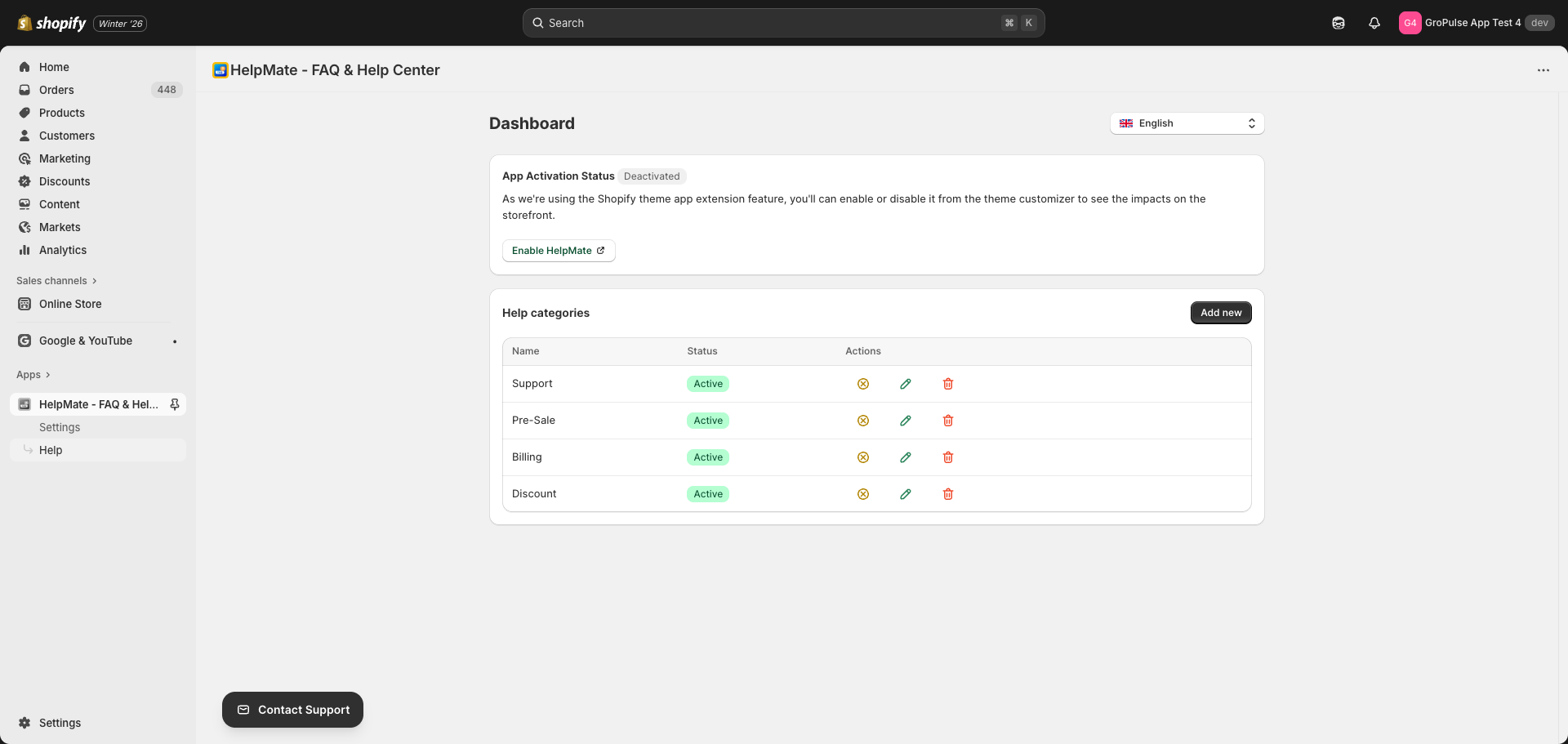
If the status shows Deactivated, follow the steps below to activate the app.
Activate the App
- Click the Enable HelpMate button on the App Activation Status card
- You will be redirected to the Shopify Theme Customizer with the App embeds panel open
- Find HelpMate in the App embeds list and ensure the toggle is On
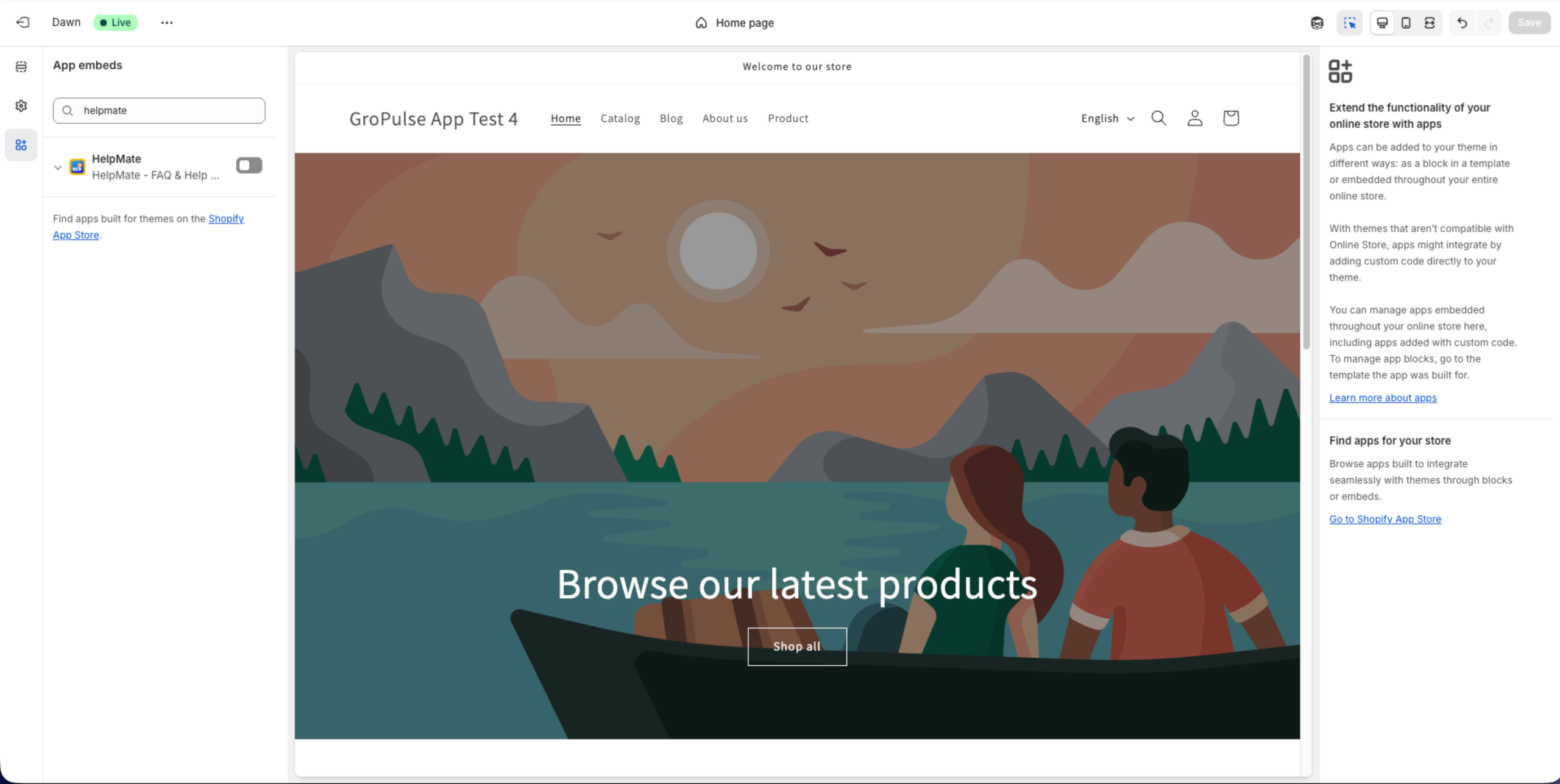
- Click Save in the top right corner of the Theme Customizer
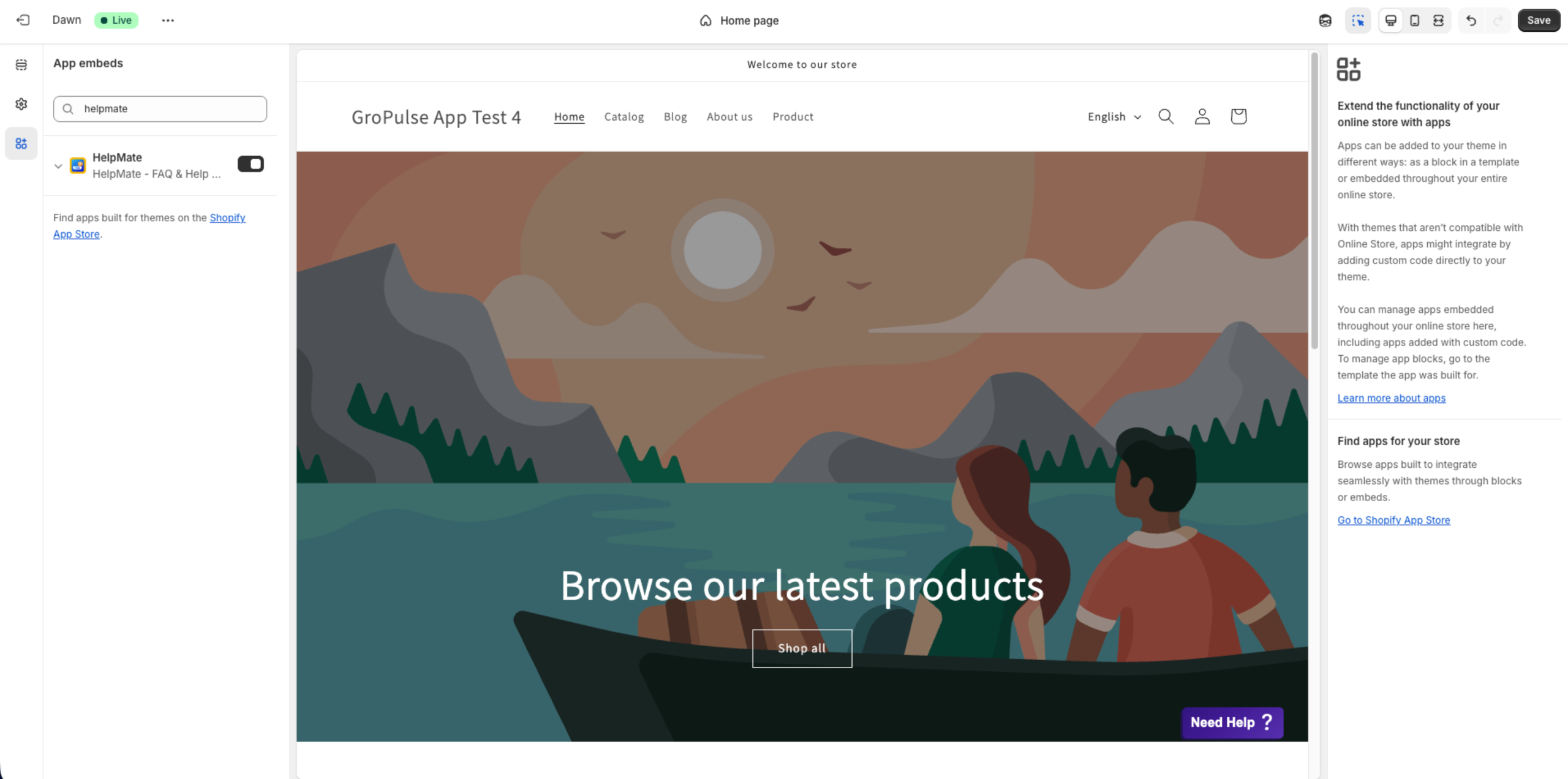
- Wait for the “Changes saved” confirmation message
Verify Activation
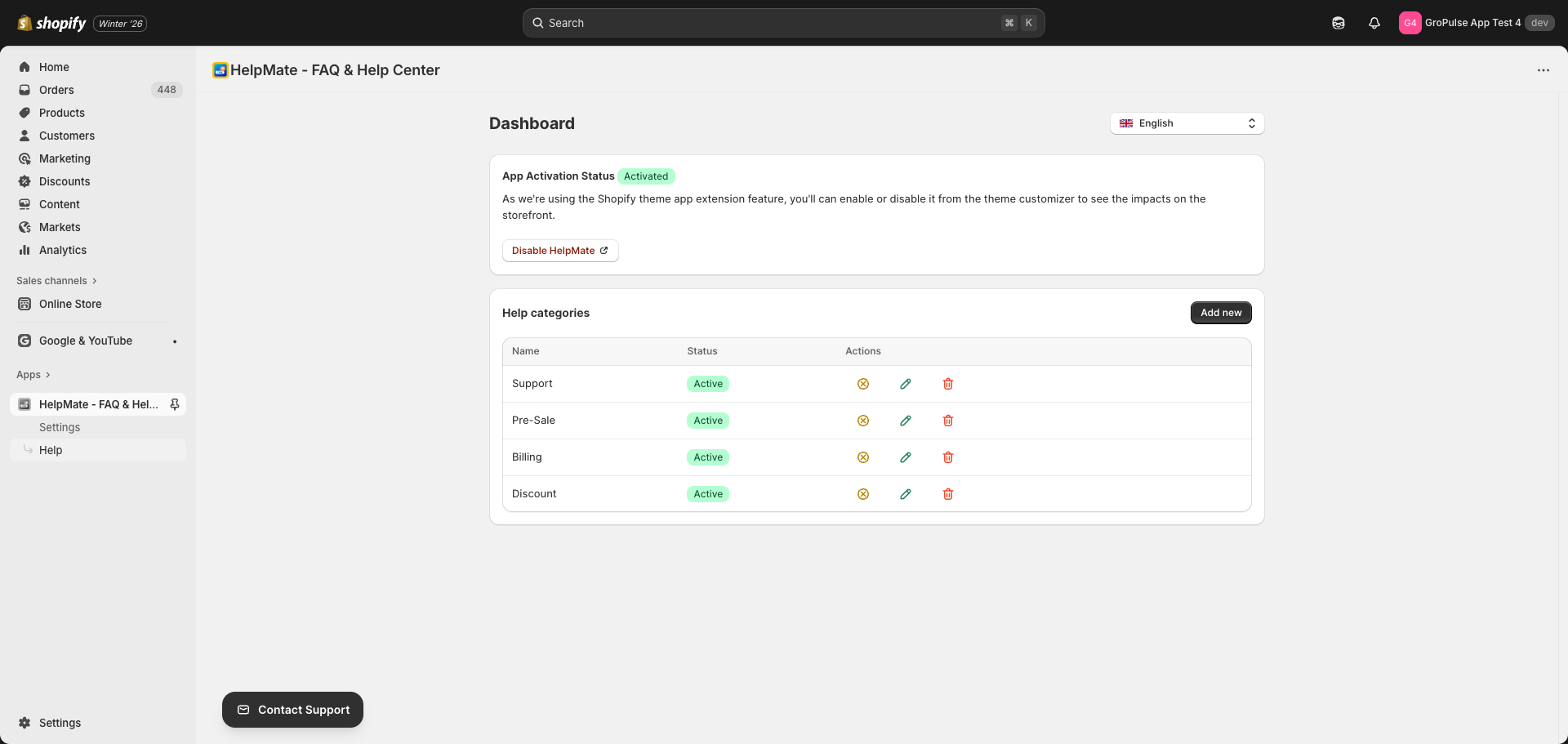
Return to the HelpMate dashboard. The App Activation Status card should now show Activated with a green success indicator:
View the Help Widget on Your Store
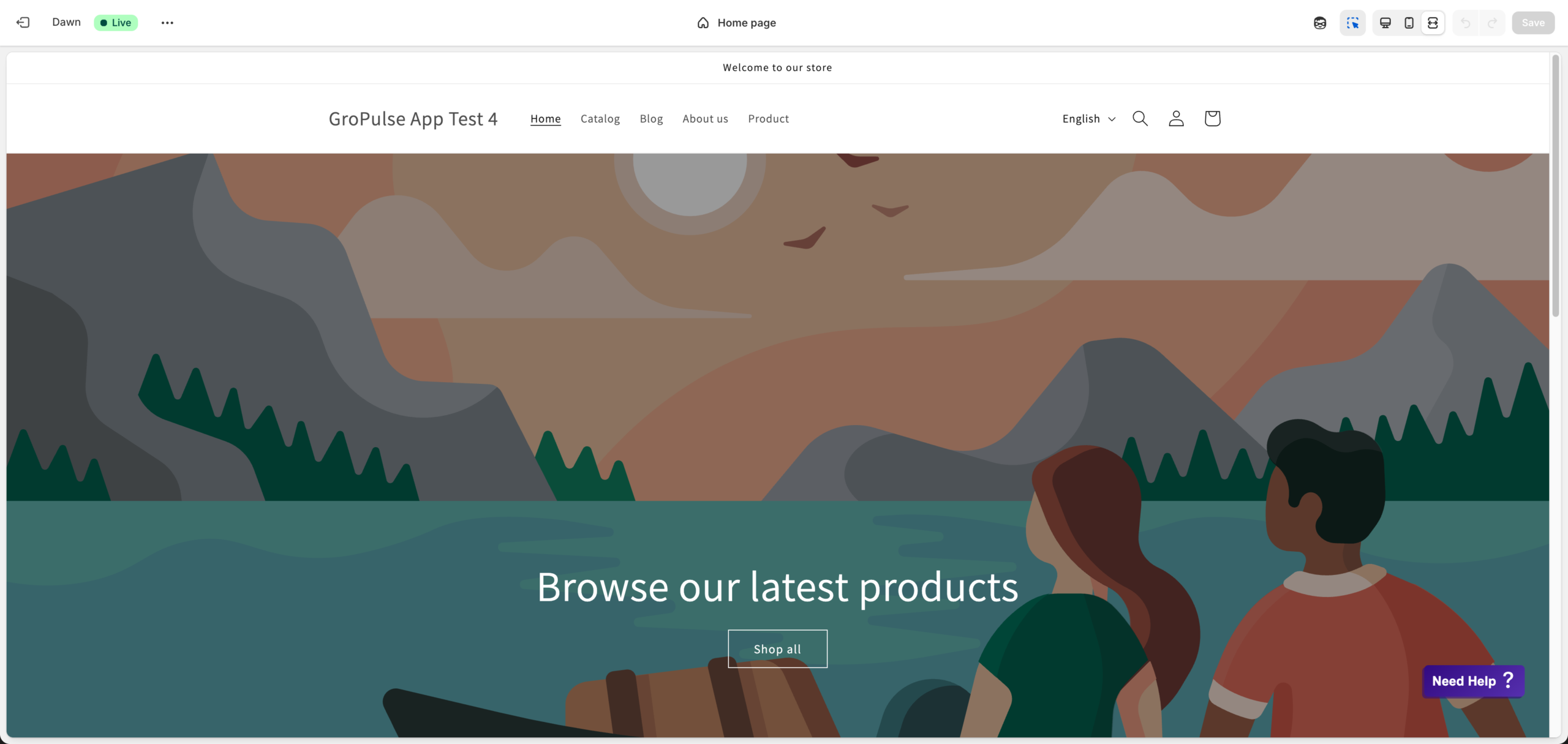
Once activated, you will see a floating help button on your storefront:
- Visit your store’s homepage or any page
- Look for the help button in the bottom corner (position depends on your settings)
- Click the button to open the help widget and see your categories and FAQs
Troubleshooting
App shows as Deactivated after activation
- Make sure you clicked Save in the Theme Customizer
- Refresh the HelpMate dashboard
- If still deactivated, try activating again
Cannot find HelpMate in Theme Customizer
- Ensure you are in the App embeds section, not the regular theme sections
- Try searching for “HelpMate” in the search box
- Contact support if the app embed is not visible
Theme was changed or updated
Each theme requires separate activation. If you switch themes, you will need to activate HelpMate again in the new theme.
Tips
- Always verify that the app is activated after switching themes
- Create at least one help category before activating to see the widget content
- Use the Settings page to customize the position and appearance of the help button