
This guide explains how to configure Google Consent Mode V2 in AdTrack for privacy-compliant conversion tracking.
Overview
Google Consent Mode V2 is a framework that adjusts how Google tags behave based on user consent choices. It is particularly important for:
- Stores serving customers in the EU/EEA
- GDPR compliance requirements
- Respecting customer privacy preferences
- Maintaining conversion tracking accuracy
Key Features
- ad_storage: Controls ad-related cookie storage
- ad_user_data: Controls whether user data can be sent for advertising
- ad_personalization: Controls whether data can be used for personalization
Accessing Consent Mode Settings
- Open AdTrack from your Shopify admin
- Scroll to the Google Consent Mode V2 section
- Click on the “Configure” button
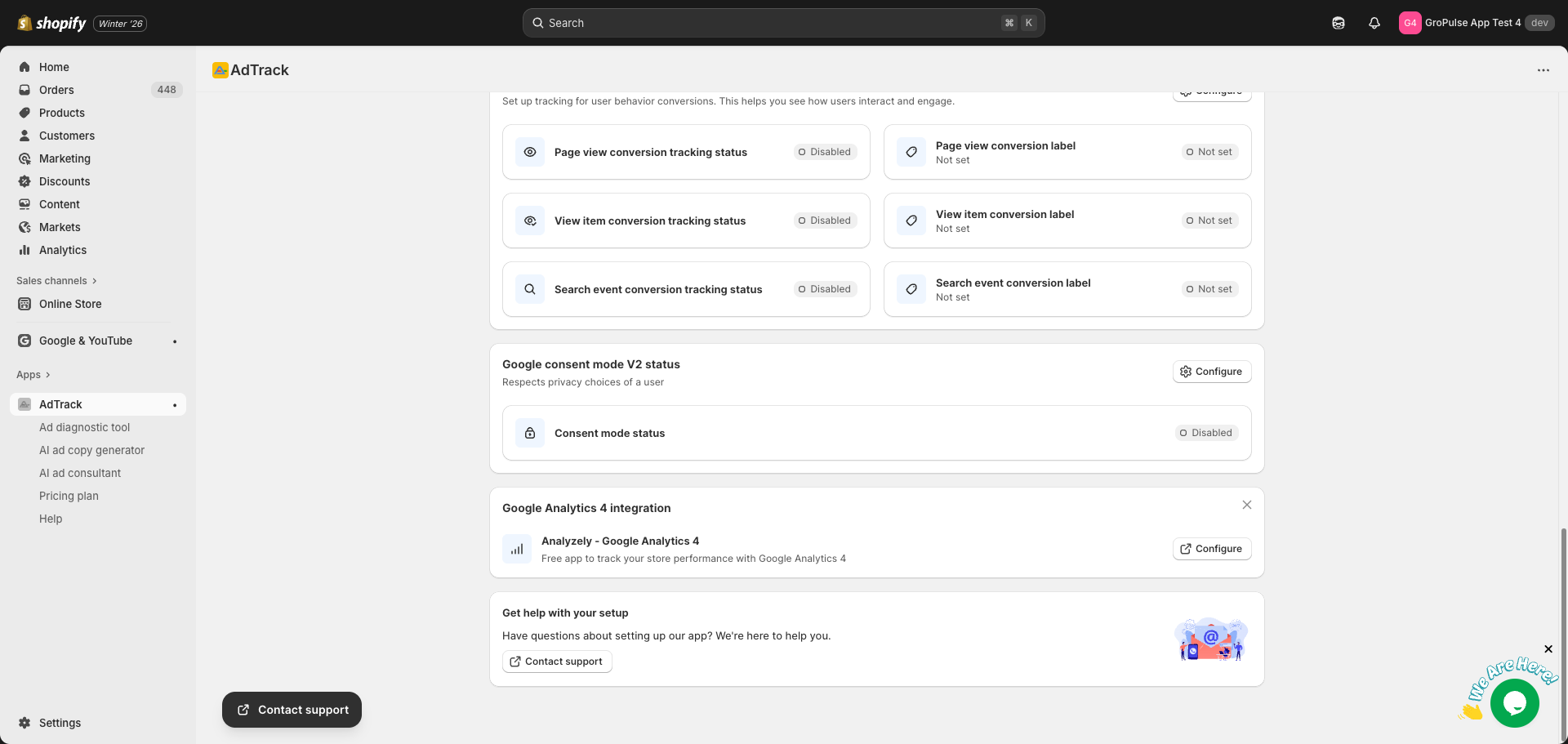
Enabling Consent Mode V2
Step 1: Locate the Toggle
- Find the Google Consent Mode V2 section
- Look for the toggle switch
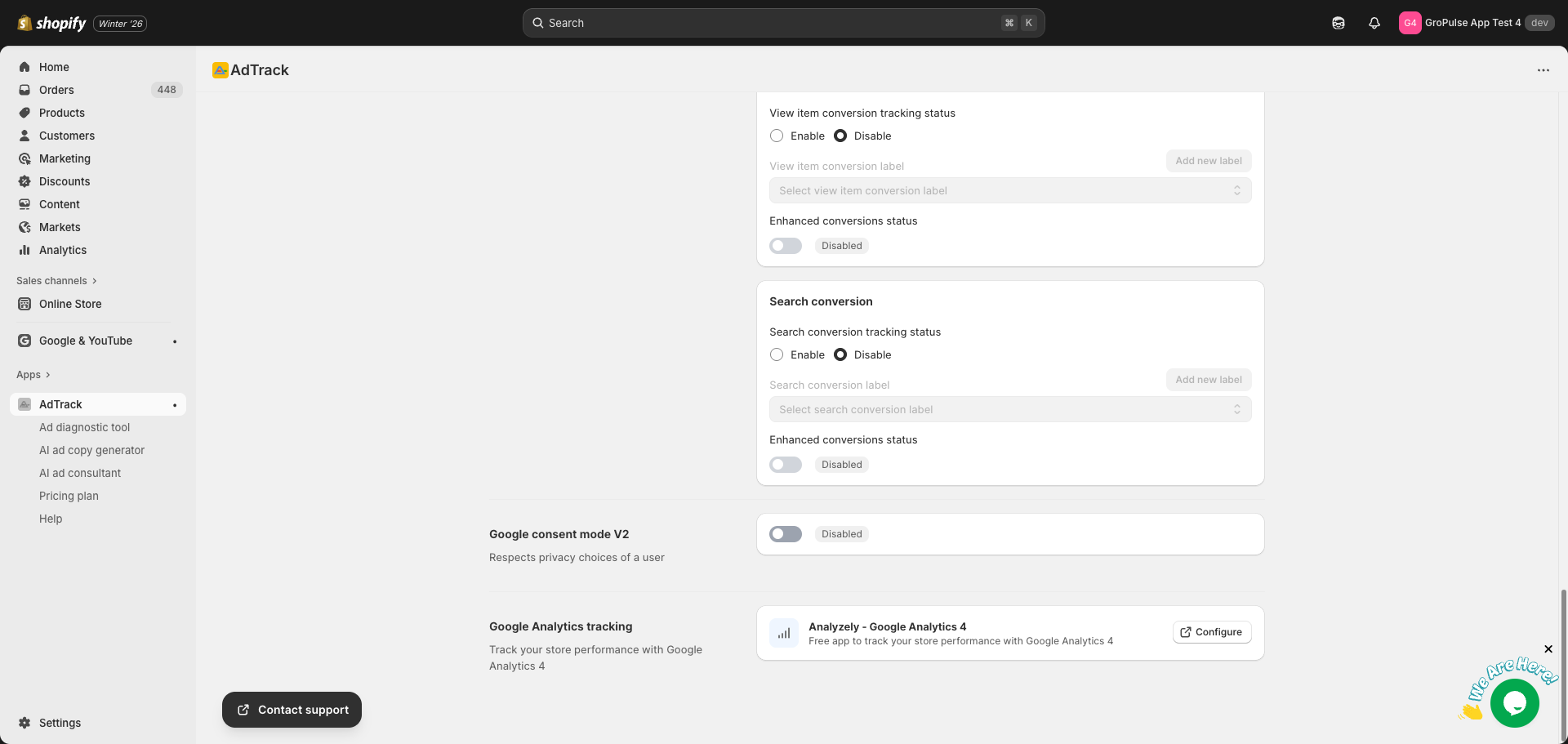
Step 2: Enable the Feature
- Click the toggle to enable Consent Mode
- The toggle will turn on
- The status badge will change to Enabled
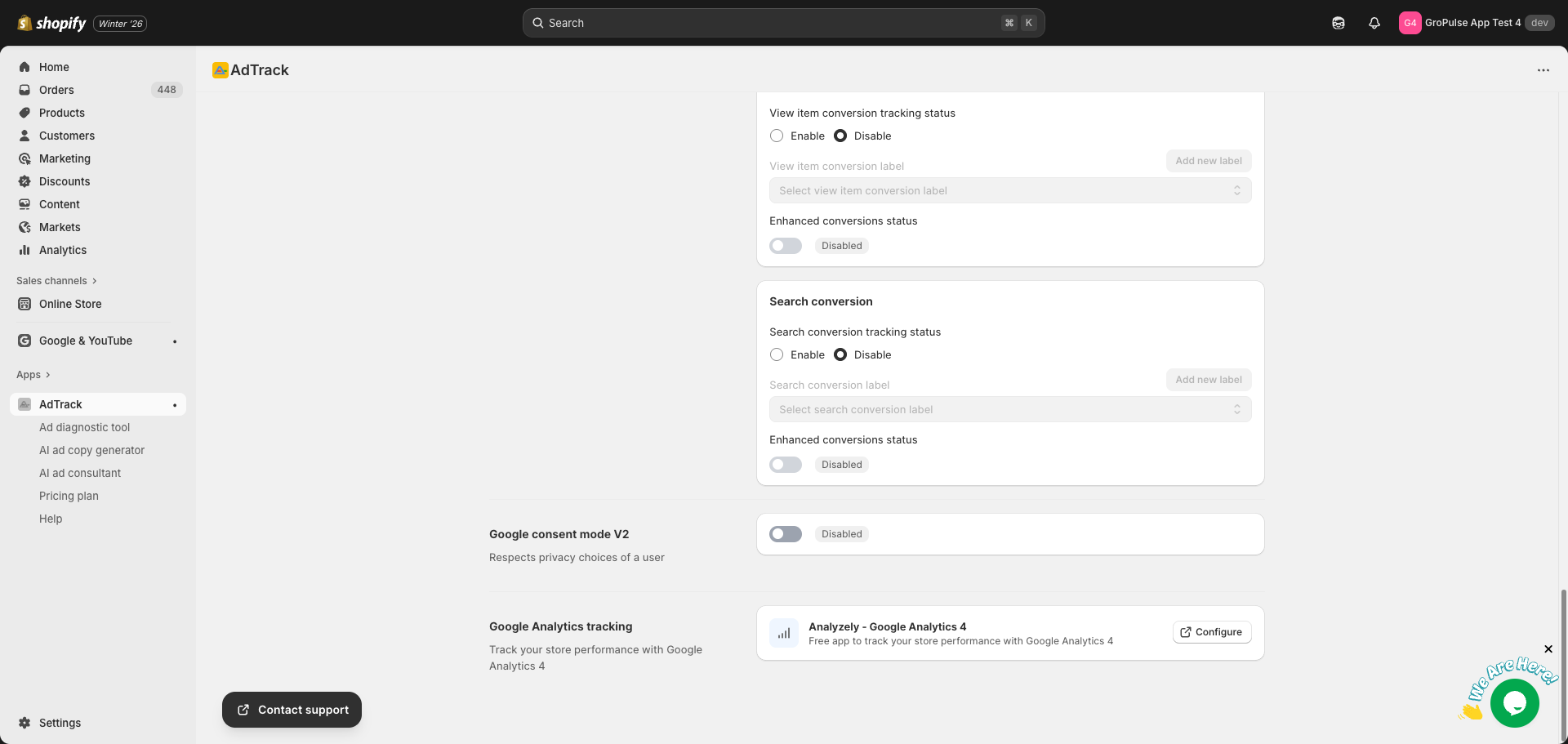
Step 3: Save Your Settings
- A save bar appears at the top of the page
- Click Save to apply the changes
- Consent Mode is now active on your store
How Consent Mode Works
Default Behavior
When Consent Mode is enabled, AdTrack:
- Sends tracking calls with default consent state (denied)
- Waits for customer consent choice
- Updates consent state based on customer action
- Adjusts data collection accordingly
With Consent Granted
- Full conversion tracking is active
- All data points are collected
- Standard conversion measurement
With Consent Denied
- No cookies are set for advertising
- Privacy-preserving measurement
Shopify Customer Privacy API
If your theme uses Shopify’s Customer Privacy API:
- AdTrack automatically respects consent choices
- No additional configuration needed
- Works with Shopify Markets privacy settings
Dashboard Status
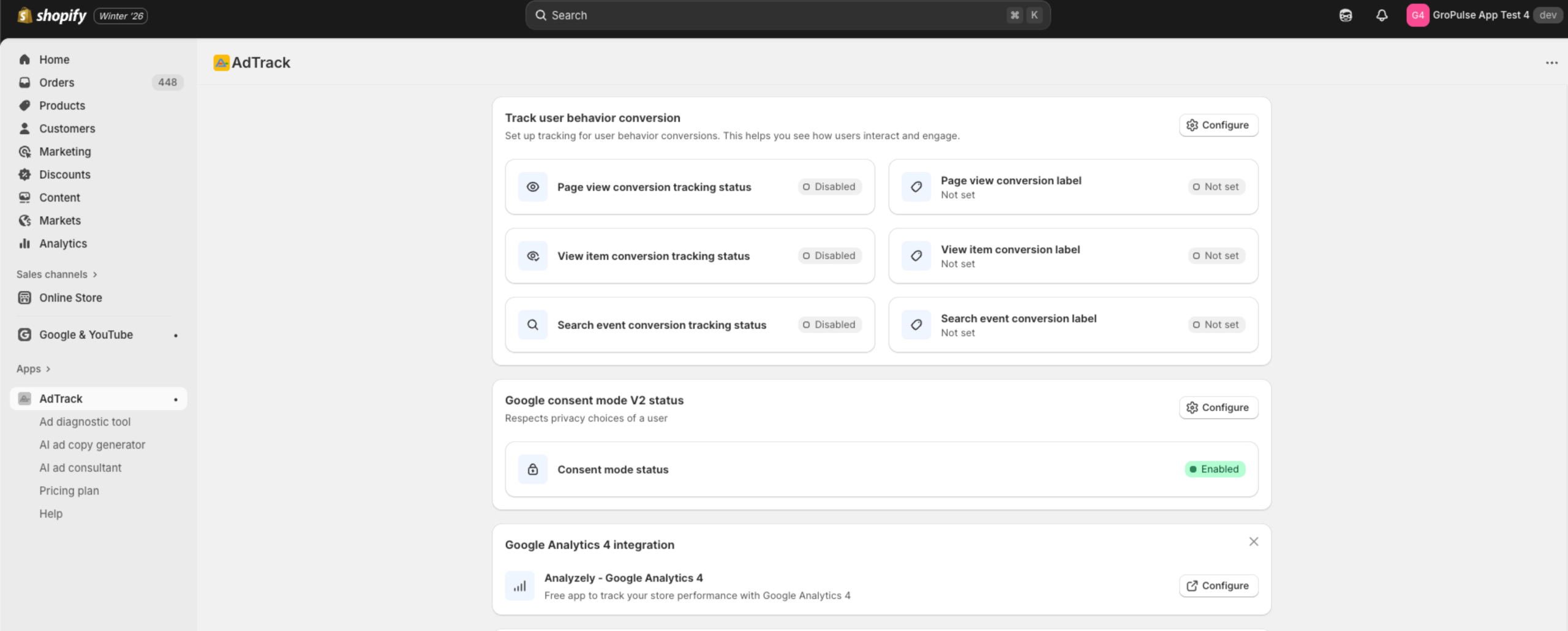
After enabling, verify on the dashboard:
- Go to the AdTrack Dashboard
- Find the Google Consent Mode V2 section
- Check the status shows Enabled
Impact on Tracking
With Consent Mode Enabled
| Scenario | Data Collection | Conversion Tracking |
|---|---|---|
| Consent granted | Full | Normal |
| Consent denied | Minimal | Modeled |
| No interaction | Default (denied) | Modeled |
Last updated on February 17, 2026
Was this article helpful?
Powered by Support Genix