
This guide explains how to use AdTrack’s AI-powered Google Ads Diagnostic Tool to analyze your campaign performance and receive actionable recommendations.
Overview
The Google Ads Diagnostic Tool uses artificial intelligence to analyze your Google Ads campaigns and provide:
- Performance analysis across key metrics
- Identification of underperforming areas
- Actionable recommendations for improvement
- Campaign-specific insights
Note: This feature requires a Pro plan subscription.
Accessing the Diagnostic Tool
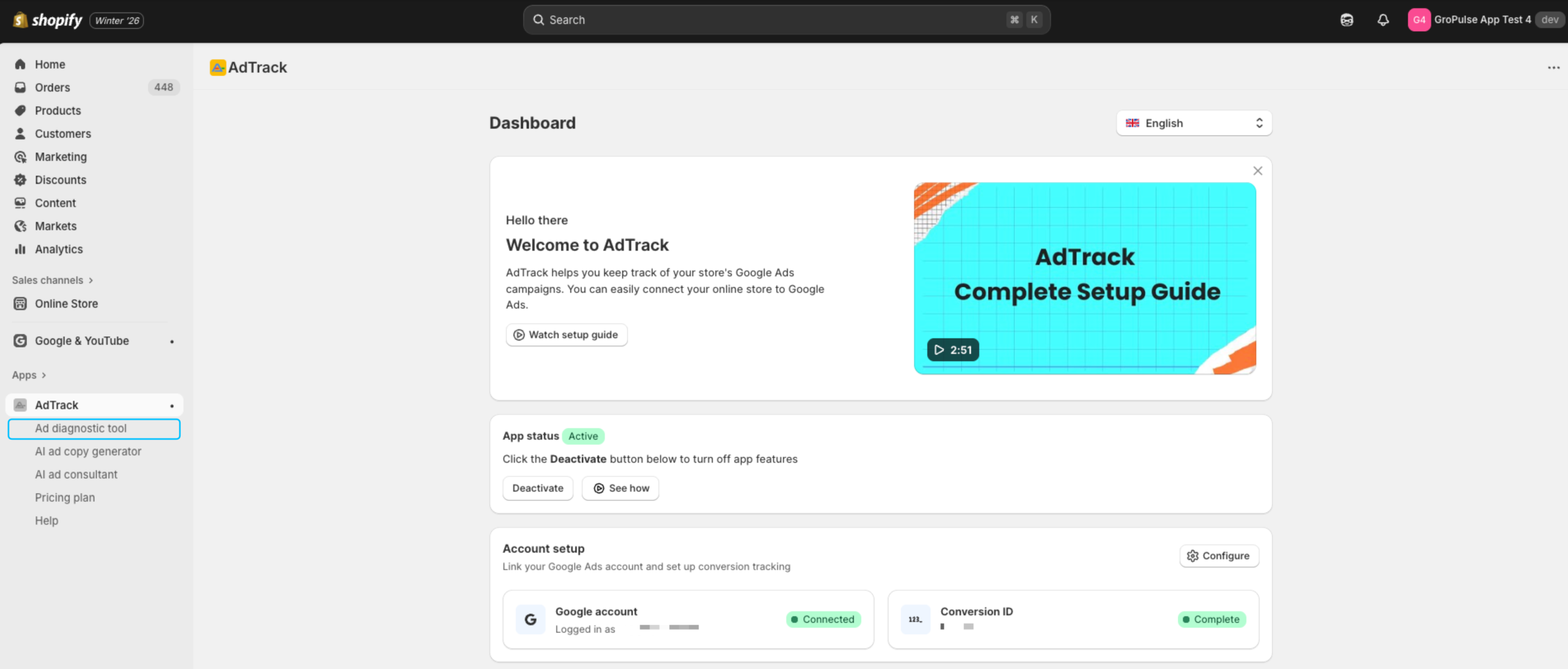
- Open AdTrack from your Shopify admin
- Click Google Ads Diagnostic in the navigation menu
Requirements
Before using the Diagnostic Tool:
- Pro Plan Required – This is a Pro-only feature
- Google Account Connected – Must have Google Ads connected
- Campaign Data Available – At least one active campaign with recent data
- AI Credits Available – Each analysis uses AI credits
Understanding AI Credits
What Are AI Credits?
AI credits are used for AI-powered features:
- Each diagnostic analysis uses 1 credit
- Credits are included with your Pro plan
- Additional credits can be purchased
Viewing Your Credits
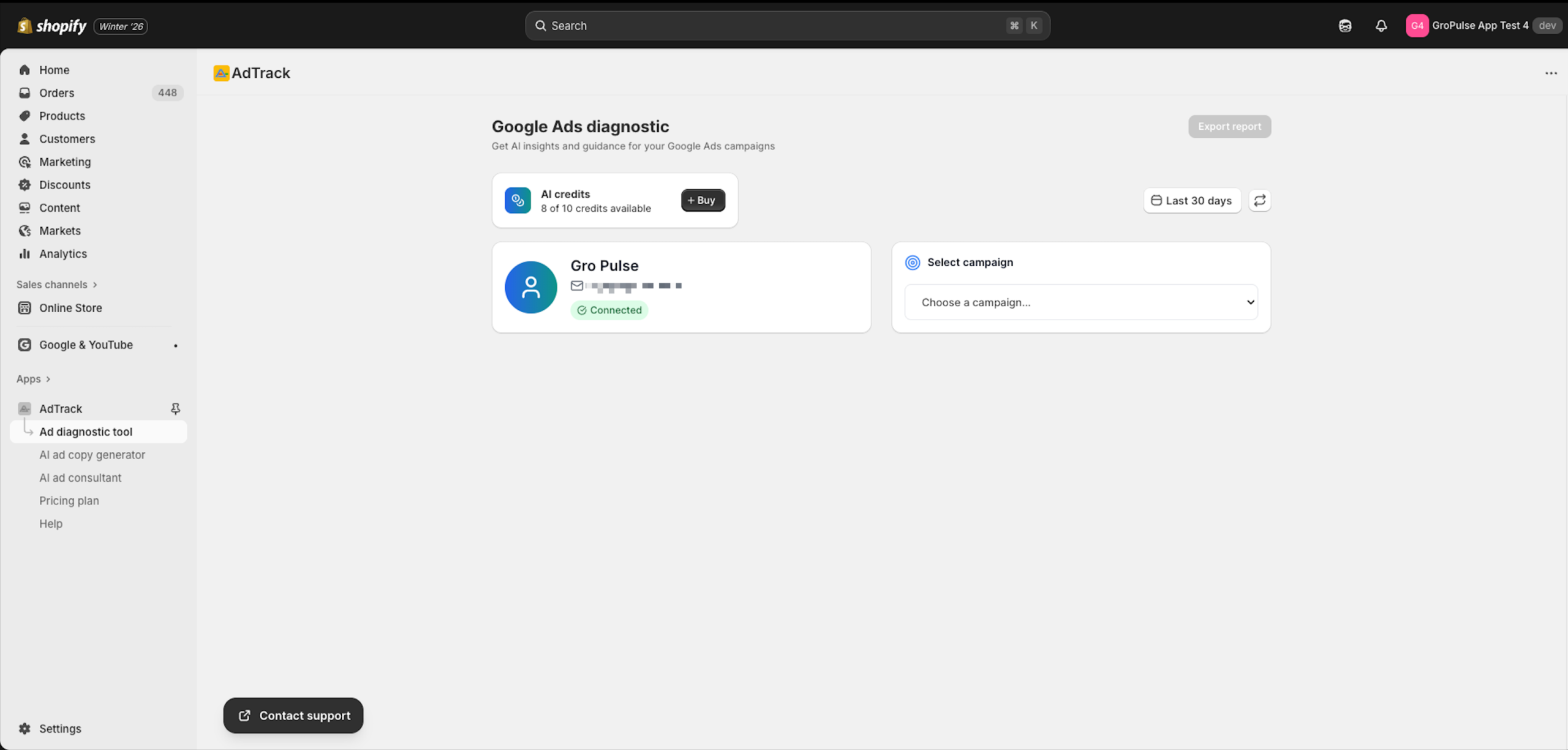
At the top of the Diagnostic Tool page:
- Find the AI Credits display
- Shows current credits remaining (e.g., “6 of 10”)
Buying More Credits
If you need additional credits:
- Click the Buy credits button
- Select a credit package
- Complete the purchase
- Credits are added immediately
Running a Diagnostic Analysis
Step 1: Select Date Range
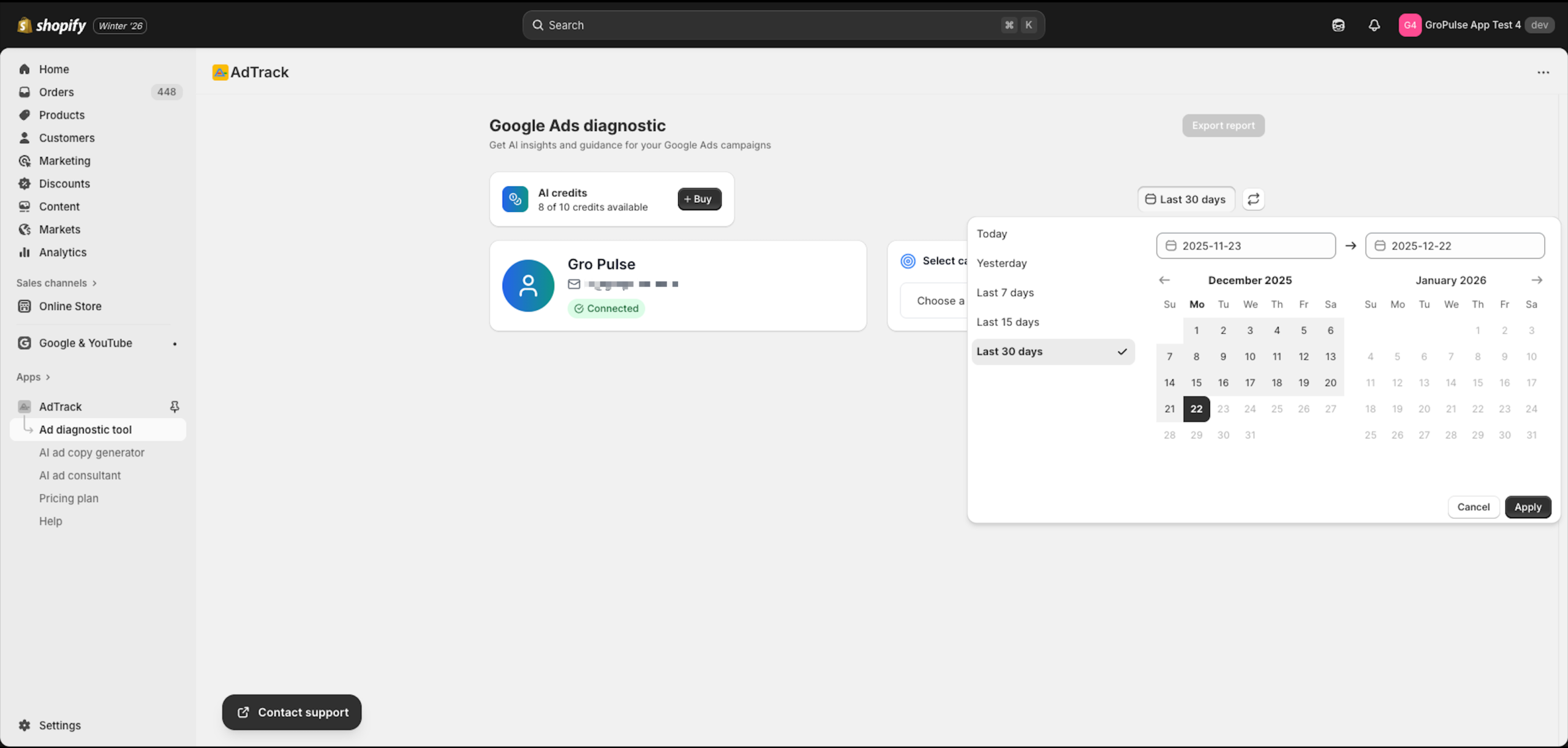
- Find the date range selector at the top
- Click to open the date picker
- Choose a date range (default: Last 30 days)
Step 2: Verify Connected Account
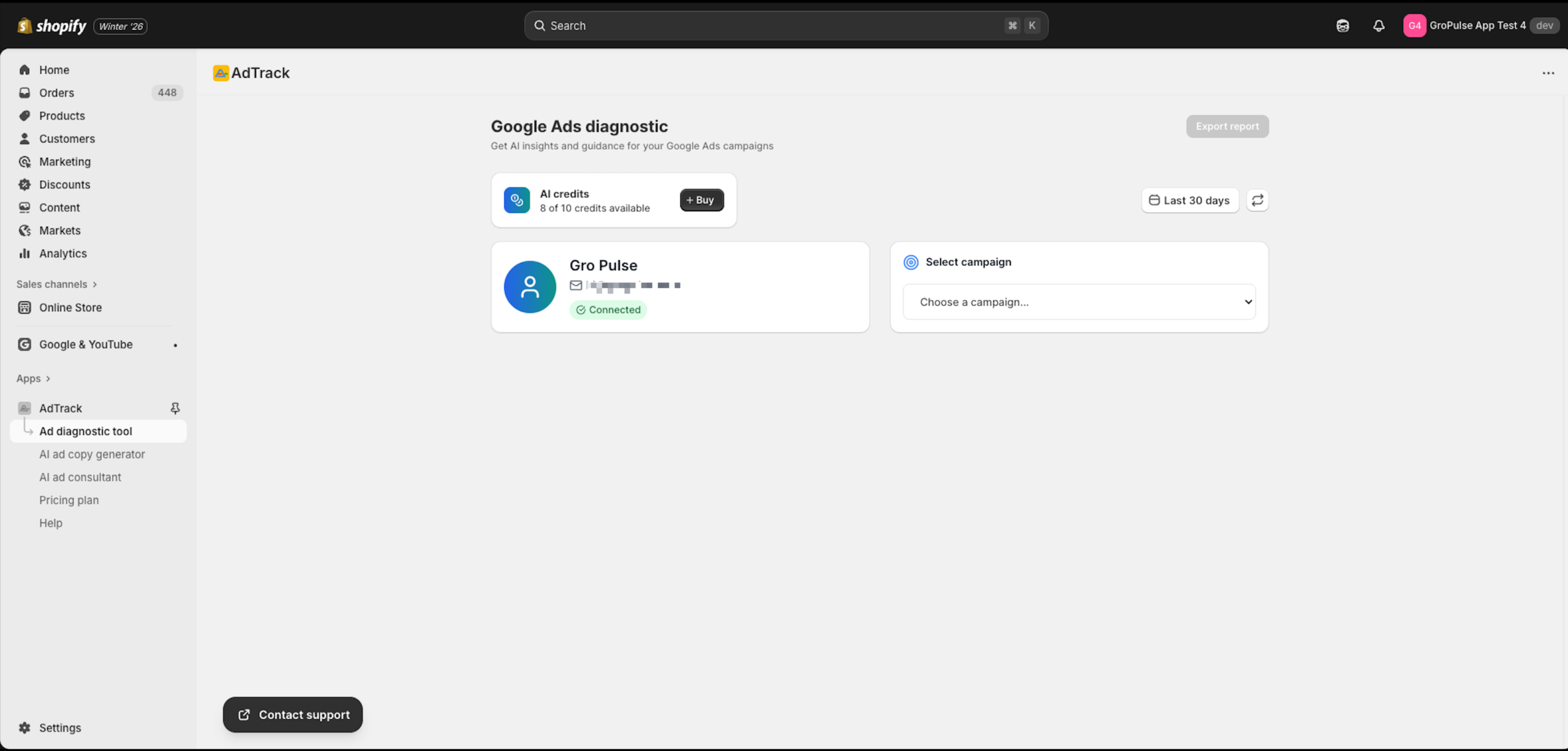
- Check the connected Google account display
- Ensure the correct account is shown
- The account email confirms which data will be analyzed
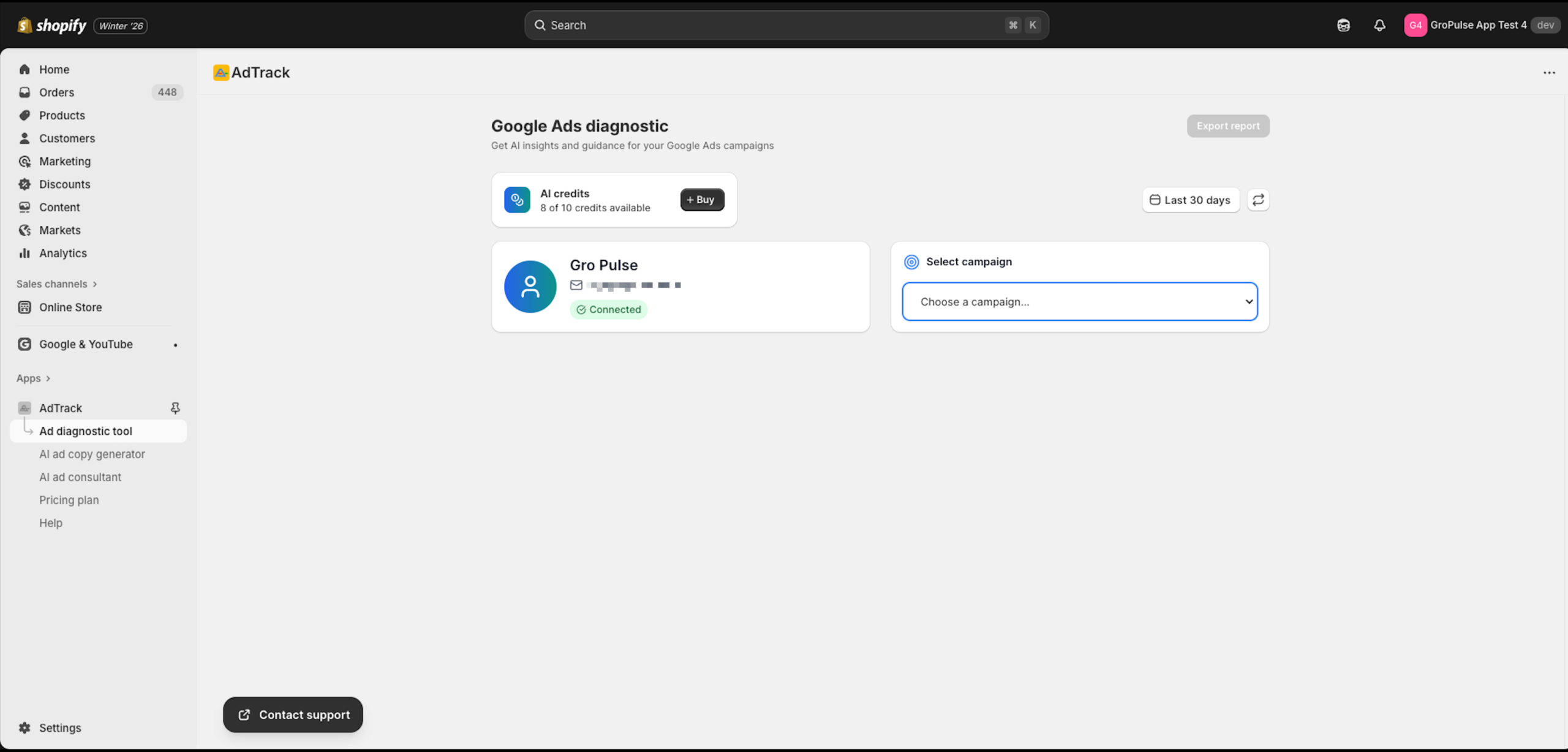
Step 3: Select a Campaign
- Find the Campaign dropdown
- Click to see available campaigns
- Select the campaign you want to analyze
- You can analyze one campaign at a time
Step 4: Run the Analysis
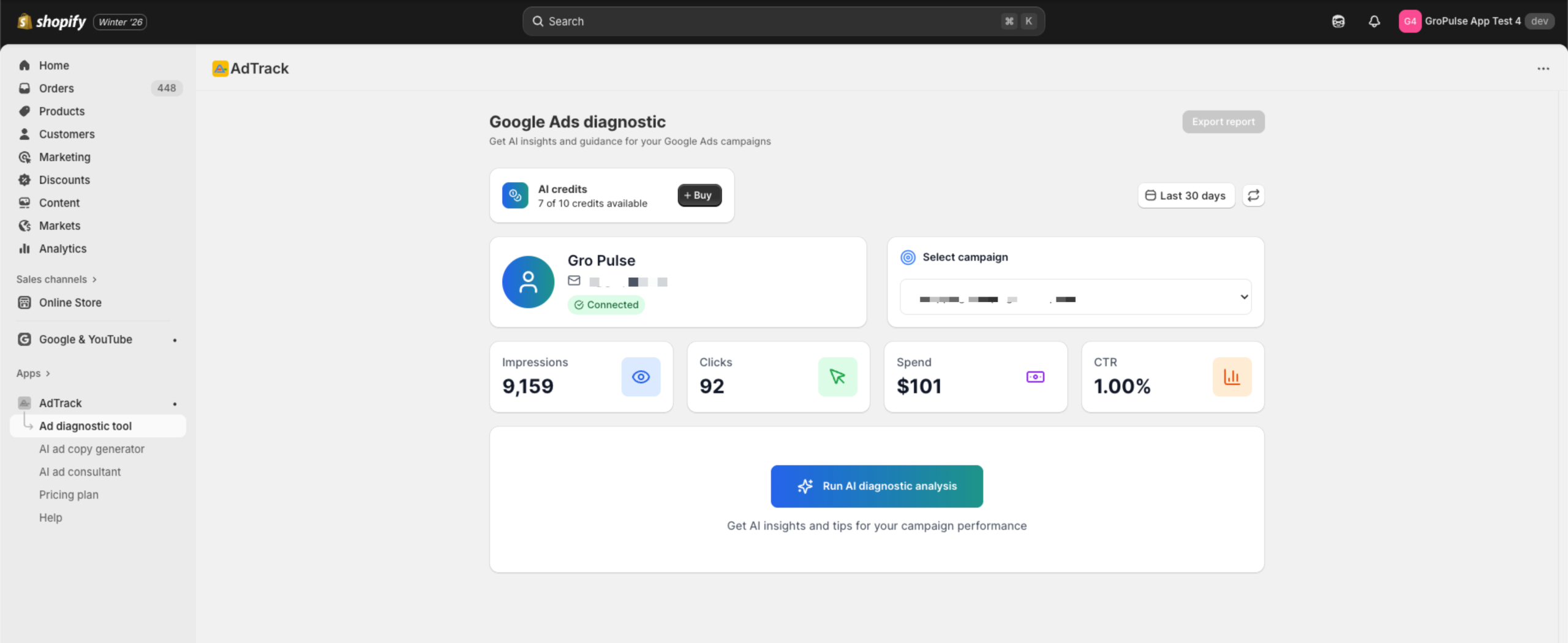
- Click the Run AI diagnostic analysis button
- Wait for the analysis to complete
- This uses 1 AI credit
Understanding the Analysis
Performance Overview
The diagnostic provides a summary of:
- Overall campaign health score
- Key performance metrics
- Trend analysis compared to previous period
Metrics Analyzed
The tool examines:
| Metric | Description |
|---|---|
| Spend | Total amount spent on the campaign |
| Impressions | Number of times ads were shown |
| Clicks | Number of clicks on ads |
| CTR | Click-through rate |
| Conversions | Number of conversion events |
| Cost per Conversion | Average cost for each conversion |
| ROAS | Return on Ad Spend |
AI Insights
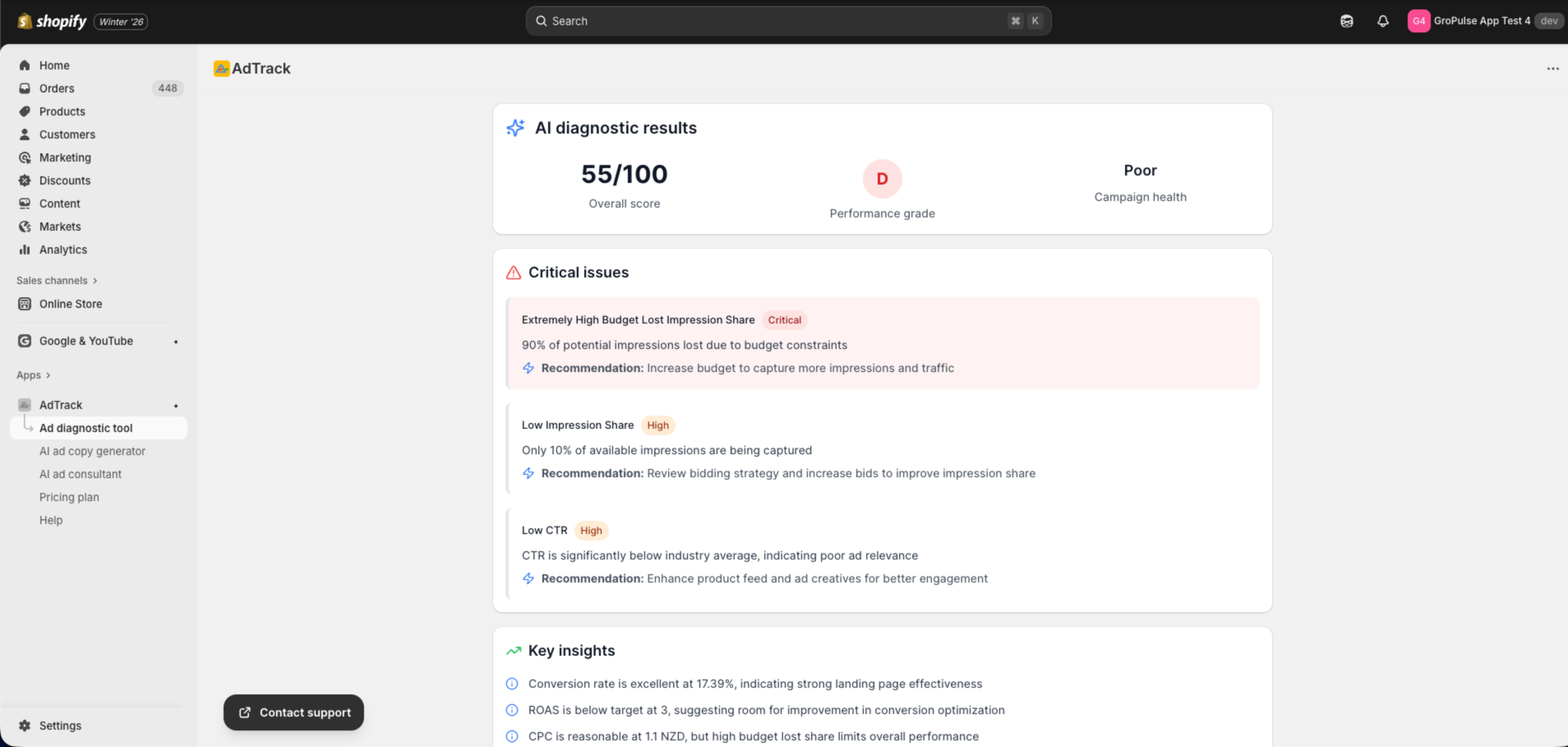
The AI provides:
- Critical issues
- Key insights
- Recommendations
- Next steps
Exporting the Report
Export Options
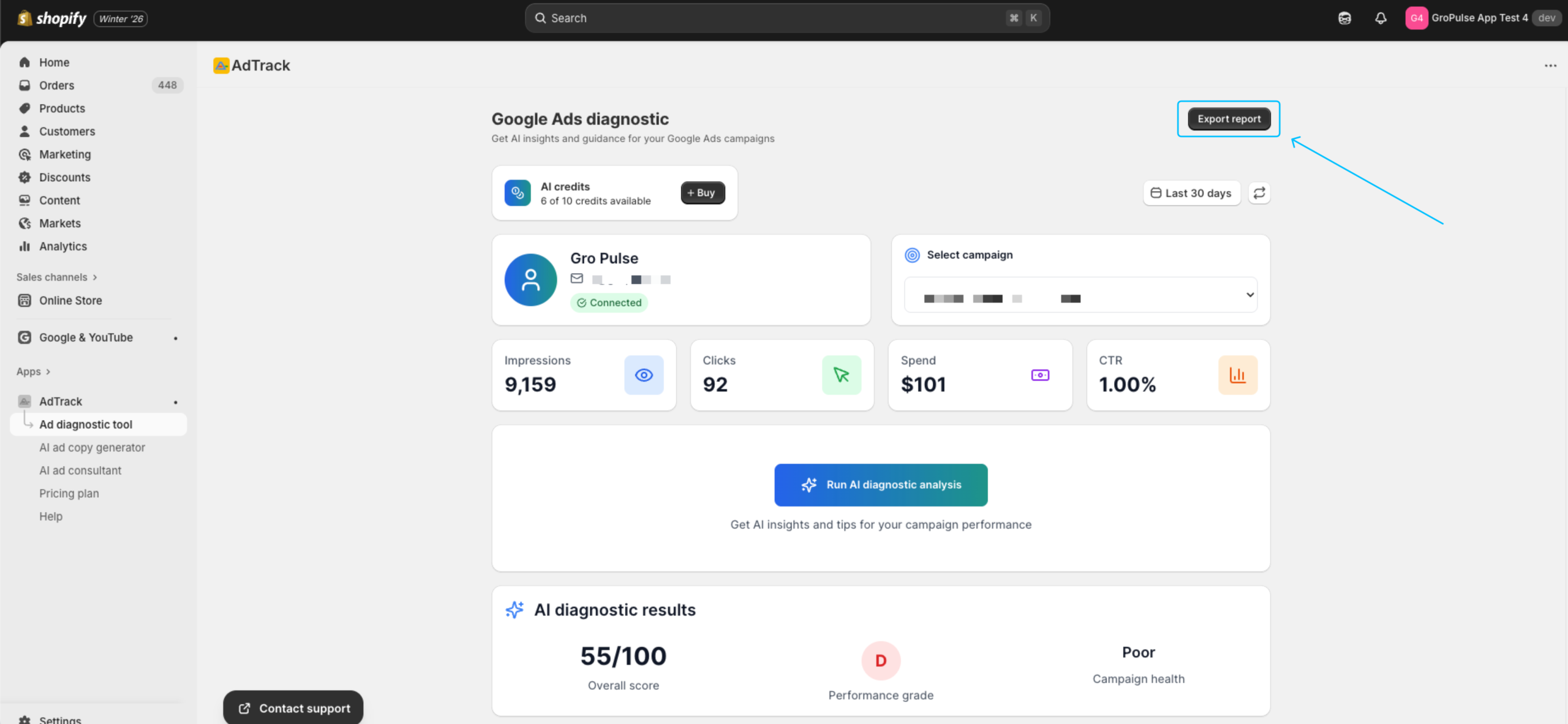
- Click the Export report button
- Choose your export format
- Download the report file
Acting on Recommendations
Common Recommendations
The AI may suggest:
- Budget Adjustments
- Increase budget on high-performing campaigns
- Reduce budget on underperformers
- Keyword Optimization
- Add suggested keywords
- Negative keyword recommendations
- Bid Strategy Changes
- Switch to different bidding strategies
- Adjust target ROAS/CPA
- Ad Copy Improvements
- Test new headlines
- Update descriptions
- Audience Targeting
- Expand or narrow targeting
- Add remarketing audiences
Implementing Changes
For each recommendation:
- Review the suggestion carefully
- Log in to Google Ads
- Make the suggested changes
- Monitor results after implementation
- Re-run diagnostic after 7-14 days
Multiple Campaign Analysis
To analyze different campaigns:
- Complete analysis on first campaign
- Return to campaign dropdown
- Select a different campaign
- Run a new analysis (uses 1 credit per campaign)
Best Practices
- Regular Analysis – Run diagnostics weekly or bi-weekly
- Sufficient Data – Use at least 7-30 days of data
- Act on Insights – Implement recommendations promptly
- Track Changes – Monitor impact of optimizations
- Compare Periods – Run before and after analyses
Tips for Better Results
- More data = better insights – Longer date ranges provide more accurate analysis
- Focus on key campaigns – Prioritize campaigns with highest spend
- Review regularly – Performance changes over time
- Document changes – Track what optimizations you make
Last updated on February 17, 2026
Was this article helpful?
Powered by Support Genix