
This guide explains how to use AdTrack’s AI Ad Copy Generator to create compelling Google Ads copy for your products.
Overview
The AI Ad Copy Generator creates optimized ad copy including:
- Headlines (up to 15 variations)
- Descriptions (up to 4 variations)
- Call-to-action suggestions
- Keyword-optimized content
Note: This feature requires a Pro plan subscription.
Accessing the Ad Copy Generator
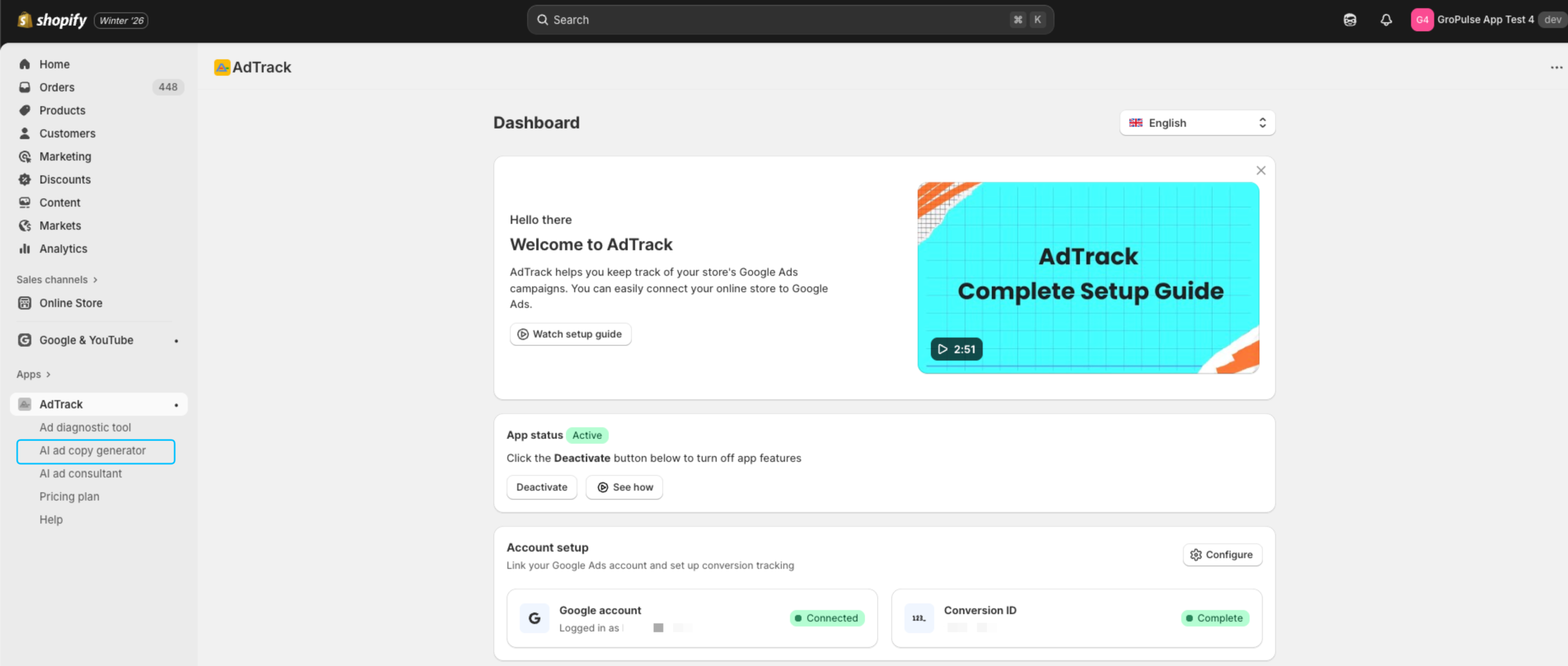
- Open AdTrack from your Shopify admin
- Click AI Ad Copy Generator in the navigation menu
Requirements
Before using the Ad Copy Generator:
- Pro Plan Required – This is a Pro-only feature
- AI Credits Available – Each generation uses credits
- Product Information – Have a product in mind to advertise
Understanding AI Credits
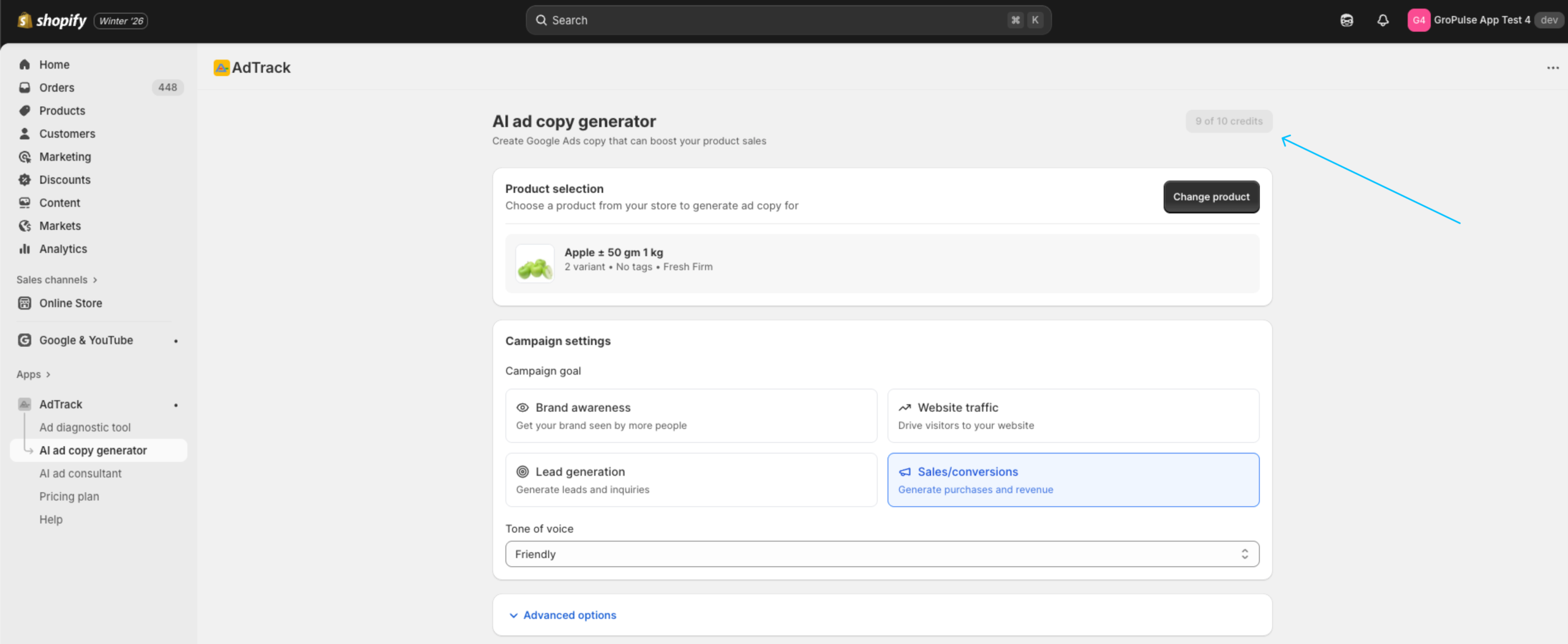
Viewing Your Credits
At the top right of the page shows remaining credits (e.g., “6 of 10 credits”)
Credit Usage
- Each ad copy generation uses 1 credit
- Different campaigns for the same product use separate credits
Generating Ad Copy
Step 1: Select a Product
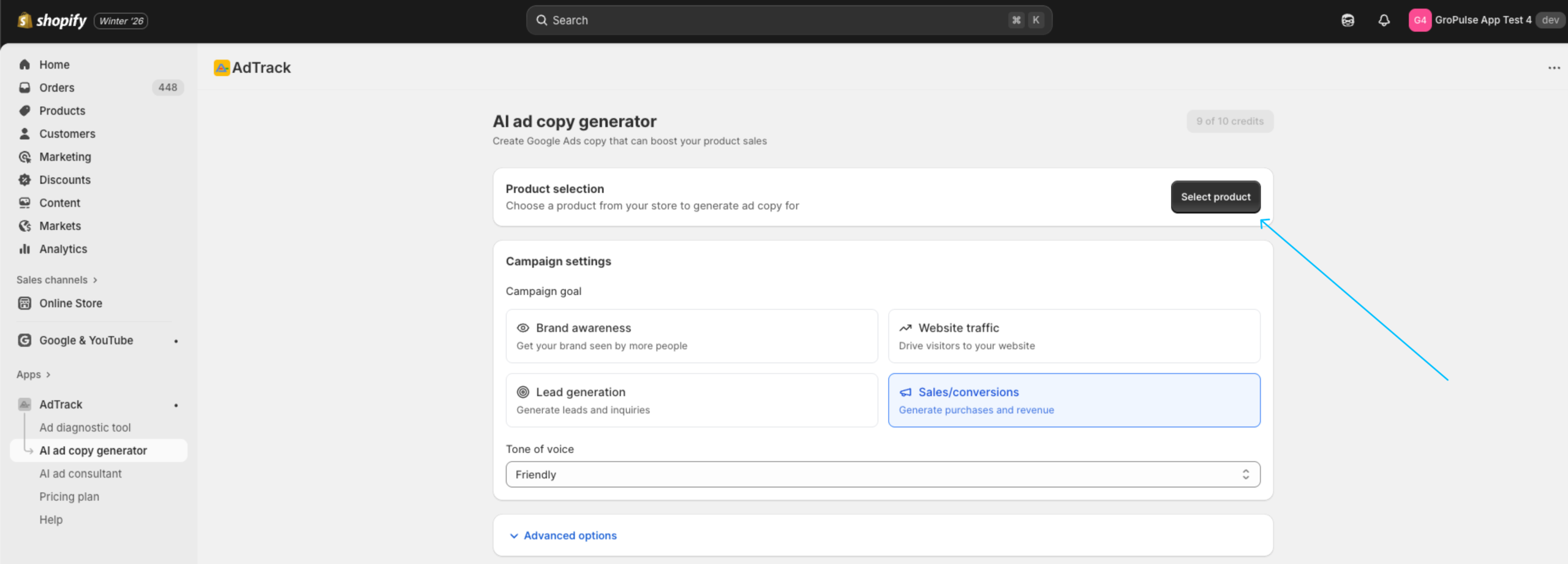
- Click the Select product button
- A product picker opens showing your Shopify products
- Browse or search for your product
- Click on the product to select it
Product Selection:
- Choose products with good images and descriptions
- Products with more information generate better copy
- You can change products at any time
Step 2: Choose Campaign Goal
Select the primary goal for your ad campaign:
| Goal | Best For |
|---|---|
| Brand awareness | Introducing your brand to new audiences |
| Website traffic | Driving visitors to your store |
| Lead generation | Collecting customer information |
| Sales/conversions | Direct sales and purchases |
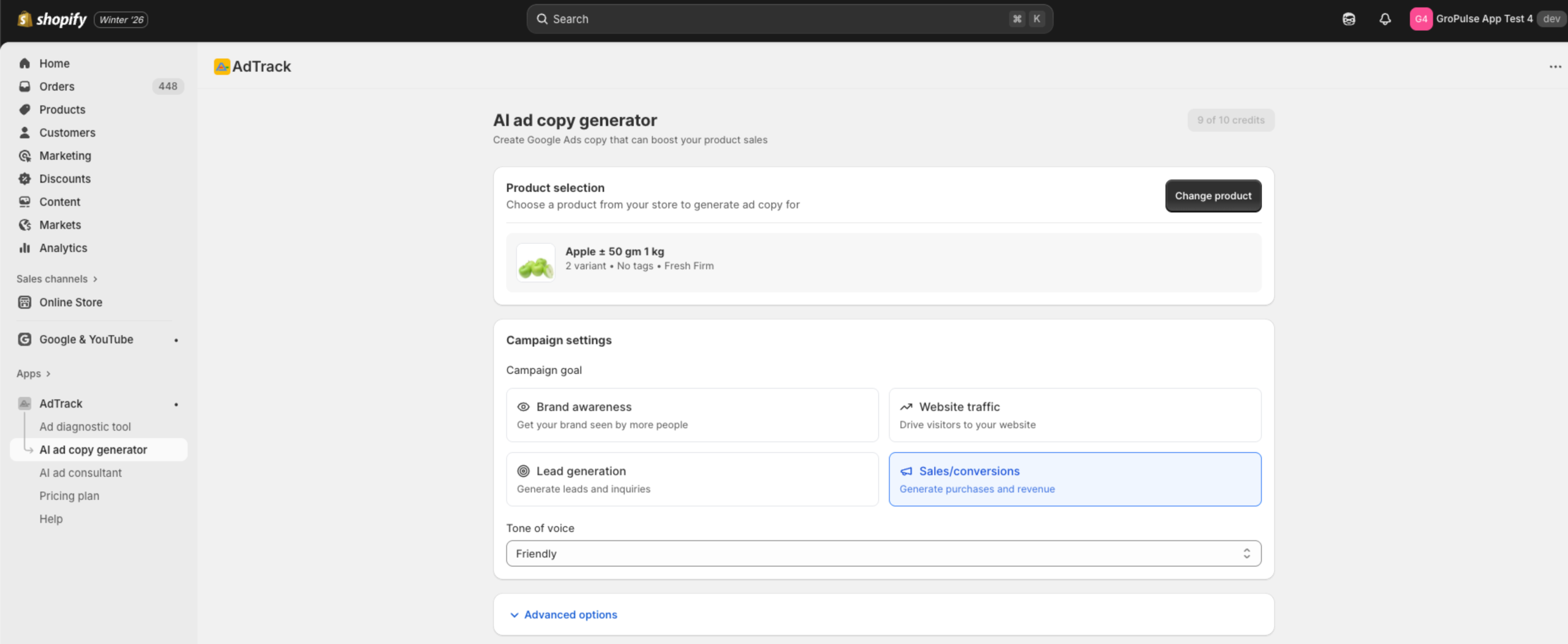
- Find the Campaign Goals section
- Click on your desired goal
- The selection highlights when chosen
Step 3: Select Tone of Voice
Choose how your ad should sound:
| Tone | Description |
|---|---|
| Friendly | Warm, approachable, conversational |
| Professional | Business-like, authoritative, trustworthy |
| Urgent | Time-sensitive, action-oriented, compelling |
| Casual | Relaxed, informal, relatable |
| Premium/luxury | Sophisticated, exclusive, high-end |
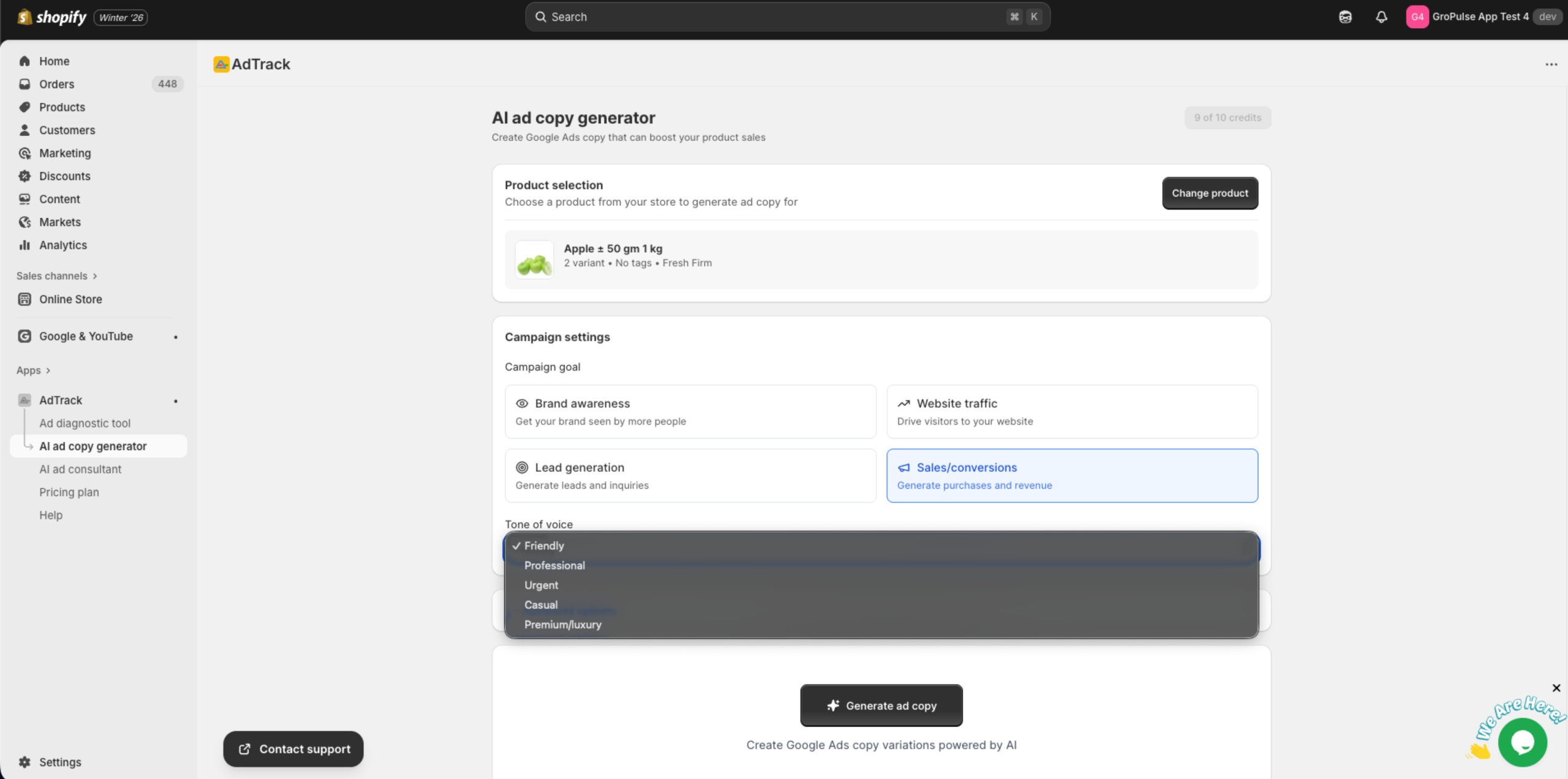
- Click the Tone of voice dropdown
- Select the tone that matches your brand
Step 4: Configure Advanced Options (Optional)
Click Advanced options to reveal additional settings for more tailored ad copy:
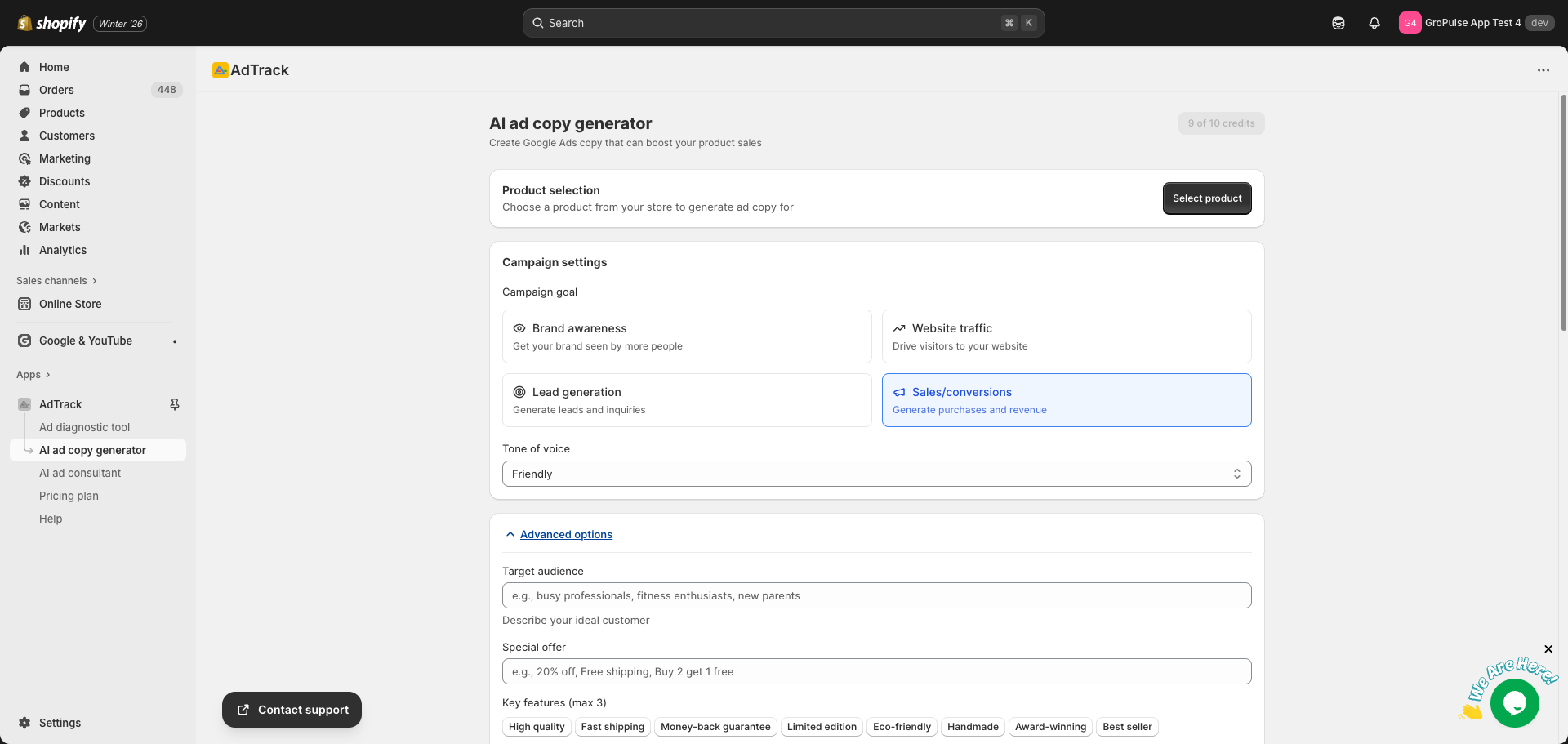
Target Audience
Describe your ideal customer in the text field. This helps the AI understand who you’re trying to reach.
Examples:
- “Young professionals aged 25-35 who value sustainability”
- “Busy parents looking for convenient meal solutions”
- “Tech enthusiasts interested in smart home devices”
Special Offer
Enter any promotional content or special offers you want to highlight in your ads.
Examples:
- “20% off first order”
- “Free shipping over $50”
- “Buy 2 Get 1 Free”
Key Features (Max 3)
Select up to 3 key features to emphasize in your ad copy:
| Feature | Best For |
|---|---|
| High quality | Premium products with superior materials |
| Fast shipping | Quick delivery as a selling point |
| Money-back guarantee | Building customer trust |
| Limited edition | Exclusive or rare products |
| Eco-friendly | Sustainable or green products |
| Handmade | Artisan or craft products |
| Award-winning | Products with recognition or awards |
| Best seller | Popular products with proven sales |
Brand Voice Reference
Enter examples of your brand’s voice or messaging style. This helps the AI match your existing brand tone.
Example:
“We speak to customers like friends – casual, helpful, and genuine. We use phrases like ‘You’ve got this!’ and avoid corporate jargon.”
Copywriting Framework (Optional)
Choose a proven framework to structure your ad copy:
| Framework | Description | Best For |
|---|---|---|
| Auto-select (Recommended) | Let AI choose the best framework based on your campaign goal | When unsure which to use |
| AIDA | Attention → Interest → Desire → Action | General purpose, versatile for all goals |
| PAS | Problem → Agitate → Solution | Problem-solving products |
| FOMO | Fear of missing out | Limited offers, seasonal sales |
| Social proof | Use popularity and reviews | Building trust, new launches |
| Before & after | Show transformation and results | Fitness, beauty, lifestyle products |
| Question hook | Ask engaging questions | Curiosity-driven campaigns |
| Benefits | Focus on key product benefits | Feature-rich products |
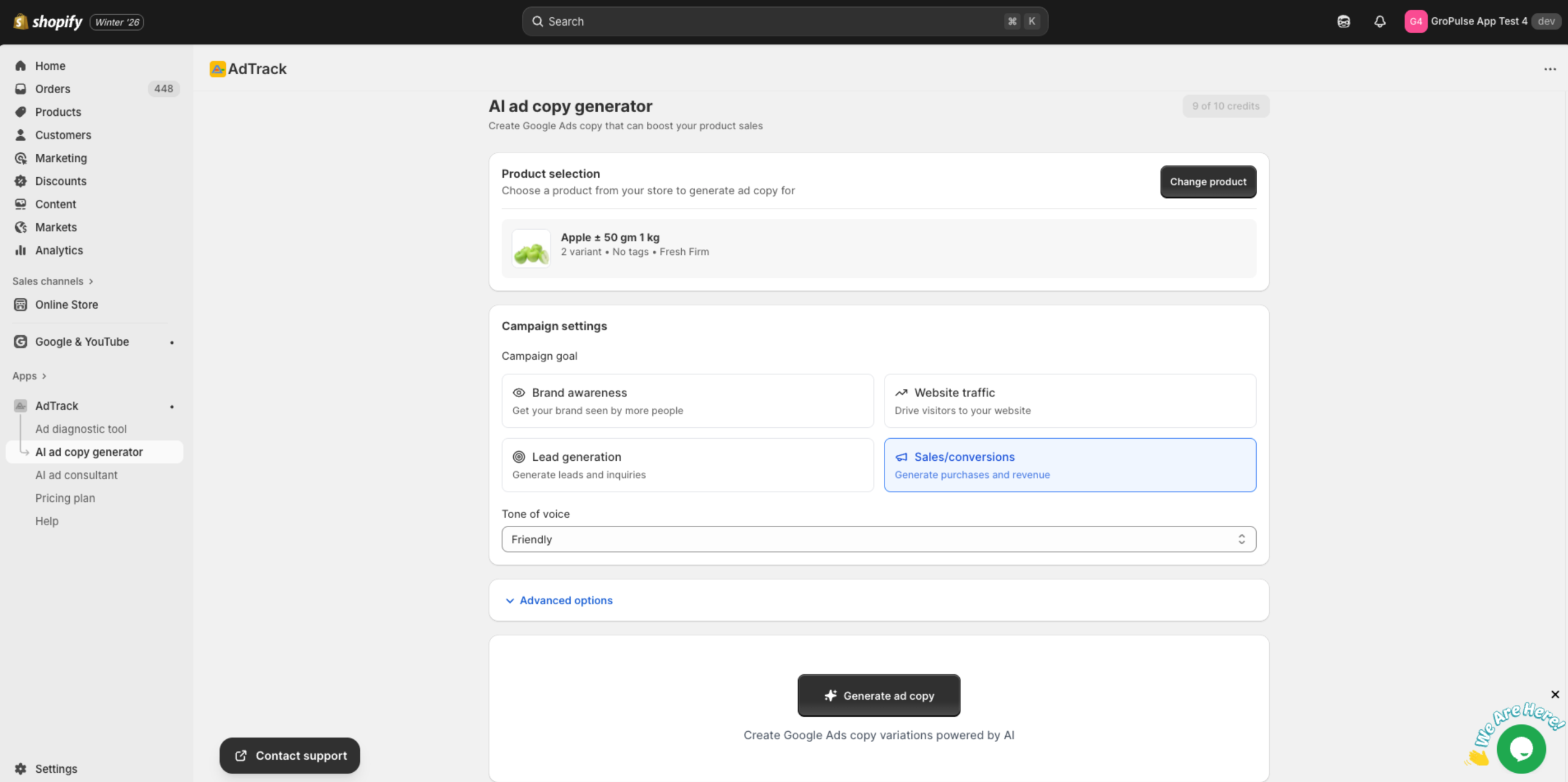
Step 5: Generate Ad Copy
- Review your selections:
- Product is selected
- Campaign goal is chosen
- Tone of voice is set
- Click the Generate ad copy button
- Wait for the AI to process (usually 10-30 seconds)
Reviewing Generated Copy
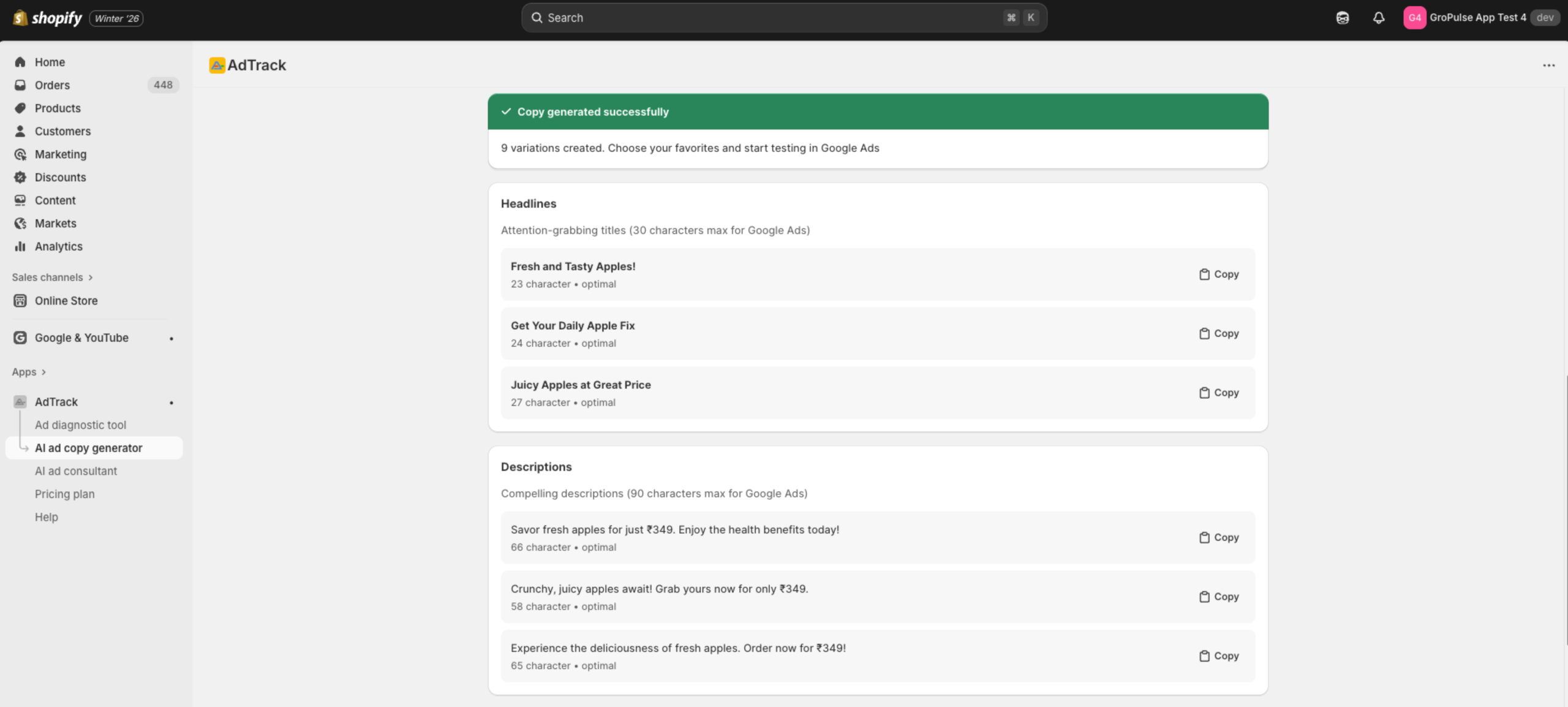
Headlines
The AI generates multiple headline options:
- Headline 1-15 – Various headline variations
- Each headline is optimized for Google Ads character limits
- Headlines focus on different angles (benefits, features, urgency)
Descriptions
Multiple description variations are provided:
- Description 1-4 – Different description approaches
- Each description complements the headlines
- Optimized for Google Ads description length
Copying Generated Content
For each headline or description:
- Find the copy icon next to the text
- Click to copy to clipboard
- Paste into Google Ads
Best Practices
- Use multiple variations – Add all generated headlines
- Mix approaches – Combine different angles
- Test and iterate – Monitor performance and regenerate as needed
- Customize if needed – Adjust copy to match your exact needs
Generating Multiple Sets
To create different ad copy for the same product:
- Adjust the campaign goal
- Change the tone of voice
- Click Generate ad copy again
- Compare different versions
Each generation uses 1 AI credit.
Credit Management
Conserving Credits
- Review settings before generating
- Save generated copy for future reference
- Use advanced options to get exactly what you need first time
Exporting and Saving
Save Your Copy
- Copy all generated text to a document
- Create a library of ad variations
- Track which copy performs best
Organize by Product
- Keep product-specific ad copy together
- Note which goals and tones were used
- Build a reusable ad copy database