
This guide explains how to use AdTrack’s AI Ad Consultant to get expert advertising advice and campaign guidance through an interactive chat interface.
Overview
The AI Ad Consultant provides:
- Real-time advertising advice through chat
- Campaign strategy recommendations
- Answers to Google Ads questions
- Performance optimization suggestions
- Creative guidance for ad campaigns
Note: This feature requires a Pro plan subscription.
Accessing the AI Consultant
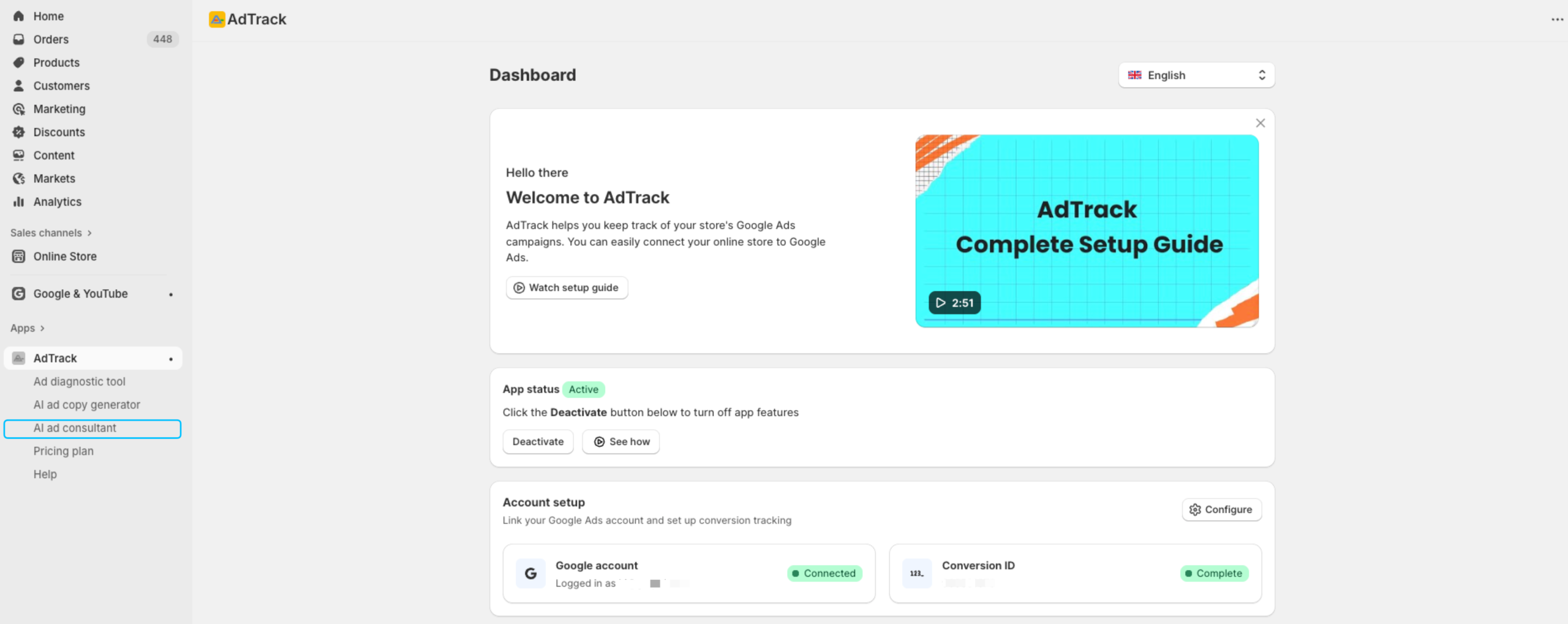
- Open AdTrack from your Shopify admin
- Click AI Ad Consultant in the navigation menu
Interface Overview
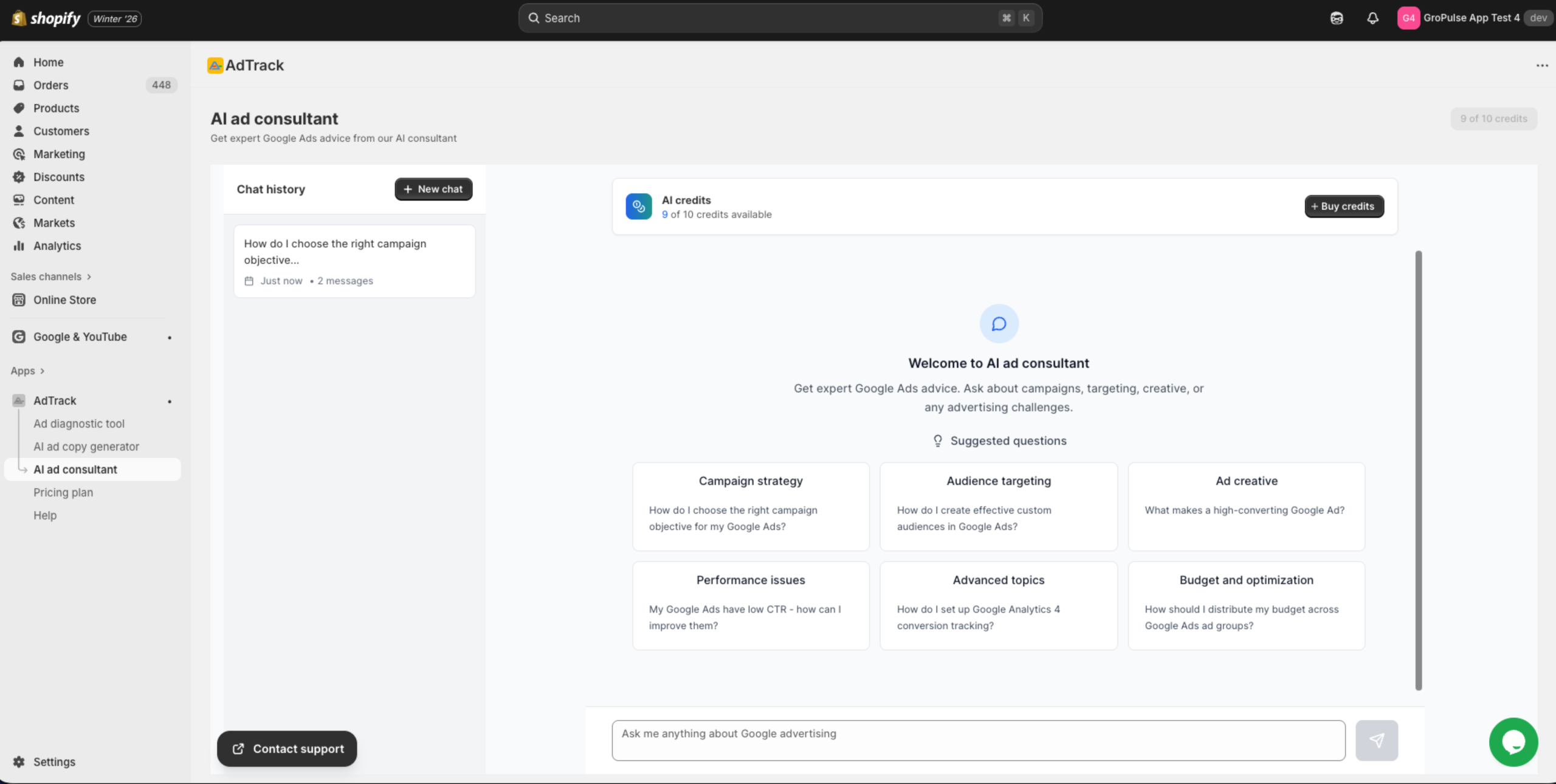
The AI Ad Consultant interface consists of:
Chat History Sidebar
Located on the left side:
- New chat button to start fresh conversations
- List of previous chat sessions
- Each session shows date and first message preview
- Click any session to continue that conversation
Main Chat Area
The central area where you:
- View the conversation
- See AI responses
- Suggested questions appear when starting
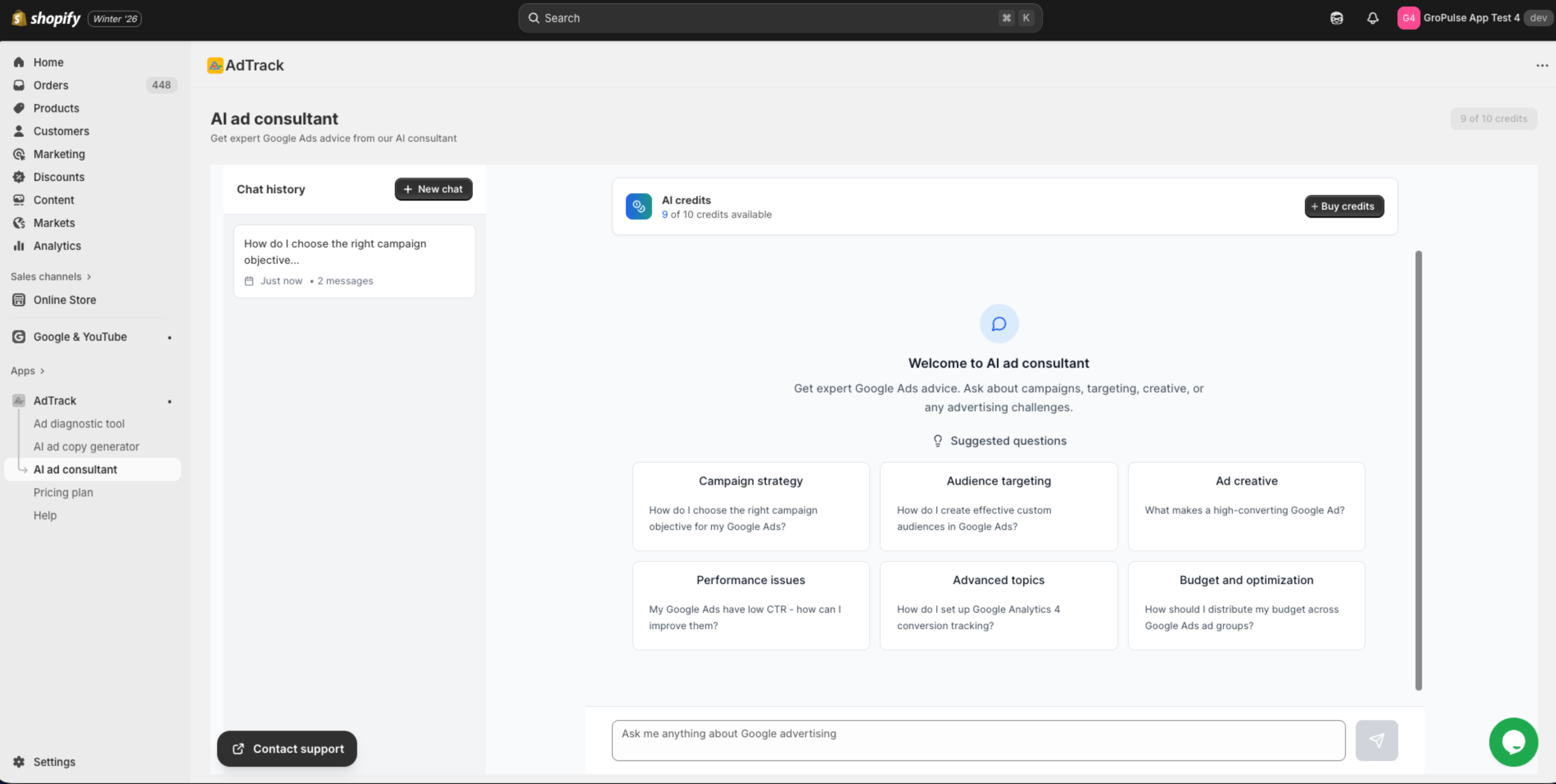
Chat Input
At the bottom:
- Text input field for your questions
- Send button to submit messages
Starting a Conversation
Using Suggested Questions
The AI Consultant provides suggested questions organized by category:
| Category | Example Questions |
|---|---|
| Campaign strategy | How do I structure my campaigns for a new product launch? |
| Audience targeting | What audiences should I target for my niche product? |
| Ad creative | How can I improve my ad click-through rate? |
| Performance issues | Why are my conversions declining? |
| Advanced topics | How do I set up conversion value rules? |
| Budget optimization | How should I allocate budget across campaigns? |
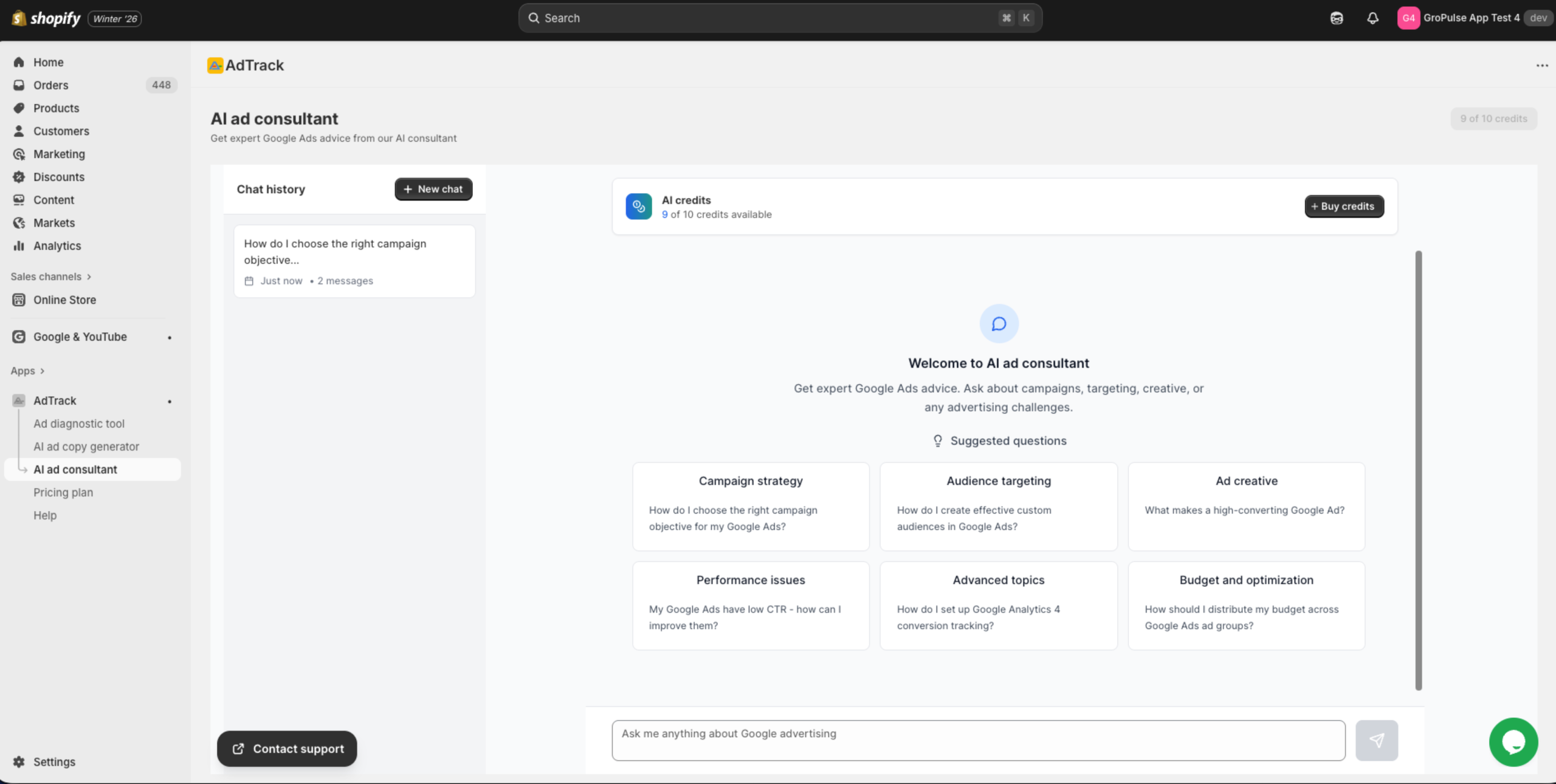
To use a suggested question:
- Click on any suggested question card
- The question appears in the chat
- The AI responds with relevant advice
Asking Your Own Questions
- Click in the chat input field at the bottom
- Type your question
- Press Enter or click the send button
- Wait for the AI response
Understanding AI Credits
Credit Usage
- Each question uses AI credits
- Credits are shared with other AI features
Viewing Credits
At the top of the page:
- Find the AI Credits display
- Shows remaining credits
Buying Additional Credits
- Click the Buy credits button
- Select a credit package
- Complete the purchase
Managing Conversations
Starting a New Chat
- Click the New chat button in the sidebar
- A fresh conversation starts
- Previous conversation is saved
Continuing a Previous Chat
- Look at the chat history in the sidebar
- Find the conversation you want to continue
- Click on it to load that chat
- Continue asking questions
Chat History Organization
Conversations are organized by:
- Date (most recent first)
- First message as preview
- Automatic saving after each message
Getting the Best Advice
Be Specific
Instead of: “How do I improve my ads?”
Ask: “I have a 2% CTR on my Search campaigns for running shoes. How can I improve this?”
Provide Context
Include relevant details:
- Your industry or product type
- Current performance metrics
- Budget constraints
- Goals you are trying to achieve
Follow Up
Continue the conversation:
- Ask clarifying questions
- Request specific examples
- Ask for step-by-step instructions
Tips for Effective Use
Do:
- Ask one clear question at a time
- Provide relevant context about your business
- Follow up for clarification
- Save useful responses for reference
- Return to discuss results
Avoid:
- Asking multiple unrelated questions at once
- Expecting the AI to access your actual account data
- Skipping implementation steps
- Ignoring follow-up recommendations
Credit Conservation
Efficient Credit Usage
- Ask comprehensive questions
- Combine related questions
- Save responses for future reference
- Use suggested questions when relevant
Last updated on February 17, 2026
Was this article helpful?
Powered by Support Genix