
This guide walks you through connecting your Google Ads account to AdTrack for automatic conversion tracking setup.
Overview
Connecting your Google Ads account allows AdTrack to:
- Automatically retrieve your Conversion ID
- Access your conversion actions for easy selection
- Pull performance data for reports (Pro plan)
- Enable AI-powered campaign diagnostics (Pro plan)
Prerequisites
Before connecting, ensure you have:
- A Google account with access to Google Ads
- At least one Google Ads account
- Permissions to manage conversion tracking in your Google Ads account
Step-by-Step Connection
Step 1: Access the Connection Page
- Open AdTrack from your Shopify admin
- Go to Account Setup from the navigation menu
- Click on the Configure button
- Locate the Google Account Connection section
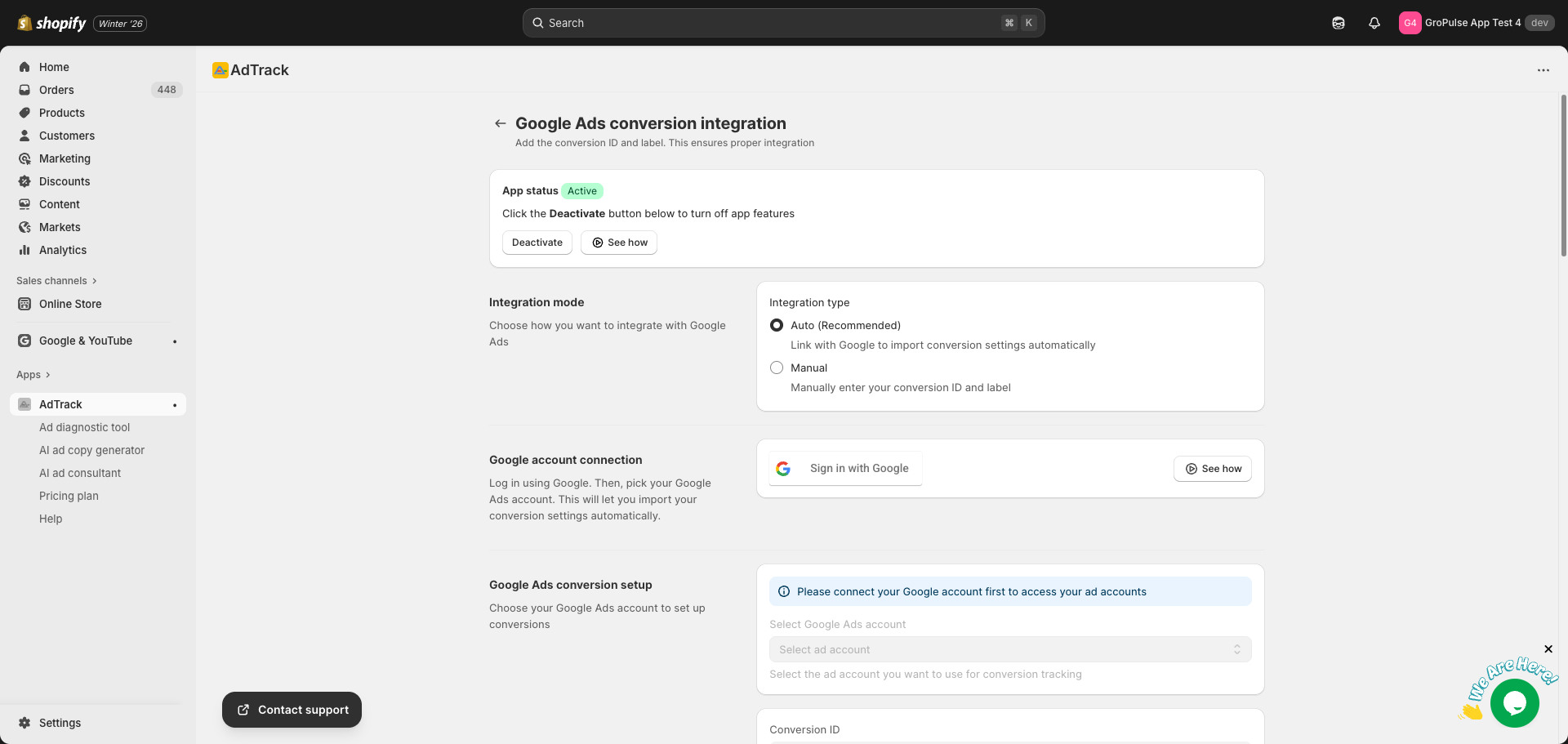
Step 2: Initiate the Connection
- Click the Sign in with Google button
- A new page will open for Google authentication
- If prompted, sign in to your Google account
Step 3: Grant Permissions
- Review the permissions AdTrack is requesting
- Click Allow to grant these permissions
Step 4: Confirm Connection
After granting permissions:
- You will be redirected back to AdTrack
- Your Google email address will be displayed
Selecting Your Ad Account
If you have multiple Google Ads accounts:
Step 1: Open the Ad Account Dropdown
- Look for the Ad Account dropdown below the connection section
- Click on the dropdown to see available accounts
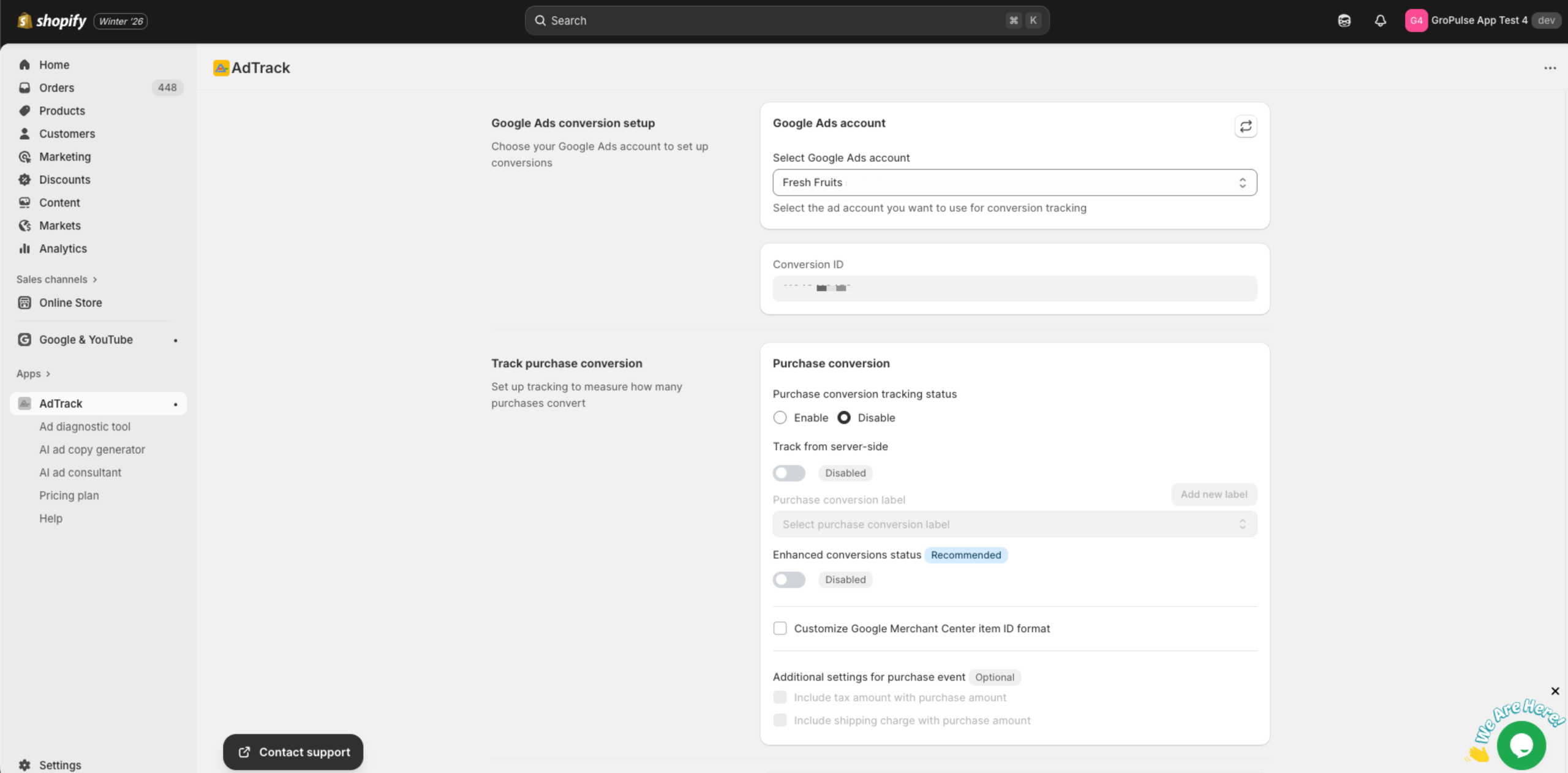
Step 2: Choose Your Account
- Select the Google Ads account you want to use for tracking
- The Conversion ID will automatically populate
- Conversion action labels will become available for selection
Understanding the Conversion ID
After selecting your ad account:
- The Conversion ID field will automatically populate
- This ID is read-only when using Auto mode
- It identifies your Google Ads account for tracking purposes
Verifying Connection on the Dashboard
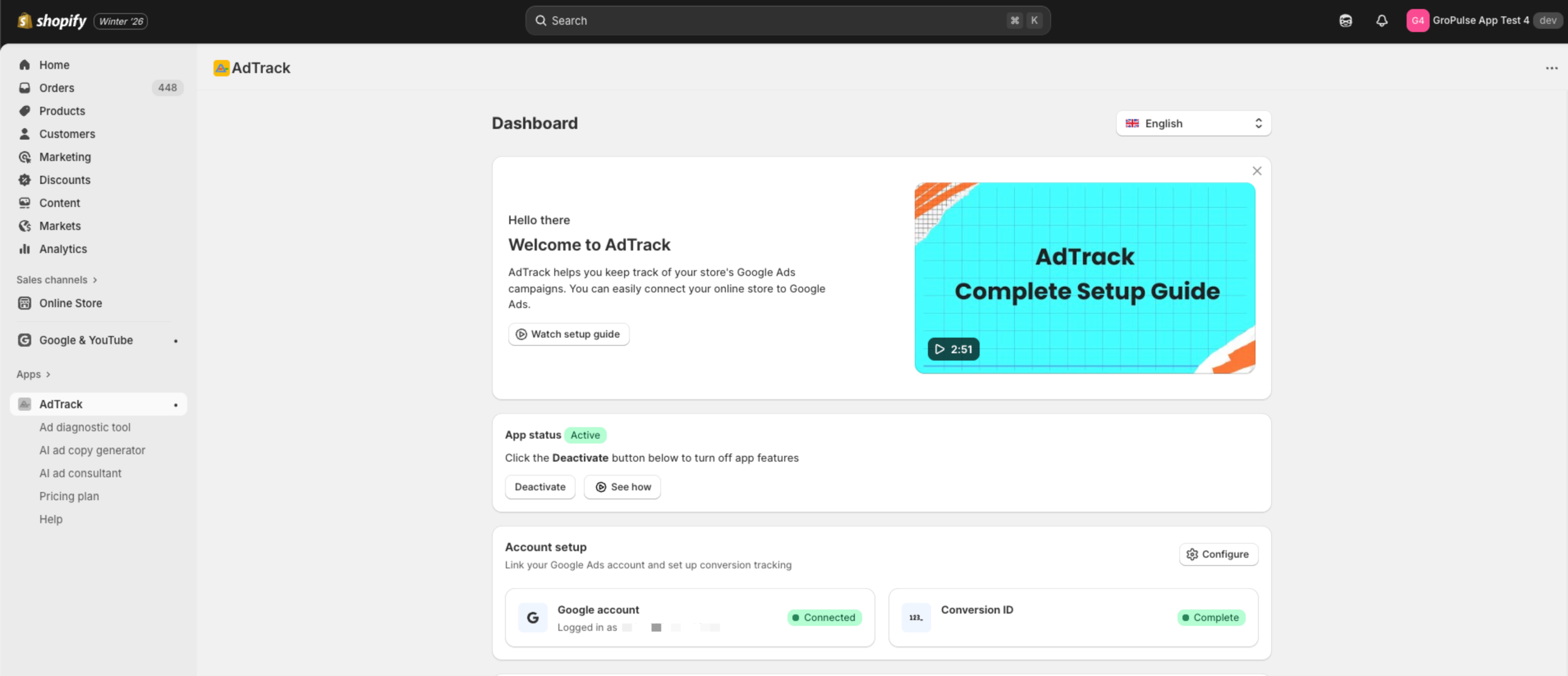
After connecting, verify your setup on the dashboard:
- Go to the Dashboard (home page)
- Find the Account Setup section
- Check for two indicators:
- Google Account: Should show “Connected” with your email
- Conversion ID: Should show “Complete” with your ID
Managing Your Connection
Viewing Connection Details
The Google Account Connection section displays:
- Your connected Google email address
- Options to logout or reconnect
Logging Out
To disconnect your Google account:
- Click the Logout button next to your email
- Confirm the logout when prompted
- Your conversion settings will be preserved, but you will need to reconnect to make changes
Reconnecting or Switching Accounts
To connect a different Google account:
- First, log out of the current account
- Click Connect Google Account
- Sign in with the new Google account
- Re-select your ad account from the dropdown
Integration Modes
AdTrack offers two integration modes:
Auto Mode (Recommended)
- Requires Google account connection
- Automatically retrieves conversion settings
- Provides dropdown selections for conversion labels
- Enables advanced features like reports and AI tools
Manual Mode
- Does not require Google account connection
- You enter Conversion ID and labels manually
- Best for users who cannot or prefer not to connect Google
To switch integration modes:
- Go to Conversion Tracking Setup
- Find the Integration Mode section at the top
- Select your preferred mode
- Save your changes
Last updated on February 17, 2026
Was this article helpful?
Powered by Support Genix